Guide to allowing third party cookies in 2026: Chrome, Safari & More
Published Mar 16, 202617 min read
In this article5 sections
You might be surprised to hear this, but knowing how to manage third-party cookies is still a vital skill, even as browsers are trying to get rid of them. To allow a third-party cookie, you usually have to jump into your browser's privacy settings and create an exception manually.
While browsers are phasing them out for general tracking, the reality is that many essential web applications still depend on them for authentication and other core features. Without them, some of your favorite tools simply won't work.
Why You Still Need to Manage Third Party Cookies
The web is slowly moving toward a "cookieless" future, but we're not there yet. Understanding how to handle third-party cookies has become a critical skill for keeping your workflow running smoothly. Browsers are increasingly blocking these cookies by default to protect your privacy, but this blanket approach can cause some major headaches.
Third-party cookies got a bad reputation because they were originally designed for advertising and tracking you across different websites. But the technology itself is also used for perfectly legitimate reasons that have nothing to do with ads. Many modern apps and integrations use them to confirm your identity when you move between different services.
The Impact on Your Daily Workflow
When your browser blocks all third-party cookies without any exceptions, you're bound to run into some frustrating problems. Certain tools need to talk to each other across different websites to confirm you're logged in and have the right permissions.
Here are a few real-world scenarios you’ve probably seen:
- Login Loops: You try to sign into a connected service, but it just keeps sending you back to the login page without ever actually logging you in.
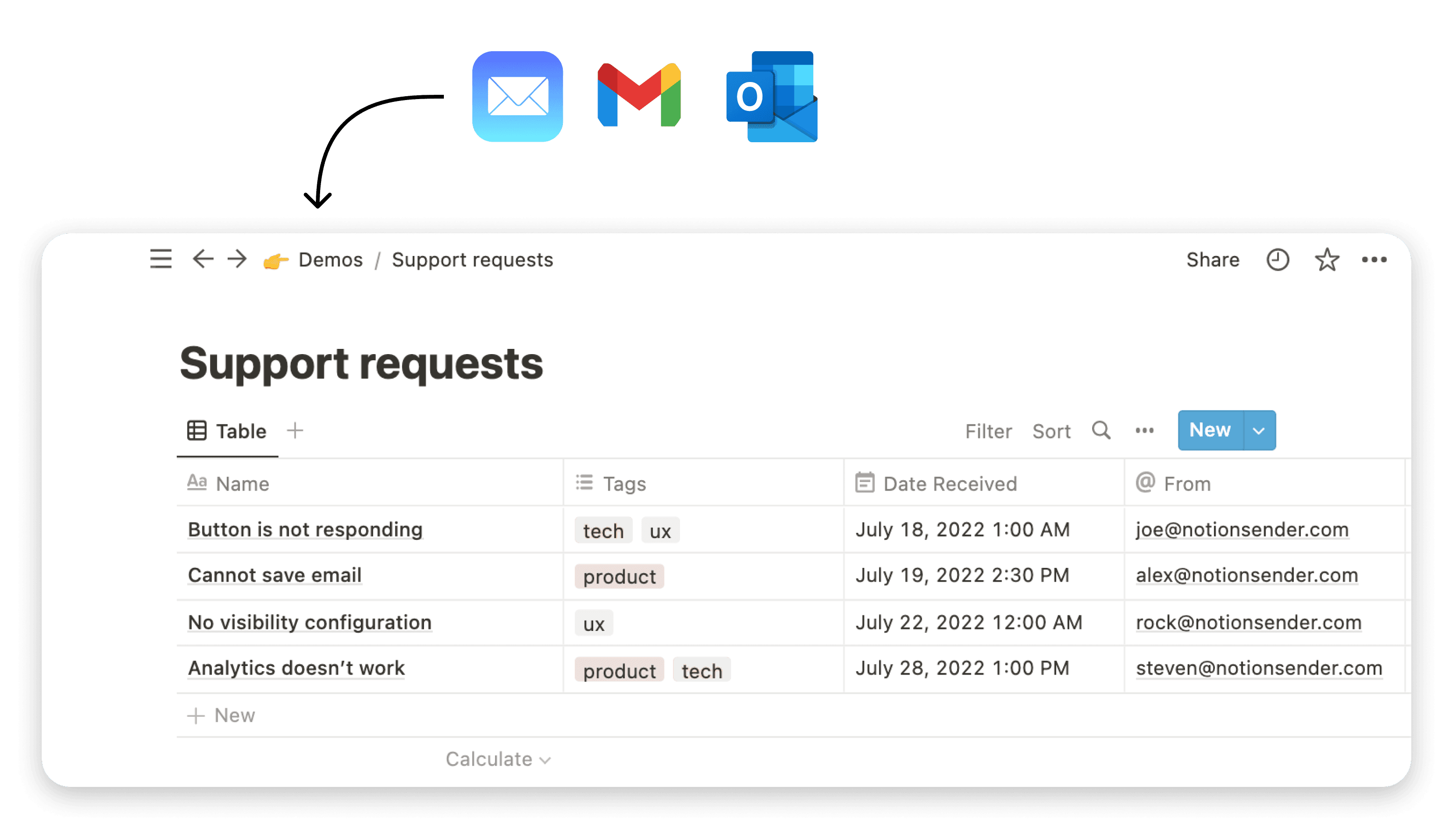
- Broken App Integrations: A tool like NotionSender, which links your email to your Notion workspace, might fail to save an email because it can't verify your session between Gmail and Notion.
- Embedded Content Fails to Load: You visit a page, but the embedded YouTube video, Stripe payment form, or customer support chat widget is just a blank box.
The goal for most of us isn't to enable all third-party cookies everywhere. It's about selectively allowing them for the trusted services you rely on. This surgical approach gives you the perfect balance of privacy and practicality.
From Ad Tracking to Essential Functionality
A good way to think about a third-party cookie is as a digital passport. In the old days, advertisers used this passport to follow you around the web. Now, it's more often used by applications to prove you are who you say you are when you go from a main platform (like Notion) to an add-on service (like NotionSender).
If the service can't check your "passport," it can't confirm your identity, and the connection breaks. This is exactly why learning to create specific exceptions for your trusted tools is more important than ever.
Managing Cookie Exceptions on Your Desktop Browser
Blocking all third-party cookies sounds like an easy privacy win. But what happens when that blanket ban breaks an essential tool you use every day, like NotionSender? Suddenly, that all-or-nothing approach feels less like a solution and more like a headache.
The answer isn’t to turn everything back on. Instead, you can get specific. Think of it like a VIP list for your browser—you keep the main door closed for privacy but grant access to a few trusted websites that you can’t work without. This gives you the best of both worlds: tight general security and fully functional apps.
It's a common scenario: you hit a wall because a feature is broken, feel the frustration, and then realize the fix is just a quick tweak in your cookie settings.
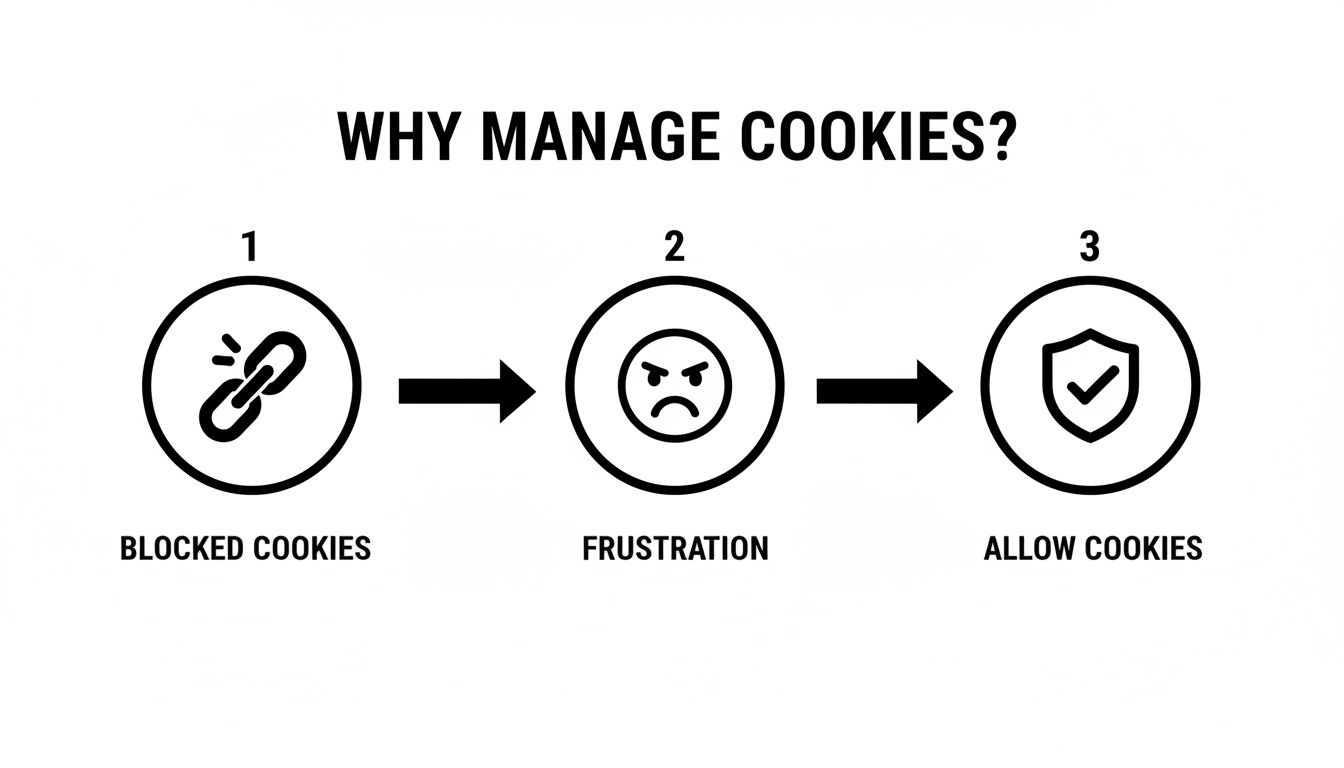
Let's walk through how to create these exceptions in the most popular browsers.
Creating Cookie Exceptions in Google Chrome
With its massive market share, Google Chrome offers a pretty straightforward way to manage these permissions. Instead of opening the floodgates, we’ll just add specific domains to an "allow" list. This is the perfect fix for tools that need cross-site data to function.
First, you’ll want to get into your Chrome settings. Just click the three-dot menu in the top-right corner and choose Settings.
From there, it’s just a few clicks:
- Find Privacy and security in the left-hand menu.
- Click on Site Settings.
- Scroll down and select Third-party cookies to get to the main controls.
This is where you'll find the option to Add sites to a list of domains that are always allowed to use third-party cookies.
Adding a Specific Site in Chrome
Once you're in the Third-party cookies menu, look for the "Customized behaviors" section. Here, you’ll see a heading for "Allowed to use third-party cookies."
Click the Add button next to it. A small window will pop up, asking for the site's address.
For example, to make sure an integration with your Notion workspace runs smoothly, you would type [*.]notion.so into the field. That [*.] part is a wildcard—it tells Chrome to trust all subdomains of notion.so, which is a common requirement for complex apps.
A Quick Tip: Sometimes one domain isn't enough. For a tool like NotionSender to work perfectly, you might need to add exceptions for both the app's domain and the main platform it connects to (like Notion). Check the tool's documentation if you're not sure.
How to Handle Exceptions in Firefox and Edge
The good news is that other browsers follow a very similar logic. The goal is always to create specific exceptions rather than lowering your overall security.
-
In Mozilla Firefox: Head to Settings > Privacy & Security. Under "Enhanced Tracking Protection," choose the Custom option. You’ll find a button labeled Manage Exceptions... right under the cookie settings, where you can add the sites you trust.
-
In Microsoft Edge: Go to Settings > Cookies and site permissions > Manage and delete cookies and site data. You'll find an "Allow" section with an Add button that works just like Chrome's.
No matter which browser you use, the principle is the same. You keep a strong, default privacy setting by blocking trackers across the web while carving out a few necessary permissions for the tools that keep you productive.
Third-Party Cookie Status by Major Browser in 2026
As we approach 2026, the browser landscape for third-party cookies is getting a major shake-up. Most browsers have already blocked them by default, and others are well on their way. Here’s a quick-reference table to see where things stand.
| Browser | Default Setting | Market Share Impact | User Action Required |
|---|---|---|---|
| Google Chrome | Blocked by default | High (over 65% market share) | Users must manually allow specific sites for functionality. |
| Mozilla Firefox | Blocked by default | Moderate (around 3% market share) | Total Cookie Protection is enabled; exceptions needed. |
| Microsoft Edge | Blocked by default | Moderate (over 5% market share) | Users need to add trusted sites to an "Allow" list. |
| Safari | Blocked by default | High (nearly 20% market share) | Intelligent Tracking Prevention (ITP) is active by default. |
This table highlights a clear trend: the responsibility for managing functionality now falls on you, the user. Understanding how to create these exceptions is no longer just a "pro tip"—it's becoming a necessary skill for balancing privacy with productivity.
Adjusting Cookie Permissions on Your Phone
We’ve all been there. You’re trying to get something done on your phone, maybe authenticating a new app, and it just... fails. Over and over. But when you switch to your laptop, it works perfectly on the first try. That kind of headache is a classic sign that your mobile browser's cookie settings are getting in the way.
Productivity shouldn't grind to a halt just because you're away from your desk. The tricky part is that cookie settings on mobile are often buried in different menus than they are on desktop. Let's dig in and sort this out for both iOS and Android.
Enabling Cookies on Safari for iOS
Apple is big on privacy, and Safari’s Intelligent Tracking Prevention (ITP) is a testament to that. It’s a powerful feature, but sometimes it's a little too aggressive, blocking the very cookies you need for an app integration to work.
If you’re running into trouble on your iPhone or iPad, the fix is in your main Settings app, not inside Safari itself.
- First, open the Settings app.
- Scroll down the list and find Safari.
- In the Safari menu, head down to the Privacy & Security section.
You’ll see a toggle for Prevent Cross-Site Tracking. If this switch is on, Safari is actively blocking most third-party cookies. Disabling it will often solve authentication issues instantly.
For example, when a tool like NotionSender needs you to re-authenticate on your iPhone, Safari’s tracking prevention can break the connection between the authentication window and your Notion account. The process just hangs. The quickest fix I’ve found is to briefly toggle "Prevent Cross-Site Tracking" off, complete the sign-in, and then turn it right back on.
This approach keeps your privacy settings intact most of the time while letting you get your work done when you need to.
Allowing Third Party Cookies on Chrome for Android
Like its desktop big brother, Chrome on Android gives you fine-grained control over your cookie settings. I find the best way to handle this isn't to turn off all protection, but to whitelist the specific services you trust.
If an integration is failing, pop open the Chrome app and tap the three-dot menu in the top-right corner.
From that menu, navigate your way here:
- Tap on Settings.
- Select Site settings.
- Then, tap into Cookies.
Here, you have the option to Block third-party cookies entirely. But a much smarter move is to leave that on and simply add an exception.
Tap + Add Site Exception and type in the domain of the app you're trying to use—for instance, [*.]notionsender.com. This tells Chrome to trust third-party cookies from that specific domain, which usually resolves the problem without exposing you to trackers all over the web. It's the best of both worlds.
Finding the Sweet Spot Between Privacy and Functionality
<iframe width="100%" style="aspect-ratio: 16 / 9;" src="https://www.youtube.com/embed/tQyKdIlMtDQ" frameborder="0" allow="autoplay; encrypted-media" allowfullscreen></iframe>
Let's be real: deciding whether to allow third-party cookies often feels like a dilemma. You're basically weighing the convenience of an app that just works against the nagging feeling that your data is being tracked across the web. It’s a classic trade-off.
The big privacy boogeyman here is cross-site tracking. This is when a company, usually an ad network, drops a cookie onto your browser from one website, then spots that same cookie when you visit other sites. Over time, they can piece together a pretty detailed picture of your online life. It's this kind of activity that led to regulations like GDPR stepping in to give us more control.
But here’s the thing—not all third-party cookies are out to spy on you. Many are just there to make things work. Think of them as a digital handshake between two services you’re using. For instance, that little support chat widget on a shopping site needs a third-party cookie to remember who you are as you click from page to page.
A Quick Mental Checklist for Cookies
So, how do you tell the good from the bad? It really comes down to trust and context. Before you add a website to your "allow" list, it helps to run through a few quick questions in your head.
- Do I trust this company? Is it a major, reputable service like Notion or Google, or some random site you’ve never heard of? Well-known companies usually have more to lose and tend to be more upfront about their data practices.
- What’s this cookie even for? Is it mission-critical for an integration to work, or is it just trying to serve you ads? If you need it for a core function, the risk is often worth the reward.
- Can I easily find their privacy policy? Legitimate services will always have a policy explaining what they collect and why. A quick search can tell you a lot about how seriously they take user privacy.
This simple thought process helps you get away from the all-or-nothing mindset. You can start making smart, case-by-case choices that keep your essential tools running without throwing your privacy out the window.
The goal is to grant trust on your own terms. By selectively allowing cookies only for the services you actively use and rely on, you stay in the driver's seat of your digital footprint. You're not blindly accepting every tracker; you're making a calculated decision for functionality.
Getting a handle on third-party cookies is a massive step in taking control of your online world. If you want to dive deeper into digital security, you can learn more about how to protect your privacy online. This kind of knowledge is key to using the web to its full potential while keeping your personal data safe.
When an integration suddenly breaks or a web app starts acting up, a pesky cookie setting is often the silent offender. It's one of those things that can be maddening—you’re sure you’ve fixed it by allowing third-party cookies, yet the problem won't go away.
We’ve all been there, asking ourselves, "Why do I keep getting logged out?" or "The app says cookies are disabled, but I just enabled them!" Before you throw your laptop out the window, let's run through a quick diagnostic to figure out what’s really going on.

A Quick Diagnostic Checklist
When a cookie error just won't quit, resist the urge to dive back into the main browser settings again and again. Instead, take a more methodical approach and work through these specific checks. This can save you a ton of guesswork.
-
Look for conflicting browser extensions. Privacy-focused extensions are fantastic, but many ad blockers and anti-tracking tools can aggressively override your browser’s default cookie settings. Try disabling them one by one to see if a specific extension is causing the conflict.
-
Clear the cache for just one site. Sometimes the issue isn't the setting itself but old, corrupted cookie data that's stuck in your browser. Rather than nuking your entire cache, you can clear it just for the website giving you trouble. In Chrome, this is under Settings > Privacy and security > Site Settings > View permissions and data stored across sites. Just search for the site and clear its data.
-
Make sure you’ve allowed the right domains. This is a surprisingly common oversight. For an integration like NotionSender to work correctly, you often need to allow cookies from more than one domain. You might have whitelisted
notionsender.com, but the authentication process may also need access tonotion.soto function.
Here's a pro tip I've picked up from countless hours of debugging: when you're really stuck, open your browser's developer console (usually with the F12 key). The "Console" tab often spits out error messages that will explicitly name the domain being blocked, telling you exactly which site to add to your exceptions list.
Solving Persistent Login Loops
One of the most frustrating cookie-related bugs is the dreaded "login loop," where a service keeps kicking you back to the sign-in page. This almost always happens because an authentication cookie from one domain isn't being passed correctly to another.
Let's say you're trying to connect your Gmail to Notion. The login prompt likely comes from a Google domain, which then needs to hand off a successful login "token" back to NotionSender's domain. If third-party cookies are blocked anywhere in that chain, the loop begins.
The fix is usually to add all the involved domains to your browser’s "Allowed" list. For a tool connecting Gmail and Notion, you’d probably need to add:
[*.]notion.so[*.]google.com[*.]notionsender.com
By methodically checking your extensions, clearing targeted site data, and confirming you've whitelisted all the right domains, you can solve nearly any cookie-related error and get your tools talking to each other again.
Preparing for a Cookieless Digital Future
Let's face it, the end of third-party cookies is shaking up the internet in a big way. For anyone in business or marketing, this isn't some minor technical tweak. It fundamentally changes how we find and talk to people online. The old days of tracking users across different websites are over, and we need to adapt.
This means we have to stop "borrowing" data from other platforms and start building our own collections. The real advantage now lies in gathering your own customer information directly. This is where first-party data becomes your most important marketing asset.
The Rise of First-Party Data
So, what is first-party data? It's simply the information you collect straight from your audience with their permission. Think email addresses from your newsletter form, purchase histories from your shop, or feedback from a survey.
Unlike the murky world of third-party data, this information is accurate, relevant to your business, and belongs only to you. As we move into this new cookieless phase of the web, learning what is first-party data and using it well is key to keeping customers engaged. It’s about building real relationships instead of just following people around with trackers.
By focusing on first-party data, you're not just getting ready for a change; you're building a more reliable and trust-based way to do business. Your audience data turns into a private, powerful asset that you have complete control over.
This is exactly why tools that help you organize your own customer interactions are becoming so critical. For instance, a system that connects your emails directly to a customer database—like how NotionSender integrates with your Notion workspace—turns scattered chats into a clean, actionable dataset. Every email you save is another piece of valuable first-party data you can use to serve your audience better.
What Comes After Cookies
While building a first-party data strategy is the best long-term play, browser companies are also rolling out new tech to fill the gap. The biggest one on the horizon is Google's Privacy Sandbox.
The Privacy Sandbox is essentially a set of tools (APIs) built to support advertising and analytics without individually tracking people across the web. The goal is to let businesses reach the right audiences while giving users more privacy.
Here are a few of the key ideas coming out of the Privacy Sandbox:
-
Topics API: Your browser notes general interests (like "Fitness" or "Travel") based on your recent activity. It can then share these broad topics with websites for advertising, but without revealing exactly which sites you visited.
-
Protected Audience API (PAAPI): This is the new way to do remarketing—showing ads to people who've visited your site before. The magic here is that the ad auction happens right on the user's device, so advertisers can't follow them around the web.
-
Attribution Reporting API: This helps measure when an ad click actually leads to a conversion (like a purchase), all without using cross-site trackers to connect the dots.
These technologies are still being fine-tuned, but they show a clear path forward. The future isn't about tracking individuals anymore. It's about understanding audiences in broader groups, respecting privacy, and building direct relationships through data that people willingly share with you.
Ready to build your first-party data powerhouse? With NotionSender, you can save every important email directly to your Notion databases, turning your inbox into an organized, searchable asset. Start centralizing your customer communications today at https://www.notionsender.com.