How to Disconnect an App From Notion
Published Nov 7, 20262 min read
In this article4 sections
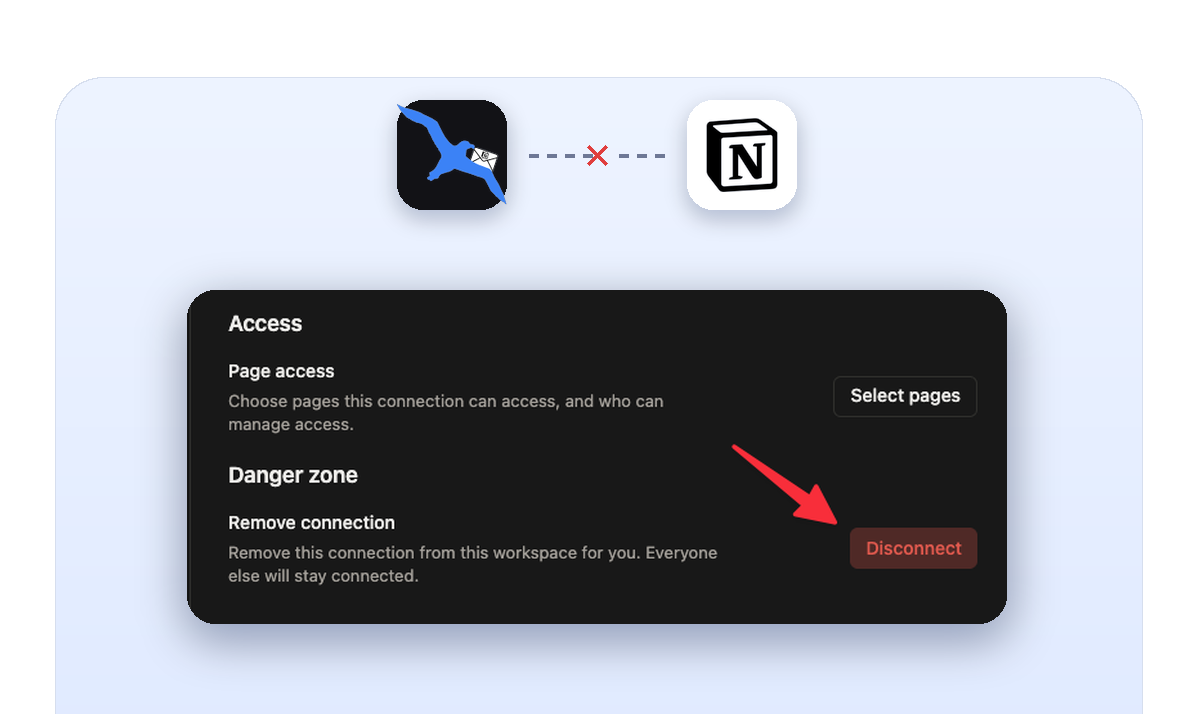
Over time, apps pile up in your Notion workspace. Some you tried once and forgot about. Some you just don't need anymore. And every one of them can still read your pages.
If you want to clean that up, it takes less than a minute. I'll use NotionSender as the example here, but the steps are the same for any app.
Step 1: Open Settings
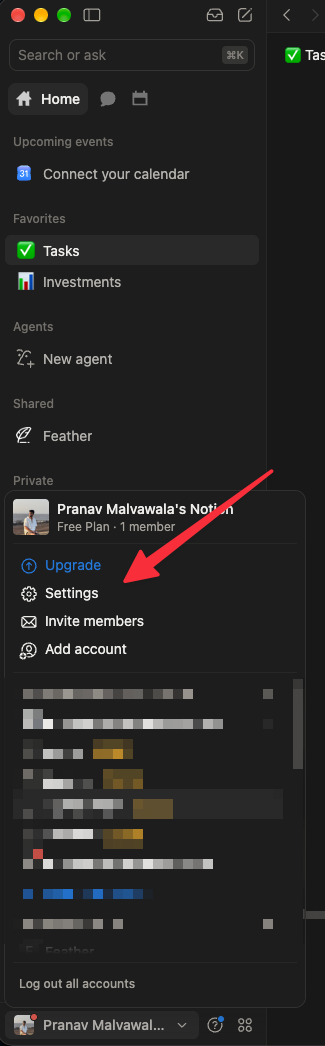
Click on your workspace name in the bottom left corner of Notion. A menu pops up. Click Settings.
Step 2: Go to Connections
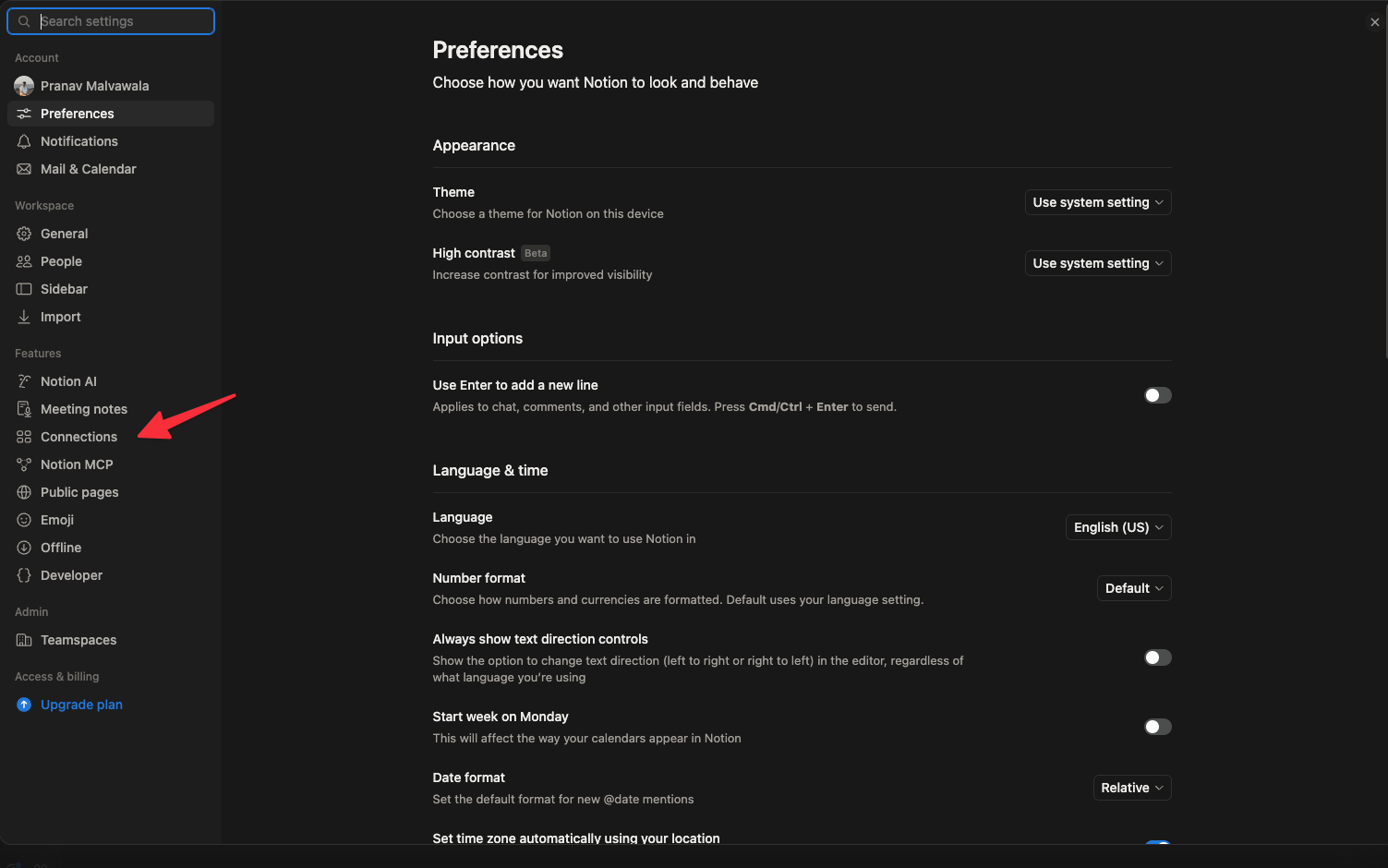
In the Settings popup, check the left sidebar. Under the Features section, click Connections.
Step 3: Open the Connected tab
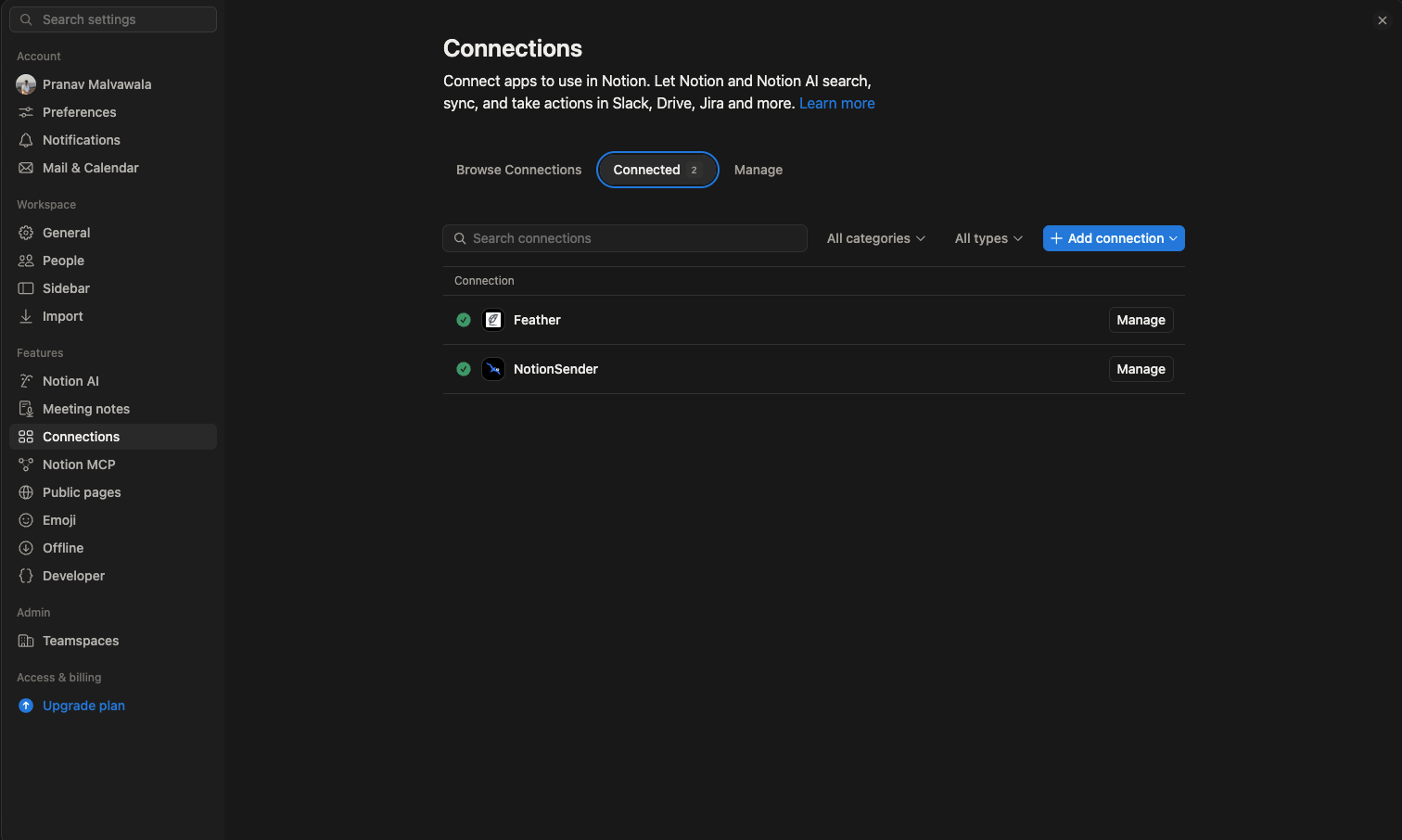
Switch to the Connected tab. This lists every app currently connected to your Notion workspace.
Worth a quick look even if you're not removing anything right now, just to see what has access to your stuff.
Step 4: Click Manage, then Disconnect
Find the app you want to remove and click Manage next to it. A popup opens with the app's details. Under Danger zone, hit Disconnect.
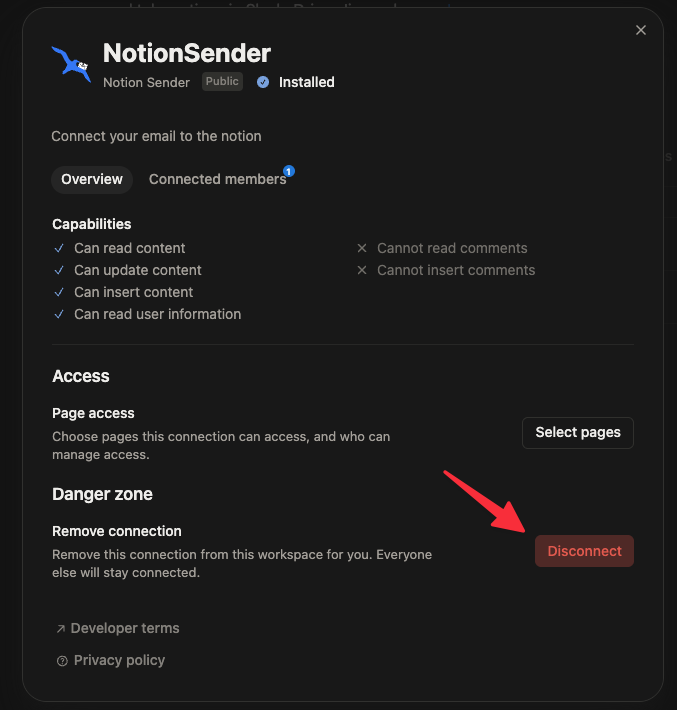
That's it. The app no longer has access to your workspace.
One thing to know: disconnecting only removes the connection for you. If other members in your workspace connected the same app, they stay connected.
And if you ever want an app back, you can reconnect it from the same Connections page.
If you're looking for a simple way to send and receive emails right inside Notion, give NotionSender a try.