Notion AI Review An Honest Look at Productivity
Published Apr 6, 202623 min read
In this article6 sections

So, let's get right to the big question: Is Notion AI actually worth the investment for your business in 2026?
The short answer is yes, but it really depends on how you work. If you're already using Notion as the hub for your notes, tasks, and projects, then Notion AI is a game-changer. It's an incredibly powerful add-on for freelancers and small teams who want to simplify their toolstack and cut down on repetitive tasks.
Is Notion AI Worth It for Your Business in 2026?

When you're deciding on a new tool, it’s not just about the features—it's about the practical value it brings to your specific workflow. If your goal is to bring AI assistance directly into your project management hub, then Notion AI is a fantastic choice.
It’s important to understand what it isn't. Notion AI isn't trying to be a specialized creative writer like Jasper or a coding guru like Claude.
Think of it as an intelligent assistant that lives inside your workspace. Its real power comes from context. It can instantly summarize your meeting notes, draft an email based on client data in your Notion CRM, or pull action items from a project brief—all without ever having to switch tabs. That seamless integration is where you'll find the real return on your investment.
Notion AI Quick Verdict Scorecard
To give you a clearer picture, we've put together a quick scorecard. This breaks down Notion AI's value for small businesses and freelancers, helping you see where it delivers and what to expect.
| Metric | Rating | Key Takeaway for Small Businesses |
|---|---|---|
| Ease of Adoption | ★★★★☆ | Incredibly easy to turn on if you're already in Notion. Basic commands are intuitive, but true mastery comes from building smart templates. |
| Potential ROI | ★★★★☆ | High, especially for teams all-in on Notion. Automating drafts, summaries, and data entry quickly translates into more billable hours. |
| Ideal User Profile | ★★★★★ | A perfect fit for freelancers, project managers, and small teams using Notion as their central "source of truth" for projects and knowledge. |
This scorecard shows that for its target audience, Notion AI hits all the right notes, offering a smooth transition and a clear path to getting your time back.
What the Data Shows
The user feedback backs this up. Notion AI has earned high praise, particularly from the people it was built for.
G2 data shows a 4.6 out of 5-star rating from thousands of users, with 90% satisfaction for ease of use among smaller teams. Even more telling, a remarkable 58% of users see a return on investment within just six months because it helps them consolidate their work and rely on fewer apps.
These numbers tell a clear story: Notion AI delivers immediate value for those looking to centralize their operations. A key reason is how simple it is to get started, with 83% of reviewers on G2's Notion analysis finding it straightforward for individual use. For larger teams, a bit more planning on workspace structure is needed to get the same results.
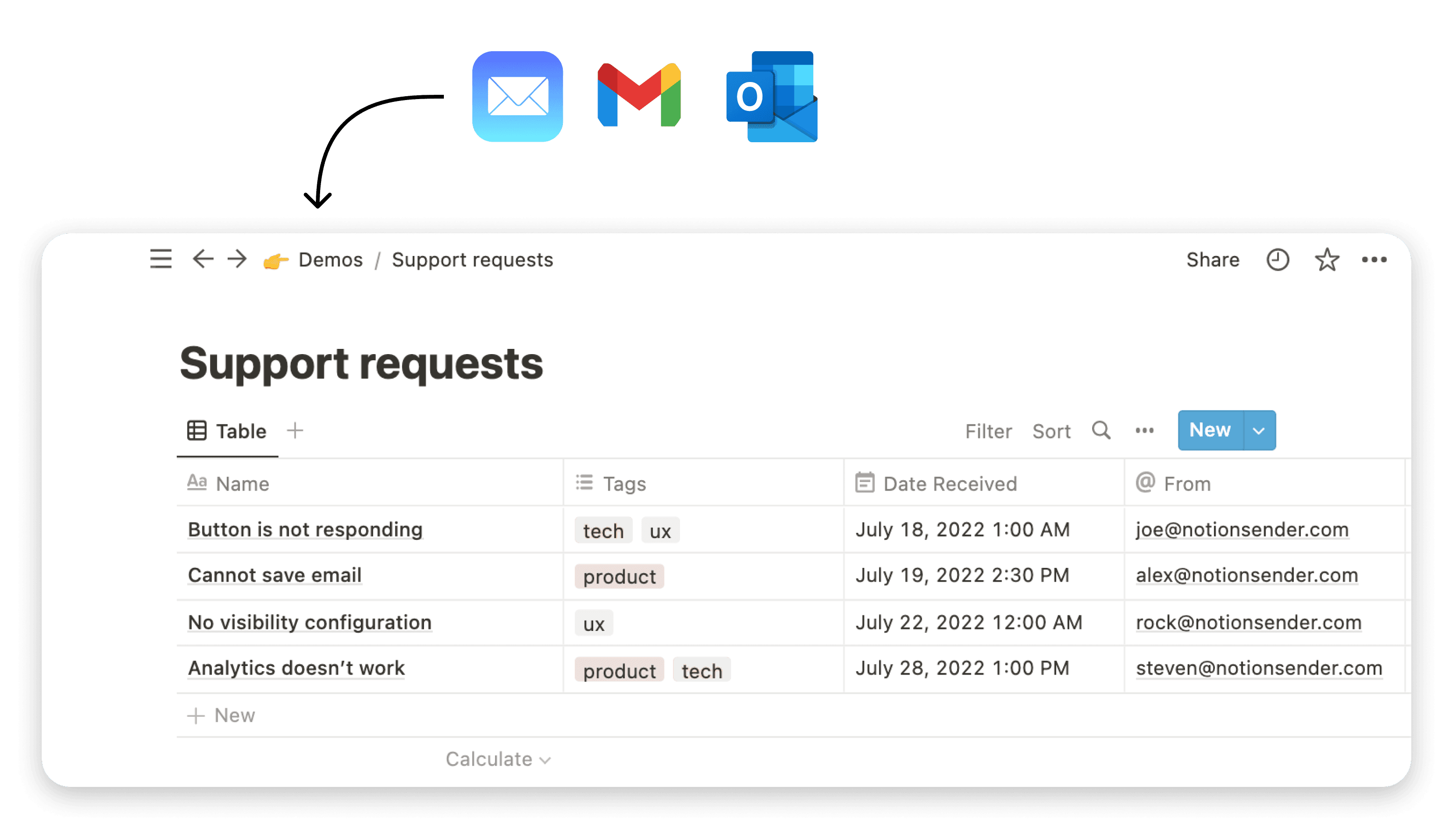
Ultimately, Notion AI shines brightest when you connect it to your other processes. For example, you can have it draft customer emails based on properties in a database and then use Notion to send emails with an integration like NotionSender. This creates a perfect loop from communication to action, all managed from one place.
So, what’s actually going on under the hood with Notion AI? Let’s get past the marketing-speak and dig into what it really does.
At its heart, Notion AI isn't just one tool. It's a collection of smart features woven directly into your Notion workspace. It feels less like a separate app you have to switch to and more like a helpful assistant who’s always there, right where you're already working.
Think of it like this: instead of a new hire you have to train from square one, Notion AI is like an apprentice who has already read all your notes, project plans, and meeting minutes. It gets the context. That’s because its real power comes from reading and processing the information you've already put into Notion.
This deep integration is the key difference. You aren’t just copying and pasting text into a generic AI chatbot. You’re highlighting your own work and telling the AI to do something useful with it.
The Main Tools in the Notion AI Toolkit
Notion AI gives you its power through three main functions. Each one is a specific tool designed for a specific job, and knowing how they work helps you see exactly where they can slot into your daily grind.
- AI Blocks: These are ready-made commands you can run on any text. Think of them like shortcuts for common tasks, like “Summarize,” “Find Action Items,” or “Improve Writing.” They take a messy block of text and instantly turn it into something clearer.
- AI Autofill: This is a lifesaver for anyone who manages databases. It’s like having someone who can automatically fill out table columns based on information from another column. For example, it can pull a summary from a long meeting note and drop it right into the “Summary” property of your projects table.
- Q&A: This might be the most powerful feature of all. It’s like a search bar for your entire workspace that actually understands what you’re asking. Instead of just finding keywords, Q&A comprehends plain English and pieces together answers from all your different pages and databases.
These three tools work together, understanding both the fine details on a single page and the big-picture context of your entire workspace.
From Messy Notes to Actionable Plans
Let’s walk through a real-world example. You’ve just wrapped up a long kickoff call with a new client, and your Notion page is a chaotic jumble of notes. This is where Notion AI proves its worth.
First, you highlight all those messy notes and select the “Find Action Items” AI Block. In seconds, it extracts every single task and deliverable, giving you a clean to-do list. Easy. Then, you use the “Summarize” block on those same notes to create a perfect, concise project overview.
Now, you can take that summary and use AI Autofill in your main "Projects" database. Just tell it to populate the "Project Brief" property, and it’s done. That one move saves you from the tedious copy-paste-reformat dance.
The real magic is how it all connects. Later, when you use the Q&A feature to ask, “What are the key deadlines for the new client project?” it doesn’t just search for the word “deadline.” It understands the context and gives you a direct answer pulled from the action items it helped you create earlier.
This whole process turns a 30-minute admin headache into a two-minute cleanup. This is the practical, day-to-day assistance that makes any Notion AI review so positive. It's all about saving you clicks and mental energy, one task at a time.
Real World Use Cases to Boost Productivity
Alright, a long list of features is one thing, but the real question is: how does Notion AI actually help you get more done? This is where the theory ends and we see what this tool can do in the real world. For me, this is where it stops feeling like a neat add-on and starts acting like a true partner in my workspace.
At its core, the process is incredibly straightforward. You give it information, it works its magic, and it gives you back something useful.
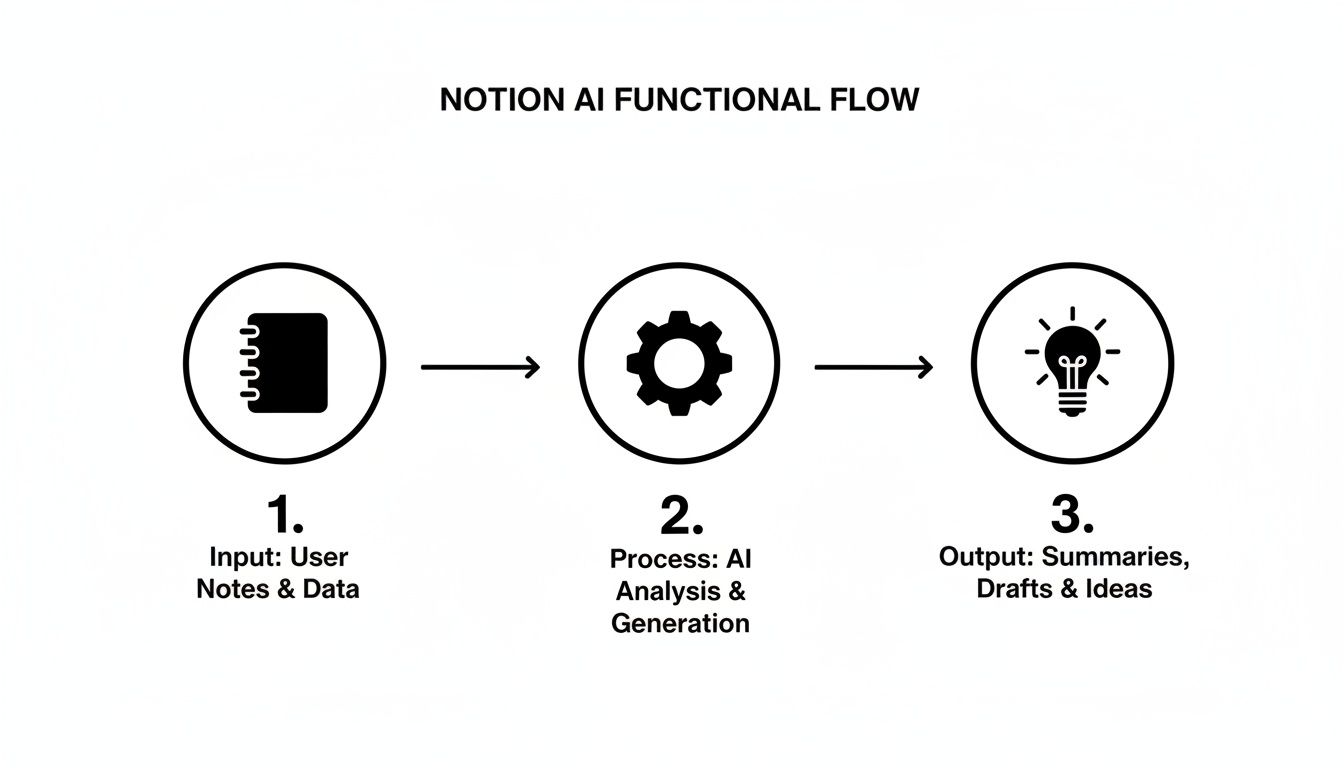
This simple input-process-output flow is the foundation for some seriously powerful workflows. Let’s look at a few ways real freelancers and small businesses are putting it to work.
For the Freelance Designer Drowning in Feedback
We’ve all been there. You’ve just sent off a new website mockup, and the feedback starts trickling in. Three long emails, a handful of Slack DMs, a few comments on the Figma file... it’s a mess. Instead of spending an hour just trying to organize the chaos, you can let Notion AI do the heavy lifting.
- Consolidate: Just copy and paste all that scattered feedback onto a single Notion page.
- Analyze: Highlight the text and use the “Find Action Items” command. Notion AI will instantly pull out every single change request.
- Categorize: Now, ask it something specific like, "Categorize these action items into 'Design Changes,' 'Copy Edits,' and 'Questions for Client'."
- Organize: The AI will generate clean lists. All you have to do is drag those lists into your project’s Kanban board, and poof—you have a perfectly structured task list.
What used to be a frustrating hour of admin work is now a five-minute job. That frees you up to get back to the actual design work you love.
For the Small Marketing Agency Planning Content
Imagine you’re a small agency trying to map out a month’s worth of content from a single campaign brief. This is a perfect job for Notion AI.
Feed it a document with the target audience, key messages, and campaign goals, and watch it go.
- Blog Post Outlines: Generate structured outlines for a series of articles.
- Social Media Calendars: Ask it to create a table with post ideas, captions, and relevant hashtags for Instagram and LinkedIn.
- Email Newsletter Drafts: Get a head start by producing first drafts for your weekly customer newsletters, all tied to the campaign theme.
The ability to generate solid first drafts is a massive time-saver. And as you get better with your prompts, the results get even more dialed in. If you want to really optimize your workspace for this, check out these 10 tips to help you get the most out of Notion.
Creating a Seamless Sales CRM with NotionSender
The most powerful workflows happen when you start connecting Notion AI to your other tools. If you're managing leads and sales, linking your inbox directly to Notion is a total game-changer. This is exactly where a tool like NotionSender comes in, helping you build a fully automated command center.
Picture this workflow:
- Lead Capture: A new lead sends you an email. With NotionSender, that email automatically lands as a new entry in your "Sales CRM" database in Notion.
- AI Summary: An automation kicks in. Notion AI reads the email and fills out a "Summary" property with the client's main request.
- Draft Response: Using the summary and other info in your database (like where the lead came from), Notion AI drafts a personalized reply.
- Review and Send: You give the draft a quick once-over, make any small tweaks, and send it off without ever leaving Notion.
This process turns your inbox and Notion into one cohesive system. It’s a bit like having dedicated AI assistant chat features, but with the huge advantage of being built right into your project and client database. It’s what helps Notion evolve from a static collection of notes into an active, intelligent part of your team.
Evaluating Notion AI Performance and Accuracy
When you bring an AI into your workspace, performance isn’t just a nice-to-have feature—it’s everything. A tool that’s slow or consistently misses the mark will just get in your way.
So, how does Notion AI actually hold up when you’re trying to get work done? The answer is a bit of a mixed bag: it's impressively fast but comes with some real limitations you need to understand.
For most of your daily grind—like summarizing meeting notes, brainstorming a few ideas, or drafting a quick email—Notion AI is surprisingly fast. You’ll usually see a response in 2-4 seconds, which is quick enough that it feels like part of your natural workflow instead of an annoying pause.
But speed is only half the story. The real question for any AI tool is about its intelligence and accuracy. Does it actually get what you're asking for?
Assessing Content Quality and Relevance
The quality of what you get out of Notion AI is directly tied to the quality of what you put in. It’s less of a magic wand and more like a very capable, very fast junior assistant. It needs clear instructions to give you its best work.
When you ask it to summarize a well-structured document or pull action items from a clean set of notes, the accuracy is fantastic. It’s great at spotting key takeaways and action-oriented phrasing.
But when it comes to creativity and relevance, things can get a little inconsistent.
- For Brainstorming: It's a lifesaver for breaking through writer's block. It can generate a ton of ideas in seconds, giving you something to work with.
- For First Drafts: It produces a solid starting point for blog posts or emails. The content might be a little generic, but it’s a great way to get past the blank page.
- For Specialized Topics: This is where you'll see it struggle. Without deep domain knowledge, its writing on highly technical or niche subjects can feel superficial or, in some cases, just plain wrong.
The key thing to remember is that Notion AI's first attempt is a starting point, not a final product. One engineer described their experience with a similar AI, noting that the first pass often has a "95% garbage rate." That sounds harsh, but it helps set realistic expectations. The real value is in the rapid iteration that comes next.
Understanding Context and Its Limitations
One of the biggest frustrations you might encounter with Notion AI is its limited "memory." It can search your entire workspace to answer a direct question, but it doesn't learn from your edits or feedback over time. If you correct something it wrote, it won't remember that correction for the next time.
This lack of persistent memory means you’ll probably find yourself giving the same instructions over and over. The best way to get around this is to build incredibly detailed AI prompts and templates that give the AI all the context it needs, every single time.
Notion is a productivity giant, and its AI features have been a massive part of its recent growth. Projections show it could hit 100 million users by 2026, with millions already giving the AI a try.
And yet, one analysis found that 90% of businesses underuse it, tapping into only about 20% of its potential. This means tons of freelancers and small businesses are missing out on some incredible efficiency gains. You can dive into more fascinating Notion stats and see how others are making it work for them.
Ultimately, Notion AI is at its best when you treat it like a collaborator. It’s fantastic for speeding up tasks you already know how to do, but it’s not going to replace your own expertise and critical thinking. Set your expectations right, and you'll find it's a powerful addition to your workflow.
Notion AI: Pricing, Privacy, and Key Alternatives

Beyond all the bells and whistles, two questions always come up when you’re thinking about adding a new tool to your stack: What does it cost, and can I trust it with my data?
Let's cut through the noise and get straight to the practical side of things. We’ll break down Notion AI's pricing, dig into their privacy policy, and see how it holds up against the other big names in the AI space.
How Much Does Notion AI Cost?
Notion keeps things refreshingly simple here. Instead of a complicated, tiered system, Notion AI is a straightforward add-on to any existing Notion plan—even the free one.
The price is $10 per member, per month. If you’re ready to commit for the year, paying annually drops that price to $8 per member, per month.
This single fee gives you unlimited access to every AI feature. That includes Autofill in your databases, the workspace-wide Q&A, and all the AI writing and editing tools. No surprise fees or usage caps to worry about.
Let's Talk About Privacy
When an AI has the keys to your entire workspace—from sensitive client info to your team's secret brainstorming docs—privacy isn't just a feature, it's a necessity. You need to know exactly how your data is being handled.
Notion has been pretty direct about its privacy stance for Notion AI. Here’s a plain-English summary of their policy:
- Your Data Doesn't Train Their AI: This is the big one. Notion promises not to use your content to train its AI models unless you give them explicit permission. Your private information stays private and doesn't get absorbed into a global brain.
- Data Processing is Limited: Your data is sent to Notion's partners (like OpenAI) only to generate the AI responses you ask for. Strict contracts are in place to make sure that data isn't used for anything else.
- Security is Standard: Your information is encrypted, both when it's sitting on a server (at rest) and when it's moving between you and Notion (in transit).
The bottom line is this: while third-party models process your requests to give you an answer, your data isn't being used to teach those models. You own your data, and Notion just uses it to make the AI work for you.
For anyone considering this tool, this policy is a huge green flag and a critical part of any honest Notion AI review.
How Notion AI Stacks Up Against the Competition
Notion AI isn’t the only game in town. The world of AI tools is packed, and the biggest decision you'll face is whether you want an all-in-one, integrated assistant or a specialized, standalone tool.
When you're weighing your options, seeing how different tools approach the same problems is incredibly helpful. For example, a detailed Jasper AI review shows how a tool built specifically for marketing content differs from an all-purpose assistant.
To make it clearer, here’s a strategic look at where Notion AI fits in.
Notion AI vs Key Alternatives
The choice between these tools isn't about which one is "best," but which one best fits your specific workflow. Do you need an AI that lives where your work lives, or do you need a specialist for a particular task?
| Tool | Best For | Primary Limitation |
|---|---|---|
| Notion AI | Teams who need AI deeply embedded within their existing project management and knowledge base. Its strength is context. | Outputs can be generic for highly creative or technical tasks compared to specialized tools. |
| ChatGPT | General-purpose brainstorming, quick answers, and generating a wide variety of content. It’s a versatile digital Swiss Army knife. | It lacks direct integration with your private documents and data, requiring constant copy-pasting. |
| Microsoft Copilot | Users heavily invested in the Microsoft 365 ecosystem (Word, Excel, Teams). It excels at summarizing meetings and documents within that world. | It's less effective if your workflow isn't centered on Microsoft products and can be more expensive. |
| Jasper | Marketing teams and content creators who need high-quality, brand-aligned copy at scale. It offers advanced templates and workflows for marketing. | It’s a specialized, and therefore more expensive, tool focused almost exclusively on content creation. |
Ultimately, it comes down to friction. If your biggest headache is constantly switching between your Notion workspace and a separate AI tool, then Notion AI is a no-brainer. But if you need top-tier performance for one specific job, like writing marketing copy or generating code, then a dedicated tool might still be the smarter move.
Our Final Verdict and How to Get Started
<iframe width="100%" style="aspect-ratio: 16 / 9;" src="https://www.youtube.com/embed/Y5FvtQomPh8" frameborder="0" allow="autoplay; encrypted-media" allowfullscreen></iframe>
So, what's the real story with Notion AI? After putting it through its paces, our take is pretty clear.
If you already live and breathe Notion, then Notion AI feels less like an optional add-on and more like a natural extension of your workspace. For teams with projects, notes, and wikis all neatly organized in Notion, it’s the key to unlocking a whole new gear of productivity.
Think of it as an assistant that’s always looking over your shoulder, ready to help. Its magic isn't about writing a prize-winning novel from scratch. Instead, it shines by speeding up the everyday tasks you're already doing—summarizing long documents, pulling action items from meeting notes, and drafting quick outlines.
That said, if your main goal is to generate high-end marketing copy or you don't use Notion for your day-to-day work, you'll probably be happier with a specialized tool like Jasper or ChatGPT. Notion AI is built for the organizers and integrators who want to make their existing workflows smarter, not replace them.
A Simple Plan to Get Started
Ready to give it a shot? The best approach is to start small. Don't try to automate your entire life on day one. Here’s a simple, three-step plan to ease Notion AI into your routine and see some real results.
-
Start Small with One Task Pick one repetitive task you do every week. Summarizing meeting notes is a perfect candidate. The next time you wrap up a call, just highlight your messy notes and ask Notion AI to "Summarize" or "Find Action Items." This one move can instantly give you back 15-20 minutes.
-
Build Smart Templates One of the biggest frustrations with any AI is that it doesn’t remember your preferences. The fix? You need to give it clear instructions every single time. Get around this by creating templates in your Notion databases with pre-written AI prompts. For instance, a "New Blog Post" template could have an AI block that’s already set to "Write a five-point outline based on the title above," including your preferred tone and format.
-
Connect Your Tools and Automate This is where things get really interesting. When you connect Notion to the other apps you use, it starts to feel like a true command center. A great starting point is integrating your email. A tool like NotionSender can automatically save client emails to a database. From there, Notion AI can step in to summarize the message and even help you draft a reply. You can get started with your own powerful automations and see how it all clicks together.
Following this path transforms Notion AI from a neat feature into a core part of your productivity engine. It's about making small, consistent changes that lead to significant time savings.
Frequently Asked Questions About Notion AI
As you get to grips with Notion AI, a few questions almost always pop up. Let's tackle some of the most common ones we hear from freelancers and small businesses trying to figure out if it's the right fit.
We’ll cover the big topics: data security, how quickly you can get started, and exactly how the AI interacts with the information you’ve stored in your workspace.
Can Notion AI Access My Entire Workspace?
This is a great question, and the answer isn't a simple yes or no. It really depends on which AI feature you're using.
The Q&A feature is the only tool designed to look across your entire workspace. When you ask it something, it can pull information from any page or database you have access to, stitching together answers from different spots. It’s perfect for finding that one bit of info you know is somewhere.
On the other hand, the other AI tools—like AI Blocks (Summarize, Improve Writing) and AI Autofill—are much more focused. They only work on the specific content you point them to. They’ll only process the text you highlight or the database they're running in, and they won’t go digging around for information elsewhere.
How Secure Is My Data with Notion AI?
Data security is a huge deal, and for good reason. Notion has been very clear that your data is not used to train their AI models without you explicitly saying it's okay. Your confidential client notes and internal business plans won't suddenly become part of a global AI's knowledge base.
When you ask the AI to do something, your data is sent to one of Notion's AI partners (like OpenAI) to generate the response. This happens under strict contracts that prevent them from using your data for anything else. Plus, all your information is encrypted both when it’s stored and when it's being sent, which is standard practice for modern security.
The key takeaway is that you always own your data. While third-party models process your requests, your information is firewalled and won't be used to train those models for other customers.
What Is the Learning Curve Like for Beginners?
If you're already comfortable inside Notion, the learning curve is incredibly gentle. You can start using basic commands like summarizing a long meeting doc or improving the tone of an email with just a couple of clicks. You'll see the value almost immediately.
True mastery, though, comes from learning how to write really effective prompts and building out smart templates. This is where you go from simple, one-off commands to creating powerful, automated workflows that save you hours. Getting to that point takes a bit more practice and a willingness to just tinker around.
Here’s a quick breakdown of what to expect:
- Basic Use: (Summarizing, brainstorming) - You can get the hang of this in under 10 minutes.
- Intermediate Use: (Using AI Autofill in databases) - This might take a few hours of playing around to get the properties just right.
- Advanced Use: (Building custom prompts and complex templates) - This is more of an ongoing process. You'll keep refining your prompts as you discover what works best for your specific tasks.
Does Notion AI Learn from My Edits?
No, it doesn't, and this is a critical point to understand. Notion AI has no long-term memory of your individual interactions. If you fix a mistake it made or tweak the text it generated, it won't remember that feedback for the next time you ask it to do something.
This is exactly why creating detailed templates with your best pre-written prompts is so important for getting consistent, high-quality results. You have to give the AI the full context and all your instructions every single time.
Think of it less like a senior team member who learns on the job and more like a very capable intern who needs a fresh, clear set of instructions for every single task you give them.
Ready to bridge the gap between your inbox and your projects? With NotionSender, you can automate your email management and bring all your communications directly into your Notion workspace. Start building smarter workflows today.