Build a Notion Content Calendar That Works for You

A Notion content calendar is, at its core, a dynamic database you build right inside Notion to plan, manage, and track your entire content workflow. It’s designed to replace static spreadsheets with an interactive system that pulls your ideas, drafts, approvals, and publishing schedules into one central hub.
Why a Notion Content Calendar Beats Spreadsheets
If you've ever tried to manage a content pipeline, you know the chaos. You're juggling version control issues in shared docs, sifting through endless email chains for feedback, and staring at a Trello board that never quite syncs up with your actual drafts. It's a scattered approach that creates friction, slows everyone down, and makes getting a clear overview of your content strategy feel impossible.
Lots of us start out by building a content calendar in Excel, and honestly, it’s a good first step. But you quickly hit a wall. A spreadsheet is just a grid of cells; it can hold dates and text, but it can't truly connect your workflow. It’s a static planner, not an operational hub.
From Static Grids to a Dynamic Workspace
This is where a Notion content calendar changes the game. It’s not just a place to list blog post titles and publish dates. It’s a living database where every single entry—be it a blog post, a tweet, or a newsletter—is its own mini-project workspace.
You can attach drafts directly to the entry, link out to research, assign tasks to team members, and visually track its status from "Idea" all the way to "Published." This completely transforms a simple calendar into your team's command center.
This dynamic, all-in-one approach is exactly why Notion has exploded in popularity. It started as a humble note-taking app but has since become a go-to operations tool for countless teams, with content calendars being one of its most powerful use cases.
The real magic is its ability to visualize the same data in multiple ways. You can see your schedule on a calendar, track progress on a kanban board, and dive into the nitty-gritty details in a table view. This flexibility is a key reason project managers and marketing teams have flocked to it—one system serves both high-level strategy and day-to-day execution.
Here’s a great example of what this looks like in practice, with different elements of a content strategy pulled into one clean interface.
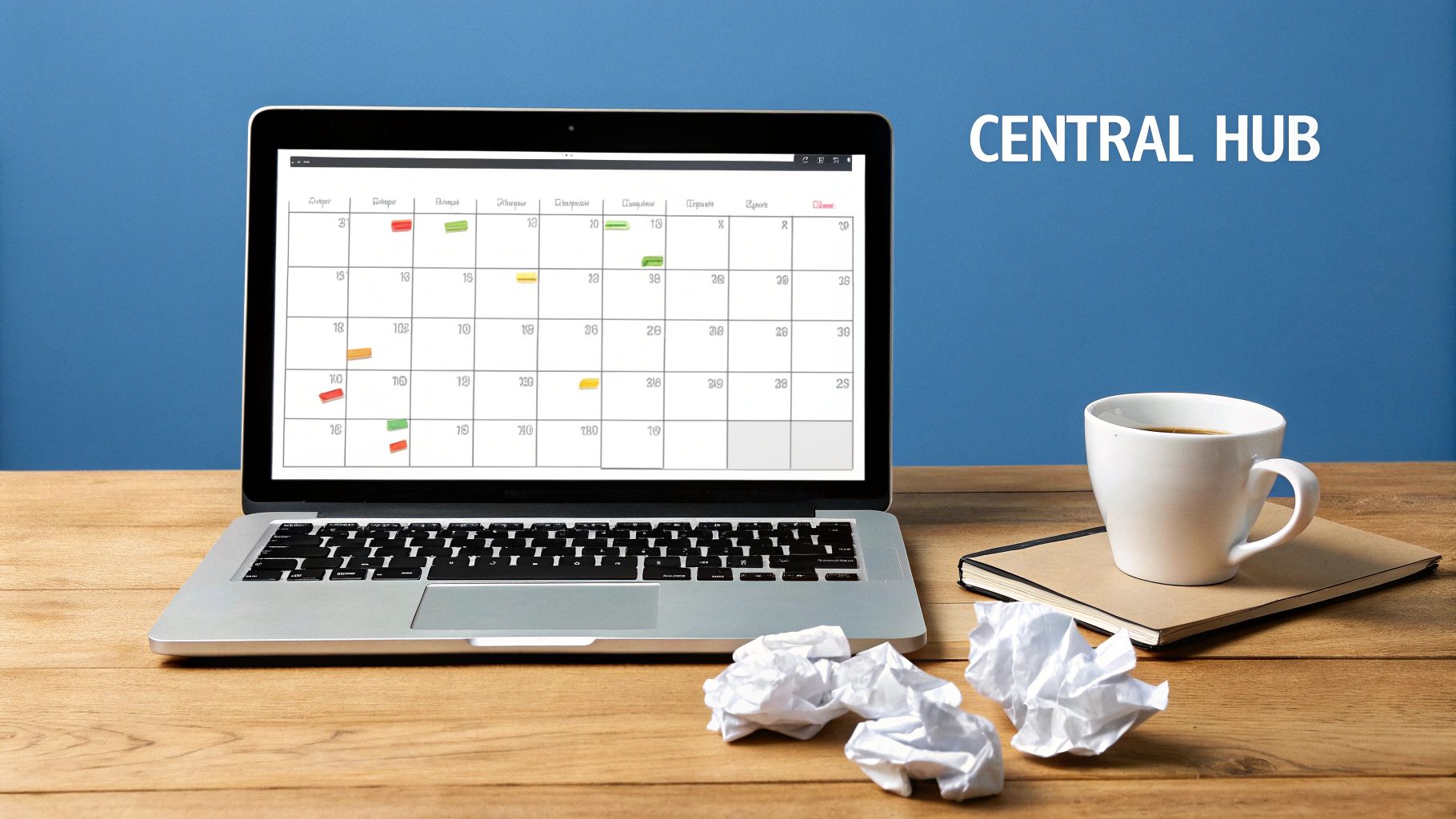
This kind of setup shows how your strategy docs, content databases, and team wikis can all live together, creating a true single source of truth for your entire operation.
Laying the Foundation of Your Content Database
<iframe width="100%" style="aspect-ratio: 16 / 9;" src="https://www.youtube.com/embed/WAjGg5ubA8I" frameborder="0" allow="autoplay; encrypted-media" allowfullscreen></iframe>
The real magic of a Notion content calendar isn't the flashy Kanban boards or the slick calendar views. It’s the database humming away underneath it all—that's the engine driving your entire workflow. Before you get to the fun stuff, you have to build a solid foundation.
This all starts with choosing the right properties. Think of each property as a specific piece of data you need to track for every single content idea. Don't just add them on a whim; every property should have a clear purpose. This strategic setup is what separates a truly functional, organized calendar from a cluttered mess that just creates more work.
Choosing Your Core Properties
Let's start by creating a new database right on your Notion page. Just type /database - inline and hit enter. The very first property, which is non-negotiable, is the Content Title. This is pretty self-explanatory—it’s where you'll put the working title for your blog post, social media update, or newsletter.
From there, we'll start adding properties to bring this skeleton to life. I’ve found that a few essentials are must-haves for any content system.
- Status: This is arguably the most crucial property for actually managing your workflow. Use the
Selectproperty type to create a simple, color-coded pipeline. I like to use straightforward statuses likeIdea,Drafting,In Review,Approved, andPublished. This gives you a bird's-eye view of every project's progress. - Content Type: Another
Selectproperty that's perfect for categorization. You can add options likeBlog Post,Newsletter,Tweet, orVideo. This little property makes it incredibly easy to filter your calendar and focus on just one type of content at a time. - Assignee: Use the
Personproperty to assign tasks to your team members. This is key for accountability and makes it dead simple for everyone to filter the calendar and see only the work that's on their plate. - Publish Date: A
Dateproperty is absolutely essential for scheduling. This is what will actually populate your calendar view and set the deadlines your team works toward.
Pro Tip: Keep your status options simple and clear. I've seen teams create a dozen different steps, and it just overcomplicates everything. The goal is a workflow that reflects how you actually work, without adding unnecessary friction.
To help you get started, here's a table outlining the most important properties and what they do.
Table: Essential Properties for Your Notion Content Database
| Property Name | Property Type | Purpose & Best Practice |
|---|---|---|
| Content Title | Title |
The primary identifier for each piece of content. Make it descriptive and clear. |
| Status | Select |
Tracks the content's progress from idea to publication. Use a simple, color-coded workflow. |
| Content Type | Select |
Categorizes the content (e.g., Blog Post, Video). Essential for filtering and planning. |
| Assignee | Person |
Assigns responsibility to a team member. Crucial for accountability and personal views. |
| Publish Date | Date |
Sets the target publication date. This property powers your main calendar view. |
This table covers the bare essentials. You can always build on this, but these five properties will give you a powerful and functional starting point for any content operation.
Expanding with Advanced Properties
Once you have the basics down, you can start adding more nuanced properties to capture extra details. For instance, you could add a URL property to drop in the final published link or a Files & Media property to attach creative assets like images and videos directly to a content record. No more hunting through Google Drive!
If you're managing multi-channel campaigns, a Multi-select property for Channels (e.g., Instagram, LinkedIn, Blog) is a game-changer for tracking distribution.
The key is to start simple. Only add properties that provide real value to your planning and tracking process. Building this foundation correctly ensures your Notion content calendar will scale with your needs, adapting to any workflow you throw at it.
For more ideas on how to optimize your setup, check out our guide on 10 tips to help you get the most out of Notion.so.
Creating Custom Views for Your Team Workflow
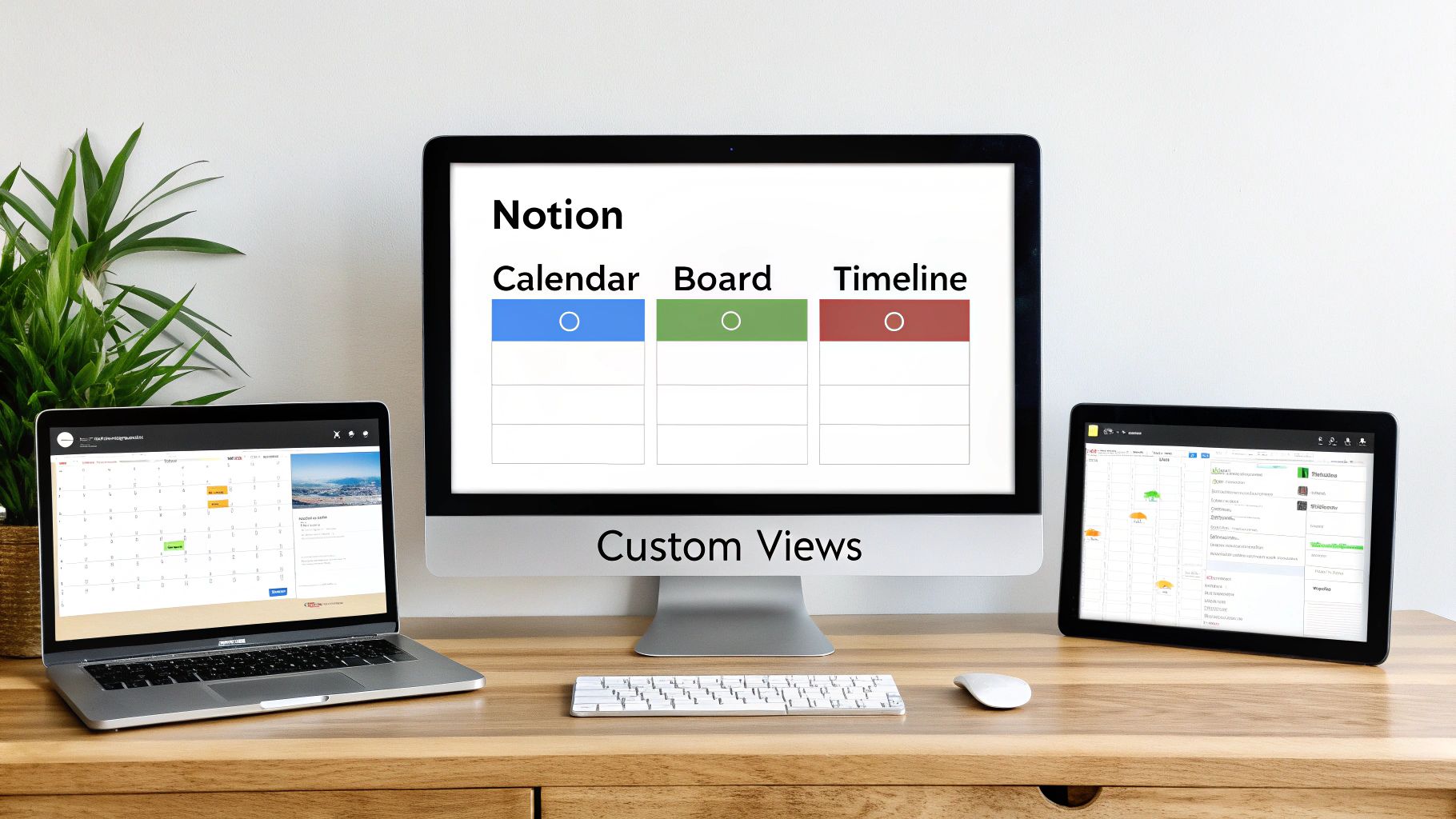
A database crammed with content ideas is a solid start, but it's just a pile of data until you give it shape. The real magic happens when you transform that data into dynamic, actionable views. Think of views as different lenses for looking at the same information—each one built for a specific person or task.
This is how you go from a simple list of dates to an interactive command center for your entire content operation. It’s about building a custom dashboard that organizes your workflow exactly the way you and your team actually work.
Building Your Essential Views
Let’s start with the non-negotiables. Every good content calendar relies on a few core views to be truly useful. You can add a new one anytime by hitting the “+” button right next to your database's name.
Here are the three I always set up first:
-
Calendar View: This is your classic monthly overview. It’s perfect for spotting content gaps, planning around events, and just getting that bird's-eye view of your publishing schedule. Just make sure you set it to display entries based on your “Publish Date” property.
-
Board View: This is where you manage your pipeline. By grouping this view by your “Status” property, you get a slick Kanban board. Dragging a card from “Idea” to “Drafting” and on to “Published” is incredibly satisfying and makes tracking progress a breeze.
-
Table View: When you need to get into the details, nothing beats a table. It's the best way to sort content by assignee, filter by content type, or even make bulk edits. You get a clean, spreadsheet-style look at everything at once.
Creating Personalized and Filtered Views
Once the basics are in place, the real fun begins. You can create hyper-specific views for individual team members or tasks. This is where filters and sorts become your best friends.
For example, you could create a "My Tasks" view for everyone on the team.
Just create a new view and apply a couple of simple filters:
- Assignee is
[Me] - Status is not
Published
By layering filters, you can create focused workspaces that cut through the noise. A social media manager might have a view filtered for "Content Type is Social Post," while an editor has one showing only items with the status "In Review."
This level of customization ensures no one on your team ever feels overwhelmed by information they don't need. The official Notion Content Calendar template has a 4.85/5 rating from over 500 reviews, with 87% of users leaving 5-star feedback. This shows just how much teams rely on these structured systems to get work done.
For teams also juggling client feedback or approvals, bringing email into the mix makes these views even more powerful. You can explore different ways to use Notion to send emails and hook your communication directly to your content records, turning each view into a complete project hub.
Using Templates to Standardize Content Creation
Consistency is the lifeblood of any good content strategy. But let's be real—keeping everyone on the same page across different formats, writers, and projects is a constant battle. This is where your Notion content calendar stops being a simple scheduler and starts acting like a full-blown production system.
The magic lies in Notion's database templates. Instead of staring at a blank page every time a new idea pops up, you can build pre-defined starting points for each type of content you create. Imagine clicking "New" and getting a choice: "Blog Post," "Newsletter," or "Social Media Campaign." One click, and the page instantly fills with everything your team needs to hit the ground running.
No more guesswork. No more missed steps. Every single piece of content, no matter who's behind the keyboard, starts from the same solid, quality-controlled foundation.
Designing Your Content Templates
The real power here is in the details. You can tailor each template to the unique demands of that specific content format, essentially building a creative brief right into the calendar entry itself. It’s a simple setup that can save you hours of back-and-forth and keep the entire team aligned.
Here’s how you might structure a couple of common templates:
- For a Blog Post: The page body could come pre-loaded with a standard outline, maybe with H2s for an intro, key sections, and a conclusion. You could also drop in a checklist right at the top:
[ ] Keyword Research,[ ] Draft First Version, and[ ] Add Internal Links. - For a Social Post: This template might have dedicated sections for copy variations tailored to LinkedIn versus Twitter. It could also include a checklist like
[ ] Create Graphic/Video,[ ] Write Alt Text, and[ ] Schedule Post.
By embedding checklists and basic outlines directly into your templates, you turn every new idea into a structured, step-by-step project. This is how you scale content production without things getting messy.
A Practical Example In Action
Let's walk through a real-world scenario. A great idea for a new blog post comes up during the weekly team meeting. Instead of scribbling it on a sticky note that’s destined to get lost, you open your Notion content calendar, hit "New," and select the "Blog Post" template.
Instantly, the new page is populated. There are already dedicated sections for the target audience, primary keywords, and a call-to-action. A pre-written checklist is sitting there, reminding the assigned writer to source some fresh statistics and find a compelling featured image. The whole process is defined from the get-go.
If you're just starting out or need some inspiration, checking out different content calendar template ideas can be a huge help. It’s a small step, but it’s what ensures every piece of content perfectly aligns with your strategy from the moment it's conceived.
Putting Your Calendar on Autopilot with Email
Your Notion content calendar is a fantastic planning hub, but its real magic kicks in when it starts talking to the outside world. This is where it goes from being a passive planner to an active command center, handling communication and automating all those tedious little tasks for you. The key? Integrating email directly into your workflow.
Imagine a freelancer sends in a draft, and it just appears as a new entry in your calendar. Or picture forwarding a crucial piece of client feedback straight to a content record, keeping every single comment and revision in one place. This isn't some far-off dream; it's completely doable when you connect your calendar to the right tools.
This flow shows how you can standardize your process, turning one solid idea into a blog post, a newsletter, and social updates using templates.
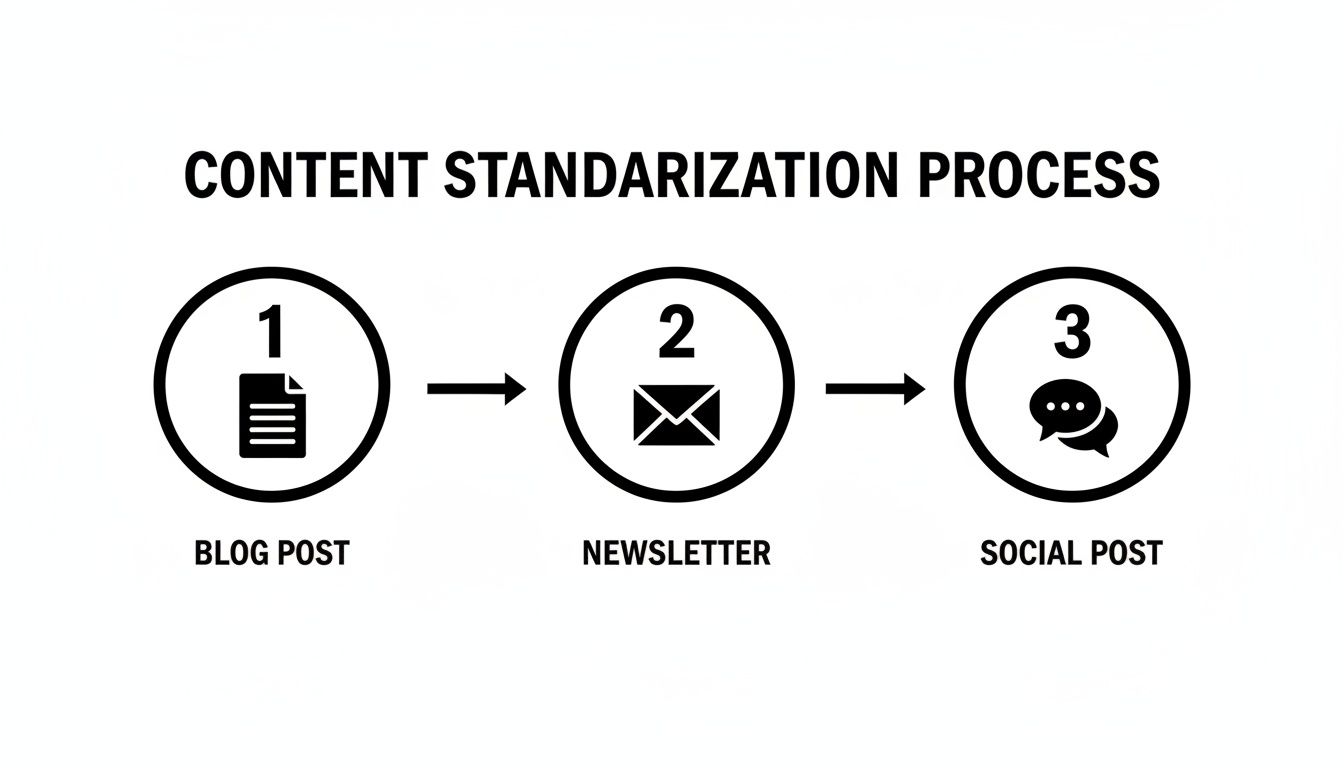
When you trigger templates with an email, you’re baking quality control right into the process. Every piece of content, big or small, starts off on the right foot.
Bridging the Gap Between Your Inbox and Notion
For any team that practically lives in their inbox, a Notion content calendar becomes exponentially more powerful once you bring email into the mix. This is exactly where a tool like NotionSender shines. It’s built specifically to bridge that gap.
It works by giving each of your Notion databases its own unique email address.
You can then email or forward messages to that address, and NotionSender automatically creates a new item in your database. It even populates the properties using info from the email itself. For project managers and freelancers, this means fewer scattered tools and a clear, traceable approval process.
This direct line of communication turns your calendar into a self-updating system. It cuts out the mind-numbing work of copy-pasting feedback or manually creating tasks, freeing you up to focus on what actually matters: creating great content.
Practical Automation Workflows
Once you’re connected, you can build some seriously powerful workflows that keep projects moving along without you having to constantly nudge them. The possibilities are endless, but here are a few high-impact examples any content team can set up right away:
- Automated Content Submissions: Give your unique database email to freelance writers. When they email their final draft, boom—a new page is created in your calendar with the draft attached, ready for you to review.
- Centralized Client Feedback: A client sends feedback? Just forward the email to your database address. It lands right on the relevant content card, keeping every note and revision perfectly organized.
- Status-Triggered Notifications: Set up a simple automation to email your editor the moment a writer changes a post's status to "Awaiting Review." No more chasing people down.
These automations just smooth out the friction in your workflow and make sure critical steps don't get missed. By letting email and Notion talk to each other, you build a system that handles the admin burden for you. To really close the loop, you can even create and send email directly from Notion, managing your entire communication flow from one place.
Of course. Here is the rewritten section, focusing on a natural, expert-written tone while preserving all the original information and links.
Common Questions and Quick Fixes
Even with the slickest setup, a few questions are bound to pop up as you start living in your new content calendar. It’s totally normal. Let's walk through some of the most common things people ask, so you can get past those little hurdles and back to creating.
How Can I Share My Content Calendar With People Outside My Team?
Great question. You absolutely can, and Notion gives you a few smart ways to handle it.
If you just need to give someone a sneak peek—say, a client who wants to see the upcoming publishing schedule—you can share a public, read-only link. It's perfect for a high-level overview without them seeing all your messy internal notes.
But what if you need them to actually contribute? You could invite them as a guest with comment or edit permissions. A better way, though, especially for receiving drafts, is to use an integration. A tool like NotionSender lets people email their content submissions directly into your database. This way, everything lands in the right place automatically, and you don’t have to give them full access to your workspace. It keeps things clean and secure.
What’s the Best Way to Manage Multiple Calendars in Notion?
This is a classic scenario for freelancers or agencies juggling several clients. You've basically got two solid options, and the right one just depends on how you work.
- Keep them separate: You could create a completely unique content calendar database for each client. This is the most secure route, guaranteeing zero overlap or accidental data sharing between projects.
- Build a master database: The other approach is to use one giant database for everything. To keep it organized, you'd add a
Selectproperty called "Client" or "Project." Then, you can create filtered calendar or board views for each client, so they only ever see their own content.
Honestly, the master database with filtered views is usually the way to go. It lets you see your entire workload in one dashboard while giving each client a private, custom view of their own pipeline. It's the best of both worlds.
Can I Hook My Notion Calendar Up to Other Tools, Like Slack?
Yes, and this is where Notion really shines. Thanks to its API and automation platforms like Zapier or Make, you can connect your content calendar to just about any other app you use. This lets you build some seriously powerful custom workflows.
For instance, you could rig it so that every time a post’s status changes to “Published,” a notification automatically pings your team's Slack channel. Or maybe you want a new Google Calendar event to be created the moment a publish date is set in Notion. It’s all possible, and it helps keep everyone in the loop across all your different tools.
Ready to put your content workflow on autopilot by connecting your inbox to your calendar? Get started with NotionSender for free and see just how much time you can get back. https://www.notionsender.com