
Notion Meeting Notes: Master Your Meetings with Templates and Automations

If you're still taking meeting notes the old-fashioned way, you're probably creating more problems than you're solving.
Let's be honest. How many times have you dug through old Google Docs, trying to remember who agreed to what? How many "action items" have simply vanished into thin air? We've all been there. This scattered approach kills productivity and creates friction, whether you're a freelancer juggling clients or a manager trying to keep a large team on the same page.
The real issue is fragmentation. Your notes live in one app, your tasks in another, and the actual project context is buried in a month-old email thread. This chaos creates information silos where crucial decisions and commitments go to die.
The Power of a Central Hub
Using Notion for meeting notes is a completely different ballgame. It's not just a place to type; it's an integrated workspace where your notes become dynamic, connected pages. This simple shift solves some of the most frustrating parts of managing meetings.
For starters, you can wave goodbye to a lack of accountability.
- Action items stop being simple bullet points and become trackable tasks you can assign to specific people with actual deadlines.
- All that scattered information finally comes together. By linking notes directly to project pages and task databases, you build a single source of truth. No more hunting for context.
- It saves a ton of time. When you can instantly pull up any past decision, every meeting builds on the last one instead of starting from scratch.
This is the big leap: moving from passive note-taking to building an active knowledge base. It’s why Notion has become such a powerhouse since its 2016 launch. The goal isn't just to record what was said—it's to build a system that drives real progress and makes every meeting count.
The Real-World Impact
The numbers don't lie. A massive 77% of professionals rely on note-taking apps to get more done, and Notion's insane flexibility is why it’s a favorite among its 4 million+ monthly active users.
In fact, over 1 million users have built their own custom templates for meeting notes, folding in everything from agendas to next steps. You can see more details in these Notion statistics on simple.ink.
That’s exactly what this guide is for. I'm going to show you how to build that same kind of robust system for your Notion meeting notes, step-by-step. It's time to move beyond just jotting things down and start creating a framework that keeps your entire team aligned and productive.
Building Your Ultimate Meeting Notes Template
A truly great system for Notion meeting notes doesn't just appear out of thin air; you have to build it. While Notion has plenty of pre-made options, nothing beats creating your own template from the ground up. This way, you get total control and can guarantee your notes capture exactly what your team needs, every single time.
The whole system starts with a dedicated database. Don't think of it as just a folder. It's a smart, dynamic container for every meeting you have, and this is where the magic really happens. By starting with a fresh database, you get to define the properties that actually matter to your workflow, transforming what could be messy notes into structured, searchable information.
Establishing Your Core Database Properties
First things first, let's add the right properties to your new database. These are the fields you’ll fill out for every single meeting, and they're what will make organizing everything a breeze later on.
Start with the essentials that give you instant context:
- Meeting Title: Just use the standard
Titleproperty. A clear, consistent naming convention like"[Project Name] - [Meeting Purpose] - [Date]"works wonders for finding things later. - Date: A simple
Dateproperty is a must-have for sorting your notes chronologically or building out timeline views. - Meeting Type: I recommend a
SelectorMulti-selectproperty here. This lets you tag meetings as "Internal Sync," "Client Kick-off," "Weekly Standup," or "Product Review." It's a simple tag, but it makes filtering for specific types of discussions incredibly easy.
Now, let's go beyond the basics and add properties that plug your notes into the rest of your workspace.
- Attendees: The
Personproperty is perfect for this. You can tag every team member who was in the room, making it easy to quickly see who was involved in a key decision. - Project/Team: This is a big one. Use a
Relationproperty to link each meeting note directly to a specific project or team page living in another Notion database. This creates a powerful two-way connection, letting you see all related meetings right from your main project dashboard.
This screenshot shows a well-structured database with key properties like "Meeting type" and "Product," which are crucial for keeping everything organized.
You can see how the properties give you an at-a-glance summary, so you can find what you're looking for without even opening the page.
Designing the Template Body
With your properties dialed in, it’s time to design the inside of the template—the part you'll actually be typing in during the meeting. The goal here is all about structure and clarity. A blank page is intimidating, but a pre-formatted template guides the conversation and ensures every meeting's notes look consistent.
Inside the template body, create some clear sections using headings (H2 or H3). A great starting point usually includes:
- Agenda: A simple to-do list or a few bullet points to outline what you plan to cover.
- Key Discussion Points: This is your main section for capturing the conversation, new insights, and any important back-and-forth.
- Decisions Made: Use a blockquote or a callout block to make key decisions pop. This is my favorite trick for preventing crucial takeaways from getting lost in the noise.
The most critical part of any Notion meeting notes template is a dedicated space for action items. By creating a linked view of your main "Action Items" or "Tasks" database directly within the template, you can add new tasks on the fly that are automatically associated with that meeting.
This linked database view is a total game-changer. It means tasks captured during a meeting don't just die on that page; they get piped directly into your master task list, complete with assignees and due dates.
For more powerful ways to organize your workspace, check out these 10 tips to get the most out of Notion. By putting in a little time upfront to build this template, you create a repeatable, efficient system that turns every meeting into a productive step forward.
Turning Conversations into Trackable Action Items
Let's be honest: a meeting's real value isn't what happens in the room, but what happens after. Even the most brilliant ideas die on the vine if they aren't turned into concrete, trackable tasks. This is where your notion meeting notes system evolves from a simple logbook into a powerhouse for accountability.
The key is to create a separate, dedicated "Action Items" database. I know, it sounds like extra work, but trust me on this. Instead of burying to-dos inside individual meeting pages, you create a central command center for every single task that comes out of a discussion. This way, you can see every commitment across all projects, not just what's tied to one specific meeting.
Creating Your Action Items Database
Getting this database set up is pretty quick. The goal is to add a few essential properties that make every action item crystal clear, assignable, and easy to track. Think of these properties as the vital stats that keep a task from ever falling through the cracks.
At a minimum, you'll want to include:
- Task Name: A short, clear description of what needs to be done.
- Owner: A
Personproperty to assign the task directly to a team member. No more "someone will do it." - Due Date: The all-important
Dateproperty. Deadlines create momentum. - Status: A simple
Selectproperty with options like "Not Started," "In Progress," and "Done." - Meeting: This is the magic ingredient—a
Relationproperty that links back to your main meeting notes database.
That Relation property is what ties everything together. It creates a live, two-way link. You can see all the action items from a specific meeting right on the meeting page itself, and if you're looking at a task, you can click back to see the original context of the conversation. If you're looking to really level up your workflow, check out some effective task management apps that can work alongside your Notion setup.
The whole point is to build a closed-loop system. A task gets captured during the meeting, it's immediately assigned an owner and a deadline, and its progress is visible to everyone without having to dig through old notes.
This flowchart lays out the basic—but powerful—setup for any Notion database, from the initial creation to adding properties and building a reusable template.
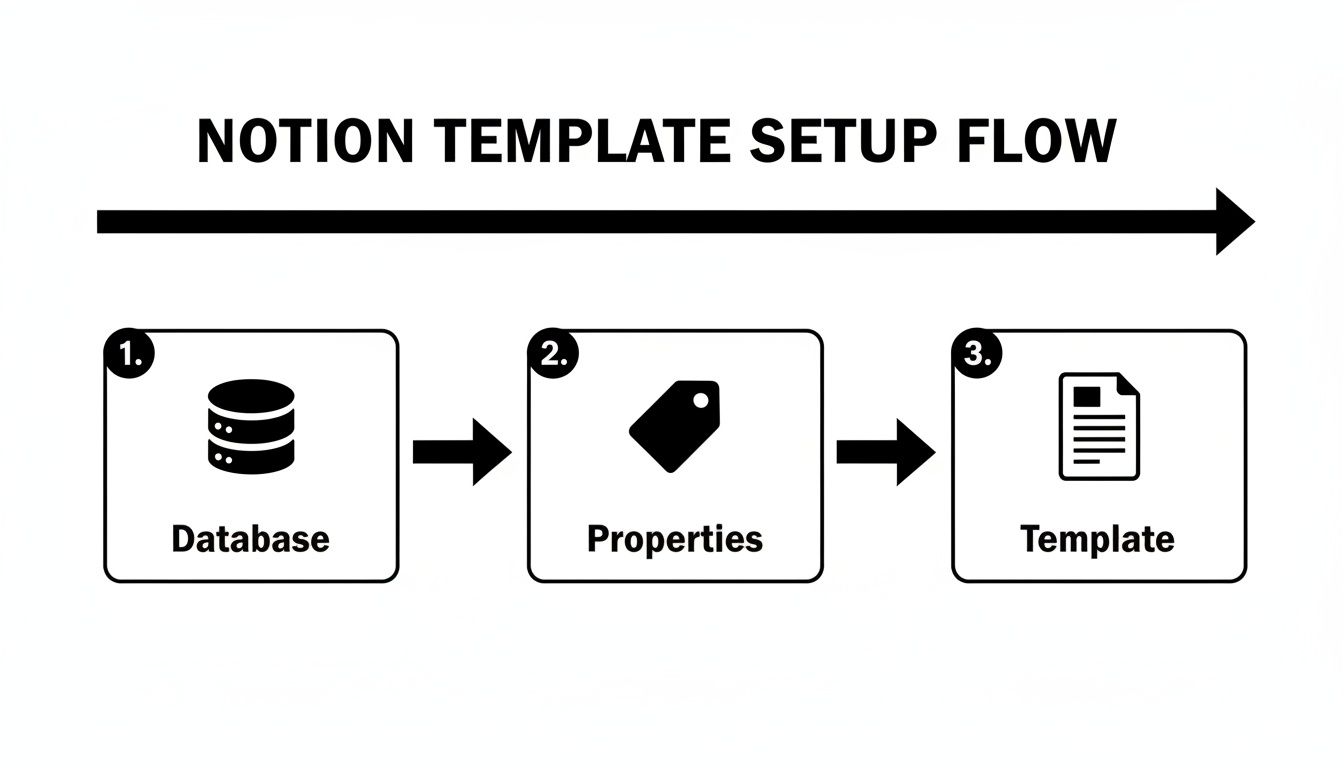
As the visual shows, a little bit of structure up front—defining the database, setting the right properties, and creating a template—is what makes the whole system work smoothly day-to-day.
To give you a clearer picture, here’s a breakdown of the properties I recommend for an action items database.
Essential Properties for Your Action Items Database
This table outlines the crucial Notion properties you'll need to create a truly effective and trackable action items database. Getting these right from the start is key.
| Property Name | Property Type | Purpose |
|---|---|---|
| Task Name | Title | The primary, clear description of the action to be taken. |
| Owner | Person | Assigns responsibility to a specific team member for accountability. |
| Due Date | Date | Sets a clear deadline and allows for timeline-based views. |
| Status | Select/Status | Tracks progress (e.g., To Do, In Progress, Done). |
| Priority | Select | Helps organize tasks by urgency (e.g., High, Medium, Low). |
| Meeting | Relation | Links the action item back to the original meeting note for context. |
With these properties in place, every task has the context, ownership, and timeline it needs to actually get done.
Putting It All Together
Picture a marketing team hashing out a new campaign launch. As they brainstorm social media content, the manager quickly creates a new action item in the database: "Draft Q3 Instagram captions." They assign it to the copywriter using the Person property, set the due date for next Friday, and link it back to the "Campaign Kick-off" meeting note.
Instantly, that task appears in the central Action Items database. It's now visible on the team’s master task board and on the original meeting page. There's zero ambiguity about who's doing what or when it's due.
This isn't just about being organized; it has a real impact. For instance, some sales teams using this kind of structured process in Notion saw a 30% increase in meetings booked per rep. Their system was directly responsible for generating 16% of their total pipeline and 18% of their total revenue. It’s proof that clear notes and actionable follow-ups drive real growth.
You can even take it a step further by automating how you capture pre-meeting context from emails. Our guide on saving emails to Notion shows you exactly how to do that. It's all about creating an interconnected system where nothing ever gets lost in the shuffle.
Automating Your Workflow with Email Integration
Okay, so you’ve got a solid template and a dedicated task database. That’s a huge win. But the real magic happens when you stop doing the tedious manual work—like copying and pasting every agenda, invite, and email thread into Notion.
How much time do you lose switching between your inbox and your workspace? It’s one of those silent productivity killers. You get an important email with context for a meeting, and the first thing you have to do is manually transfer it over. There's a much better way.
This is where integrating your email directly with your Notion meeting notes database completely changes the game. By connecting these two platforms, you build a bridge that lets information flow effortlessly from your inbox right into your structured meeting notes. No more friction, just flow.
Setting Up Your Email to Notion Connection
Getting your email hooked up to Notion is probably easier than you think, especially with tools built just for this, like NotionSender. The whole idea is to give your meetings database its own unique email address. Once that’s done, anything you send or forward to that address automatically lands as a new page in your database.
Here’s what that setup generally looks like:
- Connect Your Notion Account: First, you’ll authorize the integration tool to talk to your Notion workspace.
- Pick Your Database: Next, you point the tool to the specific meetings database you’ve built.
- Map Email Fields: This is the clever part. You tell it how to handle incoming emails. For example, the email’s subject line can become the
Meeting Title, and the body of the email can fill out the page content.
This simple connection unlocks a ton of automated workflows. Instead of manually creating a page for that upcoming client call, just forward the calendar invite to your database’s special email address. Boom—a new page pops up, pre-filled and ready for notes.
By creating this direct pipeline from your inbox to your workspace, you ensure that no pre-meeting context is ever lost. Every email thread, attachment, or client question can be captured and organized before the meeting even starts.
Practical Applications for Your Workflow
Once your email integration is live, you can start building some seriously time-saving habits. It goes way beyond just forwarding invites.
Think about these real-world scenarios:
- Capturing Agendas: The project manager sends out the agenda for the weekly sync. Just forward that email straight to your meetings database. The entire agenda appears in the body of the new meeting page, all set for the call.
- Saving Important Threads: A client emails over a long thread with critical background info for a kickoff meeting. Instead of letting that goldmine get buried in your inbox, you forward it to Notion. Now, all that context is attached directly to the meeting note where it belongs.
- Automating Follow-ups: Some tools even let you close the loop right from Notion. Our guide on how to create and send email from Notion walks through how you can draft follow-up notes and action items inside your meeting page and send them out as a clean, professional email.
This email integration is just one piece of the automation puzzle. If you really want to level up, you can explore other powerful workflow automation tools that can connect with Notion. The goal is to build a system where your tools do the busywork, freeing you up to focus on the conversation, not the clerical stuff.
Alright, you've got the basics down. Your templates are solid, and you're tracking action items like a pro. Now it's time to stop just organizing your meetings and start building a real command center—something that gives you instant insights and takes the grunt work out of follow-ups.
This is where things get fun.
<iframe width="100%" style="aspect-ratio: 16 / 9;" src="https://www.youtube.com/embed/N0hod3YFCy4" frameborder="0" allow="autoplay; encrypted-media" allowfullscreen></iframe>
First up, let's put Notion's own AI to work. After a long, brain-draining strategy session, the last thing anyone wants to do is sit down and write a summary of a complex, hour-long discussion. That's a perfect job for a robot.
Using Notion AI to Automate Summaries
Instead of spending 15 minutes trying to remember and recap everything, just highlight your raw meeting notes and ask the AI to summarize them. It’s a huge time-saver. Plus, it gives you an objective overview, which is fantastic for looping in stakeholders who couldn't make it to the meeting.
It’s more than just a convenience. Notion's AI Meeting Notes can sync with your calendar and automatically turn action items from your notes into actual to-dos. Teams I've seen adopt this have reported a massive 60% jump in productivity because the momentum from a meeting flows right into project updates without any manual effort.
It’s no wonder a remarkable 80% of AI note users rave about its automated task management. It's quickly becoming a non-negotiable tool for teams that want to move fast. If you're curious, you can dig deeper into how AI is changing the note-taking game.
Building a Powerful Metrics Dashboard
To really take your system to the next level, you need to see your data, not just store it. That's where database rollups and formulas come in. A rollup is a special property that lets you pull information from a related database and display it somewhere else.
For example, you could pop over to your "Projects" database and create a rollup that counts the number of open action items linked to each specific project. Just like that, you have a live, real-time look at which projects are moving and which are stalled, all without ever leaving your main dashboard.
A well-designed dashboard transforms your meeting notes from a simple historical archive into a forward-looking strategic tool. It starts answering critical questions like, "Which projects have the most unresolved tasks?" or "How many key decisions have we actually made this quarter?"
Creating Personalized Filtered Views
Finally, let's be real: a one-size-fits-all database view just doesn't work for a team. The magic of Notion is in creating custom, filtered views that show each person exactly what they need to see.
Here are a couple of my favorites:
- My Open Action Items View: This is a must-have. Create a view of your Action Items database and set a filter for
OwnerisCurrent User. Now, when anyone on the team clicks this view, they see their own personal to-do list. No more excuses. - This Week's Client Meetings View: In your main meetings database, set up a view that only shows entries where the
Meeting TypeisClientand theDateis within the current week. It's a perfect way for an account manager to quickly see what's on their plate.
These kinds of advanced strategies are what turn a simple notion meeting notes page into a dynamic, responsive hub for your team. It proactively brings the most important information to the surface, making sure every single meeting actually drives meaningful action.
Got Questions About Your Notion Meeting Setup?
Even with the perfect template, you'll probably hit a few snags or wonder about the best way to handle certain situations. It happens to everyone. Let's tackle some of the most common questions that pop up when people start using Notion for meeting notes.
Think of this as the final polish on your system—the small tweaks that make a world of difference in how smoothly everything runs, especially when you're getting your team on board.
Can I Connect My Calendar to My Notion Meeting Notes?
Yes, and you absolutely should. This is where the real magic starts. Notion has a native Google Calendar integration that lets you link calendar events right to a page in your meetings database. It’s a quick and easy way to attach a note to a call you have coming up.
But if you want to put this on autopilot, tools like Zapier or Make are your best friends. You can build a simple workflow that automatically creates a new meeting note in Notion—using your template and everything—the second an event is added to your calendar. You'll show up to every meeting perfectly prepared without even thinking about it.
The real win here is getting rid of that nagging little task of creating a page for every single meeting. By linking your calendar, you're building a system that does the prep work for you.
What Is the Best Way to Share Notes with External Clients?
This comes up a lot. You've got these great, detailed notes, but you need to share them with someone outside your company. Notion gives you a few solid options, depending on how much access you want to give them.
- Public Link: The quickest way is using the "Share to web" feature. This generates a public, view-only link to the page. It's perfect for when you just need to send a quick recap.
- Guest Access: If you need a client to comment or collaborate, you can invite them as a guest to that one specific page. They won't see anything else in your workspace, keeping things secure.
- PDF Export: My personal go-to for a professional touch. Exporting the final notes as a clean PDF and emailing it to the client is a great way to provide a static, official record of what was discussed and agreed upon.
How Is Notion Different from Evernote for Meetings?
I get this question all the time, especially from people used to tools like Evernote or OneNote. While those apps are fantastic for just jotting down unstructured thoughts, Notion’s power is in its database structure.
In Notion, your meeting notes aren't just isolated text files floating around. They're structured items in a database.
This means every single meeting note can be tagged, sorted, and, most importantly, linked to other databases—like your projects, tasks, contacts, and company goals. This creates a web of interconnected information where context is never lost. You can see every meeting related to "Project Titan" on one screen, something that's nearly impossible to do in a traditional note-taking app.
Ready to stop manually copying and pasting emails into your meeting notes? With NotionSender, you can forward any email directly to your Notion database, automatically creating a new, organized page. Streamline your workflow and save hours each week by visiting https://www.notionsender.com.

