
How to Manage Email Overload & Reclaim Your Inbox
That constant ping of a new email isn't just a minor distraction—it's a genuine productivity killer. The secret to taming the beast isn't about checking your inbox more often; it's about building a solid system to process messages efficiently. It's time to turn that source of stress into a tool that actually works for you.
The True Cost of a Crowded Inbox
Before we jump into the "how-to," let's get real about why a cluttered inbox is so destructive. The problem runs much deeper than just being disorganized.
Think about it: every single unread message is a decision waiting to be made. It's a tiny, nagging task that adds to a state of continuous, low-grade stress. This digital clutter quietly drains your mental energy, pulling you away from the work that truly matters.
The Hidden Toll on Your Focus
Constant email alerts train your brain to be reactive, yanking you out of deep, concentrated work. Research has shown that it can take more than 20 minutes to get your focus back after an interruption. When your inbox runs your day, you're not making real progress—you're just switching contexts, over and over again.
This isn't just about managing emails anymore; it's a psychological battle against a system that constantly demands your attention, leaving you feeling like you're always one step behind.
By the Numbers: A Look at the Volume
The sheer scale of the problem is mind-boggling. The average person gets somewhere between 100 to 120 emails every day, but the open rate is only about 32.55%. That massive gap tells a clear story: we’re drowning in more information than we can possibly handle.
The real cost of email overload isn't just lost time; it's lost momentum. Every time you switch from a primary task to check an email, you pay a "cognitive tax" that depletes your ability to solve complex problems and think creatively.
This feeling of being overwhelmed isn't unique to the standard office inbox, either. People in specialized fields, like venture capital, are also wrestling with the challenge of managing a constant flood in your inbox. It’s a universal signal that we all need better strategies.
Ultimately, this is about more than just getting organized. It’s about reclaiming your mental space and your professional edge. By wrestling back control, you make your inbox serve you, not the other way around.
Build a Triage System That Actually Works
If you're constantly fighting a losing battle against your inbox, what you need is a quick-fire way to process new emails the second they land. This isn’t about building some complex, color-coded fortress. The real secret to taming email overload is a dead-simple, repeatable triage system that becomes pure muscle memory.
The whole thing starts with the Two-Minute Rule. Productivity guru David Allen made this famous, and the idea is genius in its simplicity: if you can handle an email in less than two minutes, just do it. Right now. That means firing off a quick reply, archiving it, or hitting delete.
This one habit is a game-changer. It stops those tiny, nagging tasks from piling up and creating a constant hum of background anxiety. It's the difference between a clean desk and a digital junk drawer.
Creating Your Simple Decision Tree
What about the emails that'll take longer than two minutes? You need a fast way to sort them without overthinking it. We're not creating a dozen different folders here. The goal is to make a snap decision and get that email out of your main inbox so you can move on.
Almost every email that isn't a two-minute job falls into one of three buckets:
- Action Needed: This is your "to-do" pile. It’s for emails that demand a proper response, some research, or a task with multiple steps—like that project proposal that needs a thoughtful reply.
- Awaiting Response: You've done your part and are now waiting on someone else. Think of that client email where you asked for clarification. This folder is where those emails go to wait, so they don't clog up your view.
- For Reference: This is your digital filing cabinet. It’s for anything you don't need to act on but might need to find later. Receipts, flight confirmations, important project updates—they all go here.
This simple decision tree helps you instantly size up an email's importance and figure out what to do next.
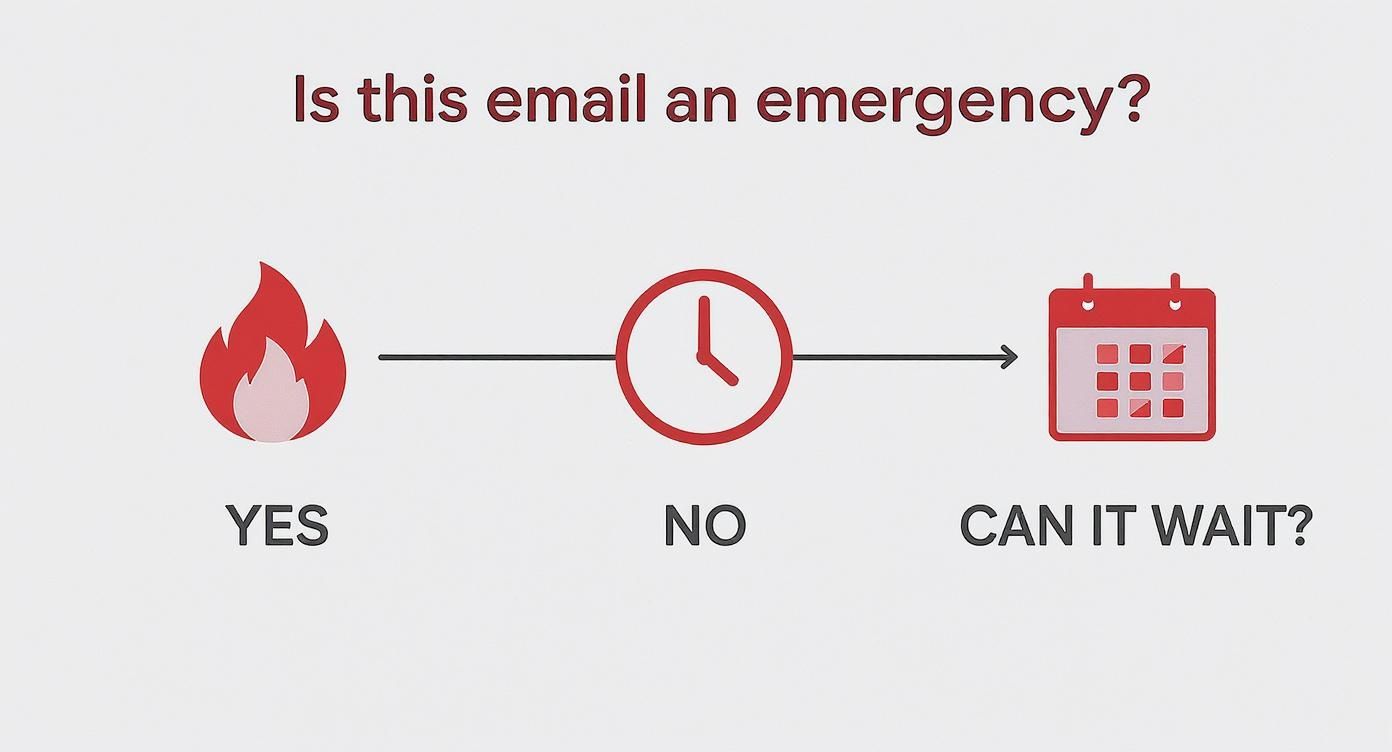
This kind of visual thinking separates the real fires from the tasks you can schedule for later, keeping you focused on what actually matters.
Triage in Action: A Real-World Scenario
Let's see how this plays out. You open your inbox and find three new messages waiting for you:
- A calendar invite for tomorrow's team meeting.
- An email from your boss asking for the final Q3 project report.
- A newsletter from that marketing blog you like.
Here's how you'd tear through them with your new system:
- Meeting Invite: This is a no-brainer. Click "Accept." Gone. (Under two minutes)
- Newsletter: You want to read it, but not right now. You drag it into a "Read Later" folder. Gone. (Under two minutes)
- Report Request: This is the big one. You can't do it now, so you move it to your "@Action" folder and immediately add a task to your to-do list to block out time for it this afternoon. Your inbox is clear. (Under two minutes to process, not to complete)
In less than five minutes, you've triaged your inbox and created a clear plan for the one item that requires deep work. You just turned a chaotic stream of demands into an orderly workflow. If you want more tips for building these kinds of habits, check out our guide on 6 simple email management tips to boost your productivity.
The point of a good triage system isn’t just to organize email—it's to make faster, better decisions. By quickly sorting every message, you reclaim all the mental energy you used to waste just staring at a cluttered inbox.
Getting this process down is the first huge step toward taking back your time. It transforms your inbox from a reactive list of other people's priorities into a structured launchpad for your own work, paving the way for the more advanced strategies we'll cover next.
Master Folders and Labels for a Smarter Inbox
Once you've nailed down a quick triage routine, the next real win comes from building an organizational structure that does the heavy lifting for you. This isn't just about making your inbox look tidy. It's about creating a system that instantly tells you what matters.
So, let's ditch those messy, generic folders named after random projects from two years ago. We’re going to build a smarter system using two methods that work together perfectly: action-based folders to manage your workflow and project-specific labels to add context and make everything searchable. This dual approach turns your inbox from a passive dumping ground into an active, productive workspace.
Implement Action-Based Folders
This is where the magic really starts. Action-based folders are all about what you need to do with an email, not what it’s about. That little mental shift is a game-changer. By sorting emails this way, you’re basically creating a prioritized to-do list right inside your email client.
Here's a simple but incredibly effective structure you can set up in Gmail or Outlook right now:
- @Action: This is for anything that needs a real task or a reply that will take more than two minutes. Think of it as your main "work-in-progress" folder.
- @Waiting: When you've passed the baton to someone else or you're waiting for a reply before you can move forward, park the email here. This folder is your secret weapon for never forgetting to follow up.
- @Read Later: The perfect home for newsletters, articles, and non-urgent updates. It keeps your main inbox clear without letting you miss out on good stuff.
- @Reference: Consider this your long-term archive for specific topics. Final project files, key contracts, or important contact details—they all go here.
Pro tip: The "@" symbol is a simple hack that keeps these crucial folders pinned to the top of your list for easy access.
Layer on Project-Specific Labels
While folders give an email a single home, labels (or categories in Outlook) add another layer of context without actually moving the message. The best part? You can slap multiple labels on a single email, which is perfect for tracking complex projects.
For instance, an email might live in your @Action folder, but you could also tag it with labels like "Q4 Marketing Campaign," "Client XYZ," and "Budget Approval." Now, when you need to find every single piece of communication related to that campaign, you just click the label. It’s like having a super-powered search function that you designed yourself.
An organized inbox should give you clarity at a glance. By combining action-based folders with color-coded labels, you create a visual language that communicates priority and context before you even read a subject line.
This visual hierarchy is incredibly powerful. A red label for "Urgent" or a blue one for "Client XYZ" gives your brain instant cues about what needs your attention first. It's a system designed to break the cycle of constant inbox checking. Considering that nearly 88% of people check their email multiple times a day, with many checking three to five times daily, having a smart sorting system cuts down on that distraction.
Connecting Email to Your Workflow
The final piece of the puzzle is plugging this system into your central productivity hub. A well-organized inbox is great, but its true potential is unlocked when it connects directly to your project management tools.
This is where those labels and folders become even more valuable. An email you’ve labeled "Q4 Marketing Campaign" shouldn't just sit in your inbox; it should be systematically moved into your project workspace. This is especially handy for anyone who runs their life out of Notion. You can explore a few different methods for saving emails to Notion, which keeps all your project communications and tasks in one place.
This is how you bridge the gap between communication and action, making sure nothing ever falls through the cracks again.
Automate and Delegate Your Way to Inbox Zero
Trying to manually sort every single email that lands in your inbox is a fast track to burnout. The real secret to sustainable inbox control isn't about working harder; it's about building a smart system that works for you, even when you’re offline. This is exactly where automation and delegation come into play, turning your inbox from a constant chore into an efficient, proactive machine.
It’s time to stop letting those repetitive, low-value tasks drain your focus. With a few smart rules, some handy templates, and the right tools, you can offload the busywork and save your mental energy for the stuff that actually moves the needle.
Let Filters Do the Sorting for You
The single most impactful thing you can do right now is to stop low-priority emails from ever hitting your main inbox. Think about it: all those automated notifications, newsletters you might read someday, digital receipts, and promo messages. None of it is urgent, but together they create a constant stream of digital noise that buries the emails you actually need to see.
Creating filters (or "rules" in Outlook) is like hiring a digital bouncer for your inbox. You can automatically shuttle these messages into specific folders, keeping your primary workspace clean and focused on what's important.
For instance, you could quickly set up rules to:
- Move any email with "unsubscribe" in the body to a folder named "Newsletters" or "@Read Later."
- Automatically archive receipts from services like Amazon or Uber into a dedicated "Receipts" folder.
- Funnel notifications from tools like Asana or Trello into a "Project Updates" folder that you can review in one go.
Seriously, spending just 30 minutes setting up these filters can easily save you hours of manual sorting every single week. It's a small time investment that pays off immediately by calming the daily chaos.
Master Templates and Canned Responses
How many times a day do you find yourself typing out the same basic replies? "Thanks, got it," "I'll take a look and get back to you," or "Could you send over more details?" Each one only takes a minute, but those minutes bleed into hours over the course of a week.
This is where templates—often called canned responses—become your secret weapon. Almost every email client has a built-in feature for this. By creating pre-written responses for your most common replies, you free yourself from tedious repetition and ensure your communications are always consistent and professional.
Think about creating templates for:
- Acknowledging receipt of a document or an important request.
- Politely declining a meeting invitation or a sales pitch.
- Requesting more information before you can move forward on something.
- Answering frequently asked questions you get from clients or colleagues.
This simple habit doesn't just save time; it reduces the mental load of having to craft a fresh, polite response from scratch every time. It's a foundational technique when learning how to send the perfect email to get the response you want, because it lets you focus on personalizing the crucial parts instead of rewriting the basics.
Integrate Your Inbox with Your Workflow
You'll hit a new level of email mastery when you stop seeing your inbox as a separate, isolated tool and start weaving it into your central productivity hub. For so many of us, that hub is Notion. And that's where a tool like NotionSender completely changes the game.
Instead of the old, clunky process of copying info from an email and pasting it into a Notion task, you can connect the two systems directly. This creates a seamless bridge for information, making sure important communications are captured, tracked, and actioned right inside your project management workspace.
With an integration like this, you can:
- Save critical emails directly to a Notion database. That client approval or project brief can become a new item in your project tracker with just one click.
- Link communications to specific tasks. No more digging through your inbox trying to find that one key email. It's all connected right there in Notion.
- Schedule email sends for the perfect time. Draft a reply when you have a moment, then schedule it to land in their inbox during business hours.
This shift is fundamental. Your inbox is no longer just a chaotic channel for messages; it becomes an integrated data source for your entire workflow, turning reactive noise into structured, actionable items.
This tight integration between your inbox and your workspace is the ultimate safety net. It ensures nothing falls through the cracks and every important message has a clear home and a defined next step.
Take a look at how much of a difference this makes in practice. The time savings are obvious, but the reduction in mental clutter is the real prize.
Manual vs Automated Email Workflows
| Task | Manual Method (Time per week) | Automated Method (Time per week) | Key Benefit |
|---|---|---|---|
| Sorting Inbox | 2.5 hours (sorting 50+ non-urgent emails daily) | 15 minutes (reviewing filtered folders) | Frees up hours of reactive work, reduces distractions. |
| Replying to FAQs | 1.5 hours (typing 10-15 similar replies) | 20 minutes (using templates & personalizing) | Ensures consistency, saves typing time and mental energy. |
| Creating Tasks from Email | 2 hours (copying, pasting, context switching) | 30 minutes (using NotionSender to save directly) | Eliminates data entry errors and keeps context intact. |
| Following Up | 1 hour (manually tracking and sending reminders) | 10 minutes (scheduling sends and reminders) | Never forget a follow-up, improves response rates. |
| Total Time Spent | 7 hours | 1 hour 15 minutes | Reclaim nearly a full workday every week. |
By moving from manual processes to an automated, integrated system, you're not just saving time—you're redesigning your workflow to be more focused, reliable, and far less stressful.
Know When to Delegate Human Tasks
While automation is a powerhouse for repetitive digital work, some tasks still need a human brain. This is where strategic delegation comes in as your final, and most powerful, tool for managing email overload. Let's be honest: not every email requires your personal attention.
Tasks like scheduling meetings, doing an initial sort of your inbox, or handling routine customer questions can often be handed off. Delegating inbox tasks to an assistant can slash your workload; many people find success with specialized virtual assistant companies for exactly this purpose.
Handing over these pieces of your email management frees you to concentrate exclusively on the high-value communications that demand your unique expertise. It’s the ultimate move in reclaiming your focus and ensuring your inbox serves your priorities, not the other way around.
Your 30-Day Action Plan to Conquer Email Overload
Knowing the strategies is one thing, but actually building them into a sustainable habit? That's the real challenge. Trying to implement a whole new system all at once feels like trying to boil the ocean. It's a recipe for burnout.
So instead, let’s break it down. This is a manageable, week-by-week plan designed to build momentum and create lasting change, minus the overwhelm. The goal isn't a quick fix; it's a blueprint for building a completely new relationship with your inbox.
https://www.youtube.com/embed/y6g3w4kKdbk
Week 1: Establish Your Foundation
The first week is all about building the core structure. We’re going to take your inbox from a chaotic mess to a controlled environment by setting up the basic sorting and organization system. This is the most critical phase—everything else we do will build on these initial habits.
Your checklist for this week:
- Declare Email Bankruptcy: Archive or delete everything older than a month. I know, it’s a scary thought. But it gives you a clean slate and an instant feeling of relief.
- Implement the Two-Minute Rule: Get into the habit of processing any email that takes less than two minutes to handle the moment you open it. This one trick prevents all those tiny tasks from piling up into a mountain of dread.
- Set Up Action-Based Folders: Create your three essential folders:
@Action,@Waiting, and@Read Later. Start sorting all incoming mail that you can't handle in two minutes into these buckets.
By the end of this week, you should feel a noticeable drop in inbox clutter. Your main inbox will no longer be a catch-all; it's now just a processing station.
Week 2: Build Your Automation Engine
Now that your foundation is solid, it's time to let technology do some of the heavy lifting. This week is all about creating the filters and templates that will save you hours of manual work in the long run. You'll start to see your inbox manage itself.
Here’s what you'll tackle in Week 2:
- Create Your First Five Filters: Identify the most common, low-priority emails you get—think newsletters, social media notifications, or receipts. Create rules to automatically file them away, keeping them out of your primary inbox.
- Draft Five Essential Templates: Write and save canned responses for your most frequent replies. Things like acknowledging a request, politely saying no, or asking for more details.
- Refine Your Labels: Start using project-specific or client-specific labels to add more context to emails in your
@Actionand@Waitingfolders. I like to use color-coding to make them instantly scannable.
The real goal of this week is to slash the number of decisions you have to make. Every filter you create and every template you write is one less thing you have to think about later.
Week 3: Integrate and Elevate
With your basic automation running smoothly, it’s time to connect your inbox to your central workflow. This is where you transform email from a standalone distraction into an integrated part of your project management system. This is how you ensure nothing ever falls through the cracks again.
This week, we focus on advanced integration:
- Connect Your Inbox to Notion: Set up NotionSender and start saving critical emails directly to your project databases. Get comfortable turning an email into a task with a single click.
- Automate a Workflow: Pick one repetitive process—like saving client feedback or tracking invoices—and build a complete NotionSender workflow to handle it from start to finish.
- Explore Scheduled Sends: Experiment with scheduling emails to be sent at optimal times, rather than firing them off the moment you write them. This helps you batch your work and respect others' time.
Week 4: Refine and Cement the Habit
The final week is all about making the system stick. You’ve built the structure and the automation; now you need to solidify the habits that make it all work. This means fine-tuning your process and committing to a new way of engaging with your email.
Your focus for the last week:
- Master Batch Processing: Schedule two to three specific blocks of time each day just for email. Stick to these appointments and resist the urge to check your inbox outside of them.
- Review and Adjust: Take a look at your folders, filters, and templates. What's working well? What needs a little tweaking? Adjust your system based on what you've learned over the past three weeks.
- Plan for the Long Term: Commit to a weekly 15-minute review to clear out your folders and maintain the system. This small, regular cleanup is what prevents future overload.
30-Day Email Management Challenge
To keep you on track, here's a simple table outlining your mission for the next month. Think of it as your roadmap to inbox freedom.
| Week | Primary Focus | Key Actions | Success Metric |
|---|---|---|---|
| 1 | Foundational Setup | Declare email bankruptcy, implement the 2-minute rule, create @Action, @Waiting, and @Read Later folders. |
Your main inbox is used only for processing, not for storage. |
| 2 | Automation & Efficiency | Create 5 filters for common emails, draft 5 essential templates, and start using project-specific labels. | At least 20% of your daily email is automatically filed without you touching it. |
| 3 | System Integration | Connect your email to Notion with NotionSender, automate one full workflow, and experiment with scheduled sending. | You’ve turned at least 10 emails into actionable tasks in Notion. |
| 4 | Habit Formation | Master batch processing (2-3 times daily), review & tweak your system, and commit to a weekly 15-minute review. | You consistently end the day with a clear inbox and feel in control of your email. |
By following this structured plan, you can systematically dismantle the habits that lead to email overload. You're not just cleaning your inbox; you're replacing a stressful, reactive workflow with an efficient, low-stress one. This is how you reclaim your time and focus for good.
Got Questions About Taming Your Inbox?
As you start to undo years of email habits, it’s only natural for questions to pop up. Making any big change to your daily workflow feels a bit weird at first, and that's okay. This section is all about tackling those common concerns head-on, giving you clear, practical answers so you can stick with the system and truly make it your own.
Think of this as tying up the last few loose ends. We're going to get ahead of those "what if" scenarios that might otherwise knock you off course, so you can feel totally confident in your new approach.
How Long Does It Really Take to Get My Email Under Control?
You'll probably feel a wave of relief within the first few days, right after you set up your triage system and do that initial big clean-out. Seriously, that first clean slate is a massive psychological win.
But turning those new actions into second-nature habits? That usually takes about four weeks of sticking with it. Our 30-day plan is built specifically to walk you through that process. The single biggest factor is consistency. If you commit to the new workflow, you'll see an incredible drop in email-related stress in about a month.
What If My Job Requires Me to Be Super Responsive?
This is a big one, especially if you're in a client-facing role or in leadership. When your job demands you be on the ball, the goal isn't to ignore email, but to process it with ruthless efficiency. This is where automation and batching become your secret weapons.
Get aggressive with your filters. Set up VIP notifications for messages from your boss, key clients, or direct reports. This ensures the stuff that is actually urgent gets your attention right away. For everything else, you need to shift from constantly checking to focused "batching" sessions.
Instead of letting your inbox run your day, try scheduling 10-minute email sprints every hour. This keeps you responsive without completely shattering the deep focus you need for your real work. Templates will also be your best friend for firing off quick, professional replies.
Is "Inbox Zero" Even a Realistic Goal?
It's better to think of "Inbox Zero" as a state of mind rather than a literal number. The real goal isn't a perfectly empty inbox—it's an inbox where nothing is left hanging. Every single message has been dealt with: you've answered it, archived it, delegated it, or turned it into a task.
For some people, that might mean their inbox is completely empty at the end of the day. For others, it might mean keeping a handful of active, high-priority emails in view as a reminder. Success is measured by the feeling of control and clarity, not by hitting some arbitrary number.
How Is NotionSender Different From Just Using Gmail Features?
Gmail's native filters and templates are a great start, but NotionSender builds a direct, two-way bridge between your email and your central workspace in Notion. This is a fundamental leap in efficiency that native tools just can't match.
Instead of just sorting emails into folders, you can:
- Save emails as structured items directly into a project database.
- Link specific communications to tasks, client profiles, or meeting notes.
- Use templates that pull data directly from Notion, personalizing your outreach on the fly.
This integration turns your inbox from a standalone chore into a fully connected part of your productivity system. It stops being a source of random tasks and starts being a tool that actively feeds and organizes your most important work.
Ready to stop just managing emails and start integrating them into your workflow? With NotionSender, you can connect your inbox directly to your projects, automate your processes, and finally get ahead of the overload. Start turning emails into action with NotionSender today.

