
Discover how to send email automatically: Automate Your Inbox Easily
Learning how to send email automatically is really about building systems that take repetitive communication off your plate. This frees you up for work that actually requires your brainpower. You're essentially using tools to fire off emails based on specific triggers, like when a new client gets added to your database or an invoice is about to be due.
It’s a simple strategy, but the impact on your productivity and consistency is massive.
Why Automating Your Emails Is a Game Changer
Automating your email isn't just some minor tech upgrade; it's a fundamental shift in how you run your business. It's the difference between manually chasing every late invoice and having a system that does it for you, making sure you get paid on time without those awkward follow-up conversations.
For project managers, it means building a flawless communication pipeline. Team members can get project updates the second a task's status changes in your dashboard, keeping everyone in sync without you lifting a finger.
This move toward automation is more than a passing trend—it's becoming a core part of doing business. The marketing automation market was valued at around $6.7 billion and is expected to explode to over $15.5 billion by 2030. That kind of growth tells you that businesses of all sizes see automation as essential for scaling up and staying competitive. You can dig into more stats and insights on the market's path over at thunderbit.com.
Beyond Just Saving Time
While getting hours back in your week is a huge win, the real value is in creating reliable, scalable processes. When you send email automatically, you guarantee that every new customer gets the same warm welcome, every lead gets a timely follow-up, and every client receives their meeting summary without fail. That kind of consistency builds trust and makes you look incredibly professional.
Think about these real-world benefits:
- Rock-Solid Consistency: Every message follows a high-quality template you've already approved. This cuts out human error and keeps your brand voice perfectly on point, every single time.
- Stronger Client Relationships: Timely, personalized messages—like a happy birthday note or a quick "we've hit a new milestone" update—make clients feel valued and in the loop.
- Scalable Outreach: You can nurture hundreds of leads or onboard dozens of new clients at once, all with the same personal touch as if you were emailing each one individually.
The goal isn't just to do things faster. It's to build systems that run themselves, freeing up your mental energy for strategy, creativity, and actual business growth. Let automation handle the logistics so you can focus on the vision.
For a deep dive into putting these ideas into action, check out this comprehensive guide to automated email marketing campaigns. It walks you through setting up these powerful workflows. Ultimately, getting these systems in place is your secret weapon for doing more with way less effort.
Using NotionSender for Seamless Email Automation
Let's move from theory to practice. The idea of automating your emails is great, but you need the right tool to make it happen without a ton of hassle. This is where NotionSender comes in, transforming your Notion workspace from a simple database into a smart communication machine.
Think about it: what if your Notion database could directly trigger and send personalized emails for you? Imagine a sales CRM where adding a new lead automatically sends a welcome packet. Or a project board that pings stakeholders the moment a task's status flips to "Completed." That's exactly the kind of workflow NotionSender opens up.
Suddenly, you're not constantly bouncing between your project management tool and your inbox. This cuts down on friction, reduces the chance of forgetting to send that crucial follow-up, and keeps everything tied to a single source of truth.
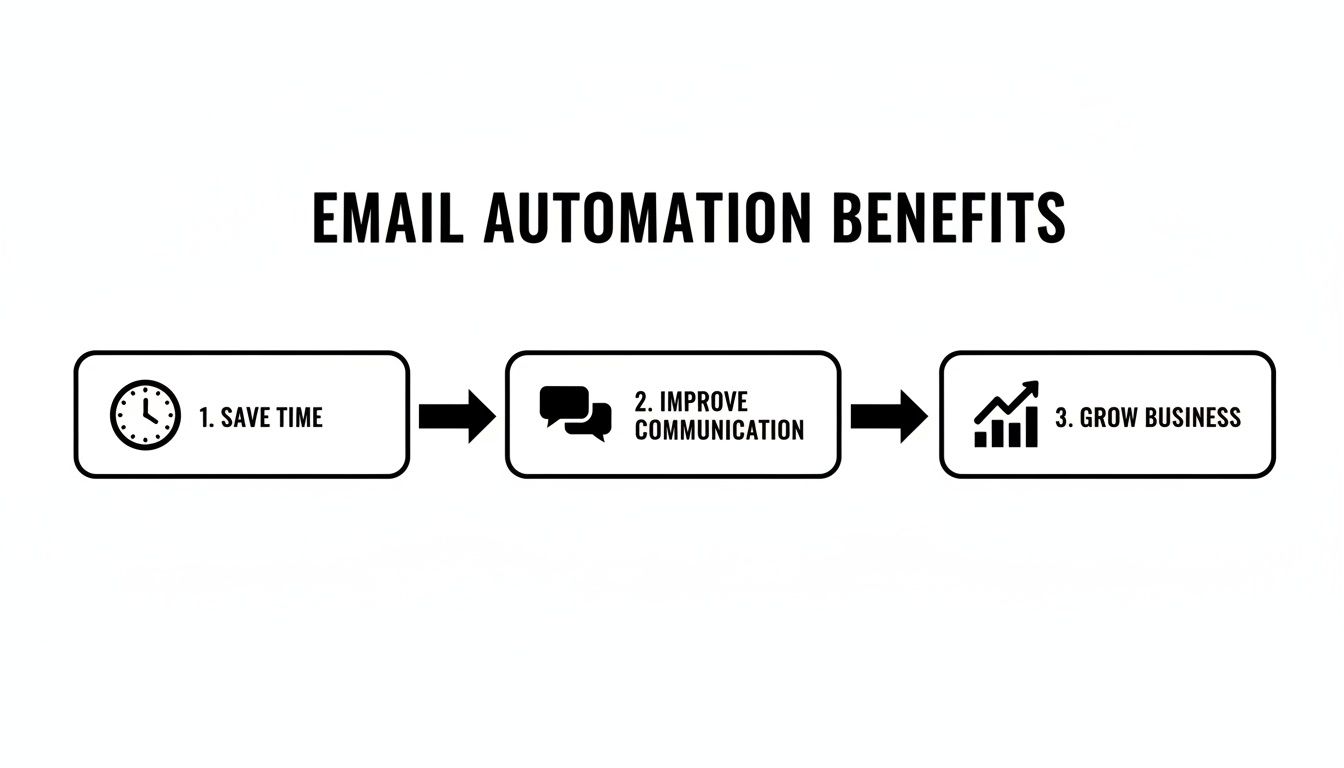
As you can see, saving time isn't just about efficiency—it leads to better communication, which directly fuels business growth. It's a powerful cycle.
Getting Started with Your Unique Database Email
The first step is hooking up NotionSender to your Notion workspace. Once you've done that, the real magic begins with a unique feature: every single Notion database gets its own special email address. This isn't just a nerdy detail; it's the key that unlocks some seriously powerful automation.
You can think of these addresses as dedicated inboxes for each of your projects or workflows. Send an email to one of these addresses, and NotionSender instantly creates a new page in that specific database, neatly populating its properties with the email’s content—subject, body, sender, even attachments.
While that's a game-changer for organization, the real power comes when you flip the process around to send emails out.
Building Dynamic Email Templates
Let's be honest, nobody likes getting generic, robotic emails. For your automated messages to actually work, they need to feel personal. NotionSender tackles this with dynamic templates that pull data directly from your Notion database properties.
You can craft an email template using simple placeholders, like {{Client Name}} or {{Project Deadline}}. When an email is triggered, NotionSender grabs the actual data from the corresponding Notion page and plugs it right in.
This means you can automatically send a message that says, "Hey Jessica, just a reminder that the invoice for Project Phoenix is due on {{Due Date}}," and the system will intelligently pull "Jessica" and the correct date from your database. This kind of personalization is what keeps client and team relationships strong. For a deeper dive, check out our guide on how to create and send email from Notion.
Practical Automation Scenarios
Okay, so how does this look in the real world? The goal here is to build systems that handle routine communication so you can focus on more important work.
A freelancer, for example, could set up an invoicing database with properties like "Status," "Client Email," and "Due Date." The moment they change the "Status" to "Sent," an automation could fire off a personalized email with the invoice attached. No more manual follow-ups.
The best automation doesn't just do a task for you; it completes an entire process you'd otherwise have to manage by hand. You're building a system that acts on your behalf based on triggers you define.
Here are a few more tangible examples to get your gears turning:
- For Project Managers: A "Tasks" database can automatically email a team member when they're assigned a new task, complete with the due date and a direct link to the Notion page.
- For Marketers: A "Leads" database can kick off a follow-up sequence. A new lead gets an instant welcome email. If their status isn't "Contacted" after 7 days, a gentle nudge is sent automatically.
- For Small Business Owners: A "Client Onboarding" database can handle the entire welcome process. Adding a new client can trigger a welcome email, a second email with paperwork, and a third to schedule a kickoff call—all perfectly timed.
The table below breaks down some common triggers and the corresponding actions you can set up with NotionSender.
NotionSender Automation Triggers and Actions
Here’s a quick look at some common scenarios where NotionSender can automatically send emails based on changes right inside your Notion database.
| Scenario | Notion Trigger | Example Email Action |
|---|---|---|
| New Client Onboarding | A new page is created in the "Clients" database. | Send a personalized welcome email with a link to their onboarding portal. |
| Invoice Management | A date property ("Due Date") is 7 days away. | Send a friendly payment reminder email to the client's address listed. |
| Task Assignment | The "Assigned To" property is updated with a team member's name. | Email the team member with task details and a direct link to the Notion page. |
| Project Milestone | A status property is changed from "In Progress" to "Completed." | Send a notification email to stakeholders announcing the milestone. |
| Content Publishing | A blog post status in a content calendar changes to "Published." | Automatically email your subscriber list with a snippet and a link to the post. |
Setting up these systems ensures that critical communications never slip through the cracks. It's not just about automating email; it's about building reliable, hands-off systems that support your business. By connecting your central workspace in Notion to your email outreach, you create a seamless flow of information that saves time and keeps everyone in the loop.
Exploring Other Email Automation Tools
<iframe width="100%" style="aspect-ratio: 16 / 9;" src="https://www.youtube.com/embed/MNUCqpZuxbQ" frameborder="0" allow="autoplay; encrypted-media" allowfullscreen></iframe>
While a dedicated tool like NotionSender offers a seamless connection right inside your workspace, it's just one piece of a much larger puzzle. The world of email automation is huge, and knowing the other players helps you pick the perfect tool for any job.
Sometimes, you need a simple, no-fuss solution. Other times, you're orchestrating a complex workflow that connects multiple apps, with email being just one part of the process. Having a versatile toolkit means you're never stuck with a hammer when you really need a screwdriver.
The No-Code Integration Giants: Zapier and Make
Think of Zapier and Make (which you might remember as Integromat) as the universal adapters for the internet. They aren't email tools themselves; they're the glue that connects thousands of different apps. Their magic lies in simple "if this, then that" logic, letting you build incredibly powerful automations without ever touching a line of code.
You could, for instance, set up a workflow where a new row in a Google Sheet (the trigger) tells Gmail to send out a personalized welcome email (the action). This is where these platforms truly shine—bridging the gap between totally separate software ecosystems.
- A Freelancer's Scenario: Imagine a potential client fills out your Typeform inquiry form. Zapier could instantly create a new client folder in Google Drive, add a "Follow Up" task to your Asana, and fire off a "Thanks for reaching out!" email from your Gmail.
- A Marketer's Workflow: When a customer buys a product on Shopify, Make could add them to a "New Customers" list in Mailchimp and then schedule a follow-up email 14 days later asking for a product review.
These platforms are your go-to when a process involves more than just one app. They excel at stringing together a sequence of events that goes way beyond simply sending an email.
The real power here isn't just automating a single task. It's about chaining multiple actions together across different services. You're not just automating an email; you're automating an entire business process.
Built-In Automation with Gmail and Outlook
Don't overlook the tools you already have. Both Gmail and Outlook have surprisingly handy automation features baked right in, perfect for managing your own inbox without any third-party services.
Gmail's templates (formerly "canned responses") feature is a lifesaver. You can save pre-written emails and pop them into a reply with a single click. Combine this with filters, and you've got a simple automation machine. For example, you could create a filter that spots any email with "invoice" in the subject line from a specific client, automatically applies a label, and sends your pre-written "Thanks, we've received this!" template.
Outlook's Rules are even more powerful. You can set up complex conditions to handle incoming mail automatically. A single rule could forward an email to a teammate, move the original message to a specific folder, and send a custom notification—all at once.
These built-in features are fantastic for:
- Quick, standardized replies to common questions.
- Sorting and filing messages without lifting a finger.
- Forwarding specific types of emails to the right people or systems.
While they can't connect to other apps like Zapier or pull data from a database like NotionSender, they are a fantastic, free starting point for personal productivity.
Advanced Options: Google Apps Script and SMTP Services
For those who want ultimate control and don't mind getting their hands a little dirty with code, a couple of advanced options open up a world of possibilities.
Google Apps Script is basically JavaScript that lives in the cloud and can talk to all your Google services. You can write a custom script to read data directly from a Google Sheet and send out hundreds of personalized emails via Gmail. It offers a level of customization that no-code tools just can't touch, making it ideal for building a truly bespoke automation solution inside the Google ecosystem.
On the other end of the spectrum are dedicated SMTP (Simple Mail Transfer Protocol) services. If your business needs to send a high volume of emails—newsletters, transaction receipts, marketing blasts—you need a service like SendGrid, Mailgun, or Amazon SES. These platforms are engineered for one thing: high deliverability. They make sure your emails actually land in the inbox, not the spam folder. They're less about trigger-based automation and more about being a reliable, high-volume sending engine.
Comparing Email Automation Tools
With so many options, how do you choose? It really boils down to your specific needs, your comfort level with technology, and your budget. To make it a bit clearer, here’s a high-level look at how these tools stack up against each other.
| Method | Best For | Technical Skill Required | Cost |
|---|---|---|---|
| NotionSender | Notion users who need deep integration with their databases. | Low (No-Code) | Subscription-based |
| Zapier / Make | Connecting multiple different web apps in complex workflows. | Low (No-Code) | Freemium, scales with usage |
| Gmail / Outlook Built-in | Simple, personal inbox management and basic auto-replies. | Very Low | Free |
| Google Apps Script | Custom, powerful automations within the Google Workspace ecosystem. | Medium (Coding) | Free (with usage limits) |
| SMTP Services | High-volume, reliable sending for marketing or transactional emails. | High (Technical Setup) | Pay-as-you-go or subscription |
Each approach has its place. The key is to understand what you're trying to achieve—are you organizing your inbox, connecting your tech stack, or building a custom solution? Once you know that, picking the right tool becomes a whole lot easier.
Getting Your Email Automation Right: Best Practices

So you've built your first workflow. That’s a huge first step, but the real work begins now. Knowing how to send email automatically is one thing; making sure your system is reliable, professional, and actually helpful is another beast entirely.
Without a solid game plan, even the cleverest automation can turn into a headache for your clients or your team. The goal is to create automations that people are genuinely glad to receive. This means thinking beyond simple triggers and considering the human on the other side of the screen. A thoughtful, well-oiled system builds trust. A sloppy one burns it to the ground.
Rigorous Testing Is Non-Negotiable
Never, ever test your workflows live with a real client's email. I can't stress this enough. Before any automation sees the light of day, you need to put it through its paces. A simple typo or a broken placeholder can make you look amateurish in an instant.
Set up a dedicated test email address—something like testing@yourcompany.com—and run every single scenario you can think of through it.
- Check Dynamic Fields: Does the
{{Client Name}}placeholder actually pull the right name every time? What happens if that field is empty in your database? - Verify Logic: If an email is set to trigger 7 days before a deadline, does it fire on the correct day and at the right time?
- Review Formatting: Pop open the test email on your phone, your desktop, and maybe even a tablet. Does it look good everywhere? Is anything breaking?
This isn't just about squashing bugs. It's about refining the experience. You might notice a sentence sounds clunky or a link is hard to spot, giving you the chance to fix it before it impacts a real person.
Prioritize Security and Data Privacy
When you start connecting different tools, you're handling sensitive data—API keys, email lists, private client information. Protecting this stuff is absolutely critical for maintaining trust and staying on the right side of the law.
A few fundamental security habits will save you from massive headaches later on:
- Safeguard Your API Keys: Treat API keys like passwords. Don't just leave them in a text file on your desktop. Store them in a password manager and never, ever expose them in public code or share them carelessly.
- Use Unique Passwords: Don't reuse the same password for NotionSender, Zapier, and your main email account. If one service is compromised, you don't want the dominoes to fall and take down your entire system.
- Respect User Preferences: Make sure your automations comply with regulations like GDPR. This is non-negotiable. Only email people who have explicitly consented, and always include a crystal-clear, one-click unsubscribe link in your marketing messages.
Remember, every single automated email is a reflection of your brand. A secure, respectful approach shows your audience you value their privacy. It’s a cornerstone of building a good reputation.
Make Your Automated Emails Feel Human
The biggest giveaway of a poorly planned automation is that it sounds like a robot wrote it. The secret to avoiding this trap is personalization that goes way beyond just inserting {{First Name}}. Real personalization uses relevant data to provide genuine value.
For example, a project update email shouldn't just say "there's an update." It should include the specific task name, what just changed, and a direct link to that exact spot in your project board. That’s an email people will actually want to open. For a deep dive on this, check out these 5 expert tips to ensure successful emails.
Finally, to make sure your thoughtfully crafted emails actually land in the inbox, mastering email deliverability best practices is essential. The best automations don’t feel automated at all. They feel like timely, helpful, and personal messages that just happen to be sent by a very efficient system.
Troubleshooting Common Automation Issues
Even the most meticulously planned automation can go sideways. One minute, your system is humming along perfectly; the next, emails are disappearing or triggers are flat-out ignoring you. It happens to everyone. The real skill is knowing how to quickly diagnose the problem and get things back on track without pulling your hair out.
Think of this as your field guide for fixing what's broken. We're not just listing errors; we're giving you a practical framework to confidently solve the most common hiccups you'll run into.
Why Are My Emails Landing in Spam?
This is easily the most maddening problem. You’ve built the perfect workflow, the email looks great, but it never actually reaches the inbox. Nine times out of ten, this comes down to sender reputation. Providers like Gmail and Outlook are hyper-vigilant and treat emails from new or unverified sources with a healthy dose of suspicion.
The first place you should always look is your domain's email authentication records. These are a few simple settings that prove your emails are legit and not being spoofed by a scammer.
- SPF (Sender Policy Framework): This is a list of approved servers that are allowed to send emails from your domain. If the tool you're using for automation isn't on that list, its emails will look very suspicious to receiving servers.
- DKIM (DomainKeys Identified Mail): Think of this as a digital, tamper-proof seal. It adds a signature to your emails that receiving servers can check to confirm the message hasn't been altered along the way.
Getting these set up correctly will make a night-and-day difference in your deliverability. Most email service providers have excellent guides on how to add these records to your domain.
Diagnosing Trigger and API Failures
Sometimes, the automation just... doesn't start. You change a status in Notion, you add a new row to your sheet, and then—crickets. This almost always points to a breakdown in the very first step: the trigger.
Start by checking your connections and permissions. Did an app’s access token expire? Did you recently change your password for one of the connected services? It's a simple thing, but it's often the culprit, as it can revoke the permissions your automation platform needs to see what's happening.
A broken trigger is usually a sign of a communication breakdown between your apps. Trace the path from the source: check app permissions, review API keys, and confirm the specific trigger condition (e.g., 'Status is changed to Sent') is being met exactly as you defined it.
Another common gremlin is a subtle error in your workflow logic. For instance, if your trigger is set to fire when a status is "Complete," but your database actually uses the word "Completed," it will never run. It's that sensitive. For deeper, more technical debugging, you can always dig into the documentation, like the detailed info found in the NotionSender API docs, to see exactly how data should be formatted and handled.
Fixing Incorrect Data in Emails
Okay, so the automation ran, but the email that went out has the wrong client's name or a blank spot where the invoice number should be. This is a classic mapping issue—the automation is pulling data from the wrong field or isn't finding any data there at all.
Go back into your automation tool and trace the data flow from your source (like a Notion database) to the email template itself. Look very closely at the step where you build the email. Which placeholder (like {{Client Name}}) is connected to which data field? It's surprisingly easy to accidentally map the "Company Name" from your database to the "First Name" placeholder in the email.
The best way to fix this is to run a controlled test. Create a sample entry in your database where every single field is filled out with obvious test data. Trigger the workflow, and when the email arrives, check each piece of dynamic content one by one. You'll quickly spot where the wires got crossed.
Got Questions About Email Automation? We've Got Answers.
Jumping into email automation for the first time? It's natural to have a few questions pop up. Here are some quick, straightforward answers to the things we get asked most often.
Can You Automatically Send Emails with Attachments?
Yes, absolutely. This is a must-have feature for most people, and thankfully, modern tools like NotionSender and Zapier are built for it. Think about sending invoices, project files, or welcome packets—it's all completely doable.
With NotionSender, for instance, you just point to a "File & Media" property in your database row. When the automation runs, it grabs that specific file and attaches it to the email. If you're using something like Zapier, you'd typically tell it to grab a file from a URL, maybe from a Google Drive or Dropbox link. The key is just making sure your workflow knows exactly where to find the file.
How Do I Make My Automated Emails Actually Feel Personal?
This is the secret sauce. Personalization is what makes an automated email feel helpful instead of like just another piece of junk mail. The single most effective way to do this is by using dynamic placeholders. These are little snippets that pull information directly from your Notion database, CRM, or spreadsheet.
So instead of a flat "Hi there," you can use a variable like {{First Name}} to greet them personally. But don't just stop at the name. You can pull in all sorts of details to show you're paying attention:
- A specific project they're involved in
- The exact invoice number they need to pay
- The date and time of an upcoming meeting
- The last product they looked at or bought
Another great strategy is to segment your audience. By splitting your contacts into different groups—say, "New Customers" vs. "Long-Term Clients"—you can write entirely different templates for each. The message becomes far more relevant when it's tailored to who they are.
The real goal is to make the person on the other end feel like the email was written just for them. Dropping in a few specific, relevant data points is the quickest way to build that trust and make sure your message hits home.
Is It Safe to Connect My Email Account to an Automation Tool?
Legitimate platforms take security very seriously. They rely on secure methods like OAuth 2.0, which is the industry gold standard. It’s a process that gives a tool permission to send emails for you without ever seeing or storing your password.
To keep your account safe, just stick to a few common-sense rules:
- Use well-known, reputable services. Don't connect your account to some random app you've never heard of.
- Turn on two-factor authentication on your main email account. It’s an easy, powerful layer of extra protection.
- Always review the permissions you're granting to an app when you connect it.
Here’s a major red flag: if any tool asks you to type your email password directly into its own website, run. A trustworthy service will always redirect you to your email provider’s official login page (like Google's or Microsoft's) to authorize the connection securely.
Ready to stop sending emails by hand and start building smart, time-saving systems? NotionSender turns your workspace into an automation hub, letting you trigger personalized emails right from your Notion databases. Start automating your workflow today.

