
Meeting Action Items Template - meeting action items template for accountability
A good meeting action items template is what separates a productive discussion from a complete waste of everyone's time. Think of it as the official record of who needs to do what by when. It's the bridge that turns vague chatter into real, measurable progress.
Why Most Meeting Action Items Fail
Let's be real for a second. Most meeting follow-ups are completely broken. You walk out of a room buzzing with energy and clear alignment, but then... nothing. The momentum just fizzles out.
Action items get buried in endless email chains, scribbled on a notepad that gets tossed aside, or just completely forgotten. The result? Stalled projects and seriously frustrated teams. This isn't just a minor inconvenience; it's a massive productivity killer.
This gap between discussion and actual execution is a huge problem. In fact, a global survey on meeting effectiveness found that less than 50% of participants felt their action items were ever followed up on properly. That's a staggering failure to turn conversations into results.
The Real Cost of Disorganization
The fallout from this chaos spreads quickly. When follow-ups are hit-or-miss, accountability evaporates. Deadlines get pushed, people aren't sure what they're supposed to be doing, and the whole project grinds to a halt.
It’s a vicious cycle of confusion, and it’s usually caused by a few key culprits:
- Scattered Information: Tasks are all over the place—in notebooks, random Google Docs, or those mile-long email threads.
- Lack of Ownership: You hear things like "the team will look into it," which is code for "nobody is going to do this."
- No Central Hub: Without one single place to check on progress, tracking anything becomes a manual, soul-crushing chore.
This disarray doesn't just slow down projects; it clogs up your entire digital workspace, especially your inbox. Poorly tracked action items always lead to a flood of "just checking in" emails, a problem that demands better email management habits to solve.
The core problem is that old-school methods just don't create a real system of accountability. A forgotten task isn't a small slip-up; it's a symptom of a busted process that needs to be fixed from the ground up.
Of course, you can't track action items that were never clearly defined in the first place. That’s why a well-structured meeting with a clear plan is so critical. Using a tool for effective meeting agenda generation can set your team up for success before the meeting even starts.
From there, a centralized system built right in Notion can finally close that gap, turning your follow-up process from a source of stress into a powerful engine for progress.
Building Your Core Action Items Template in Notion
A real system for accountability starts with a solid foundation. Instead of just grabbing some generic template off the internet, we're going to build a meeting action items template from scratch, right inside Notion. Why? Because this approach puts you in the driver's seat, letting you build something that actually fits how your team works.
The heart of this entire system is a simple but mighty Notion database. Don't think of it as a static document; see it as a dynamic engine for tracking every single task that pops up in a meeting. This database will become your team's single source of truth—no more wondering who's doing what or when it's due.
Here’s a look at the clean slate we'll be starting with. It’s just a basic Notion page, ready for us to start adding the properties that will bring our tracking system to life.
This is our blank canvas. Now, let's make it useful.
The Essential Database Properties
To turn this from a simple list into a powerhouse template, we need to add a few key properties (think of them as columns in a spreadsheet). Each one captures a critical piece of information and transforms this page into an actionable dashboard.
Let’s break down the absolute must-haves:
- Task Name (Title Property): This is the main field. Every entry here needs to be a clear, concise, and action-oriented description of what needs to get done.
- Owner (Person Property): This is all about assigning direct responsibility. By using Notion’s ‘Person’ property, you can tag specific team members, which is a game-changer for sending notifications and filtering views.
- Due Date (Date Property): Let's be honest, a task without a deadline is just a wish. This property is non-negotiable for creating a sense of urgency and a clear timeline.
- Status (Select or Status Property): You need to know where things stand at a glance. Using a ‘Select’ or the dedicated ‘Status’ property with options like ‘Not Started,’ ‘In Progress,’ and ‘Complete’ makes progress obvious.
- Priority (Select Property): Not all tasks are created equal. Adding a ‘Priority’ field with tags like ‘High,’ ‘Medium,’ and ‘Low’ helps your team focus their energy on what truly matters most.
These properties are the backbone of any system that works. For a deeper dive, there are some great resources out there on what goes into a meeting action items template that actually works.
Customizing Your Template for Your Team
Here’s where the real magic of Notion kicks in: its flexibility. The properties I just listed are your starting point, not the final destination. You can—and absolutely should—add more fields that are tailored to your team's specific workflow.
For instance, a marketing team might add a ‘Campaign’ property (using a ‘Relation’ to another database) to link tasks directly to specific marketing efforts. A software dev team? They could add a ‘Sprint’ or ‘Epic’ field to slot action items neatly into their agile process.
To get your gears turning, let's look at a few other properties you might want to add to your database.
Key Properties for Your Notion Action Items Database
This table breaks down some powerful additions, explaining what they are and why you might need them.
| Property Name | Notion Property Type | Purpose in Template |
|---|---|---|
| Meeting Source | Relation | Links the action item back to the specific meeting notes where it was born. Incredibly useful for context. |
| Creation Date | Created Time | Automatically logs when the task was added. Great for seeing how long tasks have been lingering. |
| Blockers | Text | A simple text field where the owner can flag anything getting in their way. This surfaces problems early. |
| Reviewer | Person | Assigns a second person who's responsible for reviewing or signing off on the completed work. |
Remember, this isn't about adding as many properties as you can think of.
The goal is to add the right properties—the ones that bring clarity and remove friction from your process. A cluttered, over-engineered template can be just as useless as having no template at all.
Once your database is set up, you can start creating different views to see your work in new ways. Think a Kanban board organized by status, or a calendar view showing all your upcoming due dates. This structure also opens the door to better communication. For example, you can explore the 7 ways to use Notion to send emails right from this database to automate follow-ups. Getting this foundation right is the first real step toward building a system that keeps everyone accountable, without all the extra effort.
Automating Task Capture with NotionSender
Let's be honest: manually updating your meeting action items template after every single meeting is a recipe for disaster. It's that moment of friction—the tedious copy-and-pasting of tasks, owners, and due dates—where even the best-laid plans completely fall apart. This is exactly where you need a tool to make the whole system sustainable.
By connecting your email directly to your Notion database with NotionSender, you create a seamless bridge between your inbox and your action plan. It closes the loop, guaranteeing that decisions made in meetings instantly become trackable tasks without anyone having to lift a finger for manual entry.
This simple flow shows just how an email can become a perfectly organized task in your Notion database with almost zero effort.
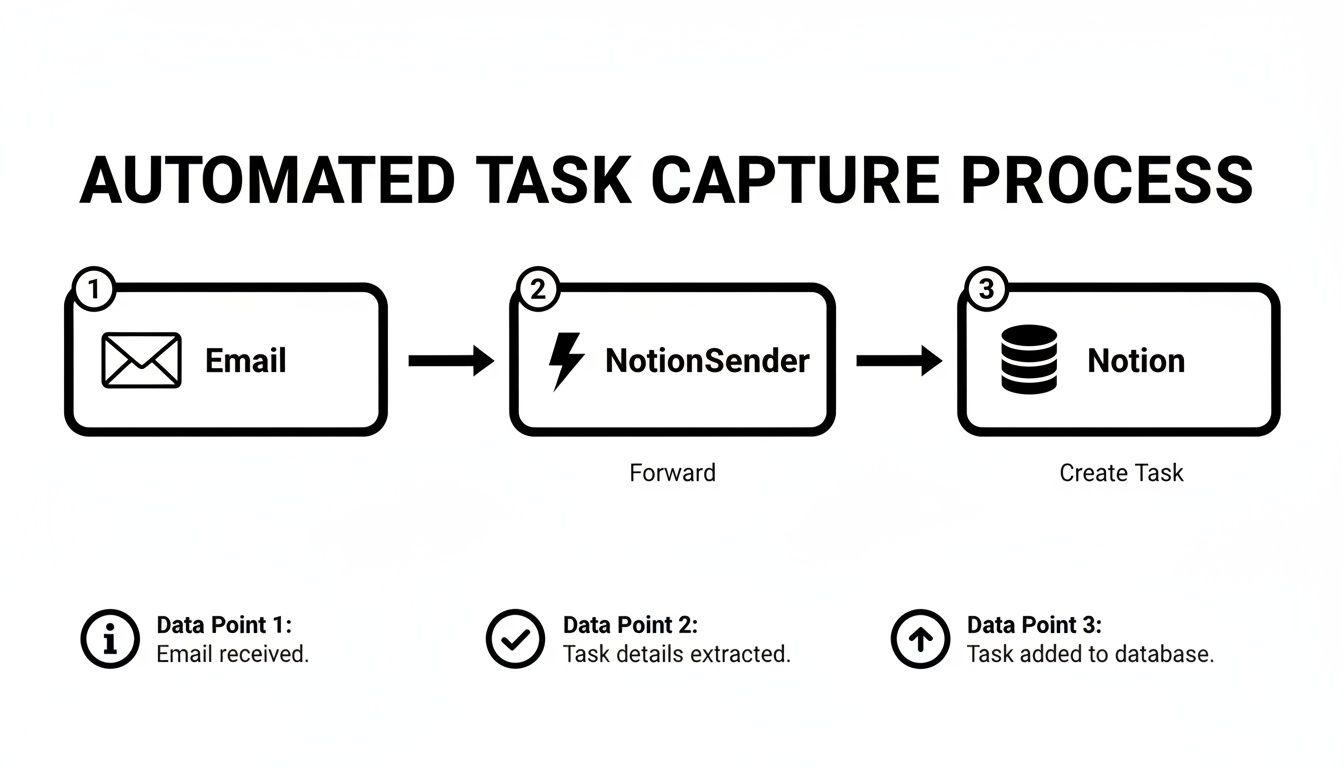
This workflow turns a static, easily-lost email into a dynamic, actionable item, completely wiping out the risk of important tasks disappearing into a crowded inbox.
From Email to Action in Seconds
Picture this: your marketing team just wrapped up a killer campaign launch meeting. The project manager shoots out a summary email outlining all the next steps. Instead of slogging through and creating five new entries in your Notion database, you just forward that single email to a unique NotionSender address linked to your action items template.
In moments, NotionSender gets to work, intelligently parsing the email's content. It spots the keywords you’ve set up—like "Task," "Owner," and "Due"—and automatically populates the right properties in your Notion database. This isn't just about saving time; it's a rock-solid system for ensuring accuracy and consistency.
And this isn't just a niche need. The demand for smarter meeting workflows is exploding. The Meeting Intelligence market, which covers tools for automated notes and action item extraction, is set to skyrocket from USD 1.87 billion to USD 8.96 billion by 2033. This massive growth just underscores how critical it is for teams to find solutions that turn chaotic meeting notes into organized, actionable plans.
The real magic of this automation is that it eliminates the single biggest point of failure in any follow-up system: the manual step. When you make capturing tasks effortless, you make accountability the default.
Setting Up Your Automated Workflow
Getting this automation up and running is surprisingly straightforward. The main idea is to map the fields in your email to the properties in your Notion database. This tells NotionSender exactly where to stick the information it pulls out.
Here’s what it looks like in a real-world scenario:
- Define Your Email Triggers: In the body of the email you forward, you'll use simple labels. For instance, you could write: "Task: Draft Q3 social media calendar" or "Owner: @jane.doe".
- Configure NotionSender: Next, you'll set up rules that tell the system, "When you see 'Task:', put the text that follows into the 'Task Name' property in Notion."
- Forward and Forget: Once that's configured, the process is as simple as hitting "Forward." A new task assigned to Jane with a specific due date will pop up in Notion, ready for her to see.
This not only saves a ton of time but also enforces a standard format for every incoming task, keeping your action items database clean and incredibly easy to navigate. If you're a developer or part of a team that wants to build more custom integrations, you can dig into the detailed instructions in the NotionSender API documentation.
Ultimately, this simple connection transforms your inbox from a source of clutter into a powerful engine for your entire project management system.
How to Write Action Items That Get Done
<iframe width="100%" style="aspect-ratio: 16 / 9;" src="https://www.youtube.com/embed/czh4rmk75jc" frameborder="0" allow="autoplay; encrypted-media" allowfullscreen></iframe> Having a slick meeting action items template is a great start, but it's only half the battle. If the tasks you’re plugging into that template are vague or confusing, the whole system is dead on arrival. The real secret to accountability is learning how to write action items that are impossible to misinterpret.
This isn't about following some rigid corporate framework; it’s about the human element. Think of a well-written action item as a clear contract between the team and one individual. It completely removes the guesswork and makes ownership crystal clear from the get-go.
With virtual meeting adoption now at 77%, getting this right has never been more important. Analysis from over a million meetings shows that strong digital templates are the bridge that turns conversations into concrete actions. You can dig into more of these collaboration trends in the full report from Flowtrace.
From Vague Notes to Powerful Tasks
So, where do most teams go wrong? They jot down fuzzy ideas instead of concrete tasks. A note like "Look into new software" is a recipe for procrastination. It has no clear verb, no defined scope, and no specific owner. It's just an idea floating in the ether.
To make it real, every single action item needs to answer three simple questions: Who? What? And when?
Here’s how you can instantly transform a weak note into a task that actually drives progress:
- Vague: Look into new software.
- Actionable: Alex will research and compare three CRM options, presenting a summary of features and pricing.
See the difference? The second version is a complete directive. It names a person (Alex), defines the exact deliverable (a comparison summary), and sets a clear expectation. No ambiguity, no excuses.
The Anatomy of a Perfect Action Item
Crafting tasks that get done consistently boils down to a simple but powerful formula. I like to think of it as a three-part recipe for clarity.
- Start with the Owner: Always, always begin with the person's name. This isn't just a label; it assigns psychological ownership and makes it immediately obvious who's on the hook.
- Use an Action Verb: Right after the owner’s name, use a strong, specific verb. Think "Create," "Draft," "Investigate," "Publish," or "Confirm." This tells them exactly what they need to do.
- Define the Outcome and Deadline: Finally, spell out what "done" looks like and when it needs to be finished. A simple "by EOD Friday" or "before the next sync on Wednesday" is all it takes to remove any lingering doubt.
An action item should be so clear that a brand new team member could read it and understand exactly what is expected. If there's any room for interpretation, it needs to be rewritten.
When you bake this simple structure into your team's workflow, you build a culture of clarity where everyone knows what's expected of them. Your Notion template’s status updates then become a meaningful way to track real progress, not just another box-ticking exercise.
Take Your Template to the Next Level with Advanced Workflows
A solid Notion database is a great start, but the real magic happens when you turn that static list into a living, breathing project dashboard. This is where your simple meeting action items template graduates into a command center for your entire team.
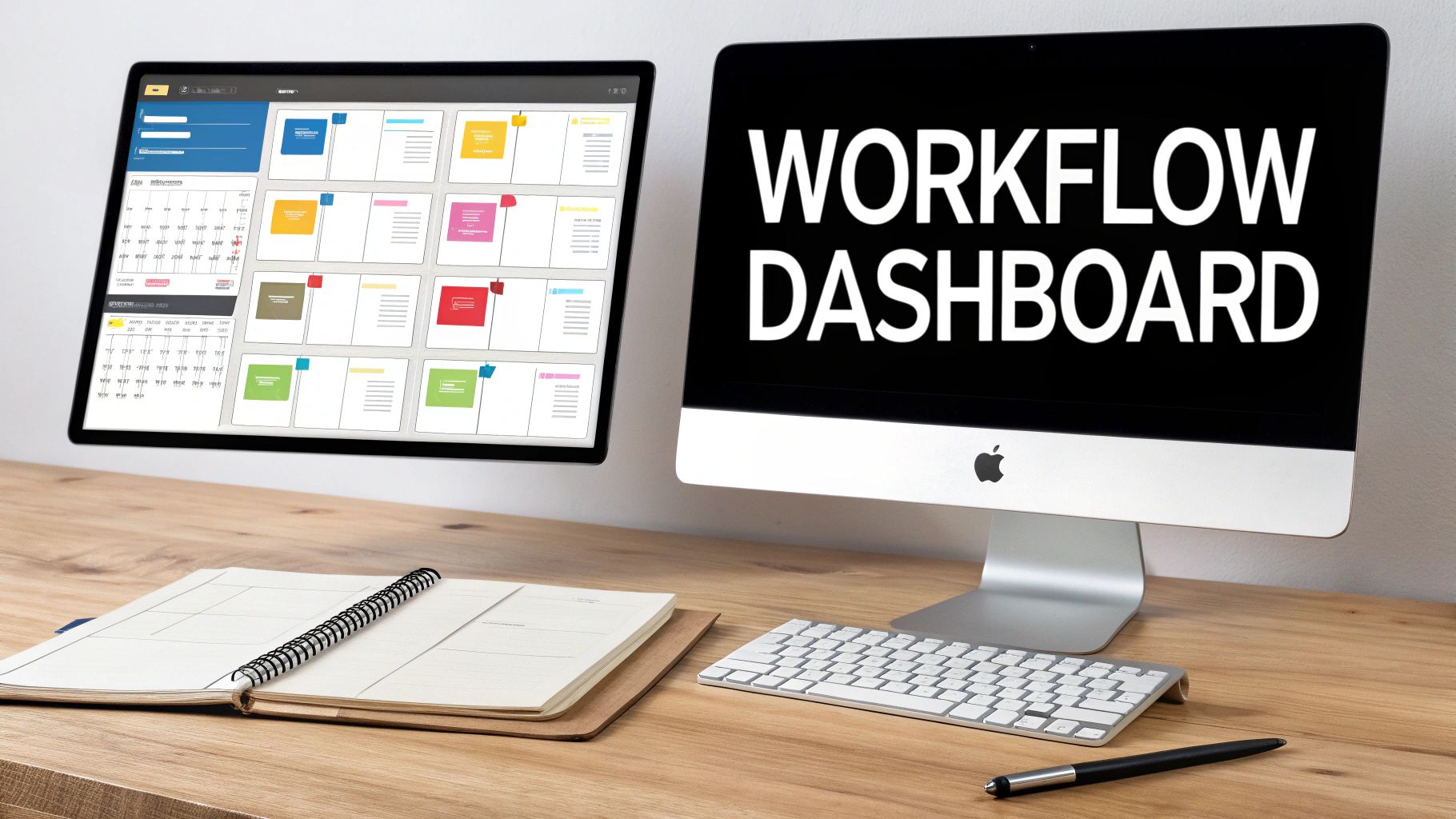
The trick isn't about adding a dozen more properties to your database. It's about looking at the same data through different lenses. By creating saved views, everyone can see exactly what's relevant to them without getting lost in the noise.
Building Custom Dashboard Views
The beauty of Notion is how visual it can be. Ditch the boring table and start building interactive dashboards that actually tell the story of your team's progress. Remember, these views aren't separate databases; they’re just different windows into your core action items list.
Here are three views I always build first:
- The Kanban Board: This one's a classic for a good reason. Create a new board view and group it by your 'Status' property. Now you can literally watch tasks move from 'Not Started' to 'In Progress' and finally to 'Complete'. There's nothing more satisfying than dragging a task across that finish line.
- The Deadline Calendar: Next, add a calendar view that pulls from your 'Due Date' property. This gives you a bird's-eye view of everything coming up, making it easy to spot potential pile-ups and manage your team’s workload before things get hairy.
- The 'My Tasks' Filter: This one is a game-changer for personal accountability. Just create a filtered list view with one simple rule: "Owner contains Me." Every person on the team can click this view and instantly see only what's on their plate, cutting out all the distractions.
These views do more than just look good; they create a culture of transparency and ownership. When everyone can see the progress being made, the whole team feels more connected to the shared goals.
Adaptable Templates for Any Meeting
To show you how this works in practice, here are a couple of scenarios where you can use different views of the same database.
- Weekly Team Sync: Create a new page for your weekly meeting notes. Inside, link to your main action items database. But instead of showing everything, add a filtered view that only shows tasks with a 'High' priority. Add a second view for tasks due in the next seven days. This keeps your weekly sync sharp, focused, and forward-looking.
- Client Project Kickoff: When working with clients, you can create a specific view filtered by a 'Project' or 'Client' tag. This lets you share a clean, relevant task list with stakeholders without showing them your entire internal team's workload. It’s professional and keeps everyone on the same page.
Finally, to truly close the loop on accountability, you can bring in a tool like NotionSender to trigger automated email reminders. It's simple to set up an automation that pings the task owner with an email 24 hours before the due date. This one small step turns your Notion setup from a passive tracker into a proactive system that ensures nothing ever slips through the cracks.
Got Questions? Let's Get Them Answered
Even with a slick new system in place, you're bound to have a few questions. I've pulled together some of the most common ones I hear to help you get this automated meeting action items template running smoothly and troubleshoot any snags.
Can I Adapt This Template for Different Kinds of Meetings?
You absolutely can, and you absolutely should. The real power of building your action items tracker in Notion is just how flexible it is. Don't feel locked into one rigid structure. The best approach is to duplicate the main database and tweak it for different meeting types.
For instance, you could whip up custom versions for:
- Weekly Team Syncs: Create a view filtered to show only high-priority tasks due in the next seven days.
- Client Check-ins: Build a simplified view that only displays tasks relevant to a specific client, keeping things focused.
- Project Retrospectives: Add a new "Lessons Learned" property to capture those valuable insights that usually get lost.
It's all about adjusting the properties or creating different filtered views to match the conversation you're having.
The goal isn't to force every meeting into a single template. It's to have a flexible core database that you can adapt on the fly. This way, the tool actually serves the conversation, not the other way around.
How Does NotionSender Know What Information to Extract?
This is where the magic happens, but it's not complicated. NotionSender works by using smart, configurable rules that you set up. You're always in the driver's seat.
By using simple labels right in the body of your email (like "Task:", "Assignee:", or "Due:"), you're essentially telling the tool exactly where to put that information in your Notion database. You map the labels to the properties.
It’s a one-time setup that pays off big time, ensuring that every time you forward a meeting recap, the data lands in the right spot, perfectly organized. No more tedious copy-pasting.
What if Some Team Members Don't Use Notion?
This is a classic problem, but it definitely doesn't break the workflow. It's totally fine if the core tracking system lives in Notion while some collaborators live in their inbox.
With NotionSender, you can actually automate email follow-ups that trigger directly from your database. This means you can send a reminder or a status request from a Notion task straight to anyone's email address.
They don't need a Notion account or access to your workspace to get the nudge and stay in the loop. It’s a great way to keep everyone accountable, regardless of the tools they use day-to-day.
Ready to finally stop tasks from falling through the cracks? NotionSender is the bridge between your inbox and your workspace, turning chaotic email threads into perfectly organized action items—automatically. Get started today and build a system that drives real accountability. Find out more at NotionSender.com.

