
Build a Notion Content Calendar Template That Works for You
If you've ever felt like you're drowning in a sea of scattered files, missed deadlines, and chaotic team communication, you're definitely not alone. It's a surprisingly common struggle for content teams. A well-structured Notion content calendar template can be the lifeline you need, creating a single, dynamic hub to manage your entire workflow and finally bring some order to the chaos.
Why a Notion Calendar Beats Any Spreadsheet
For a long time, spreadsheets were the default tool for content planning. But let's be honest—modern marketing has outgrown what static rows and columns can offer. And while simple calendar apps are great for scheduling, they just can't connect the dots between planning, creating, and collaborating. They all operate in their own little silos, completely cut off from your drafts, brand assets, and team discussions.
This fragmented approach almost always leads to the same old problems:
- Scattered Information: Drafts are in Google Docs, feedback is lost in Slack threads, and the final assets are buried somewhere in a shared drive nobody can find.
- Poor Visibility: Trying to get a quick overview of your entire content pipeline is a nightmare of manual tracking and constant check-ins.
- Collaboration Friction: Your team is constantly jumping between different apps, which is a recipe for missed updates and communication breakdowns.
A Notion content calendar template completely flips this script. It’s not just a place to stick some dates; it's a living, breathing workspace where your entire content operation can thrive.
The Power of a Centralized Hub
Imagine being able to see your entire content lifecycle at a glance—from a raw idea scribbled down in a meeting to a fully published and promoted post. That’s the real magic of building your calendar in Notion. Each entry on the calendar isn't just an event; it's a complete project file, ready to hold every single thing related to that piece of content.
A well-built Notion system transforms your workflow from a series of disjointed tasks into a smooth, integrated process. It adapts to your team's needs, not the other way around.
There's a reason this approach has exploded in popularity among marketing pros. Take the official Social Media Calendar template as an example—it boasts a stellar 4.85 rating from over 600 users, and a whopping 89% of reviewers praised how much it simplified their planning process.
More Than Just Dates and Deadlines
At its core, a Notion content calendar is the tool you need to execute a strong digital content strategy that actually gets results. It bridges the gap between your high-level goals and the day-to-day work by creating a single source of truth for everyone.
Instead of just tracking a publish date, you can monitor every stage of production—drafting, review, design, and promotion—all in one place. You can even read our 10 tips to help you get the most out of Notion to unlock its full potential. By bringing all your tools and processes under one roof, you're not just getting organized; you're creating a far more efficient and collaborative environment.
Building Your Core Content Database
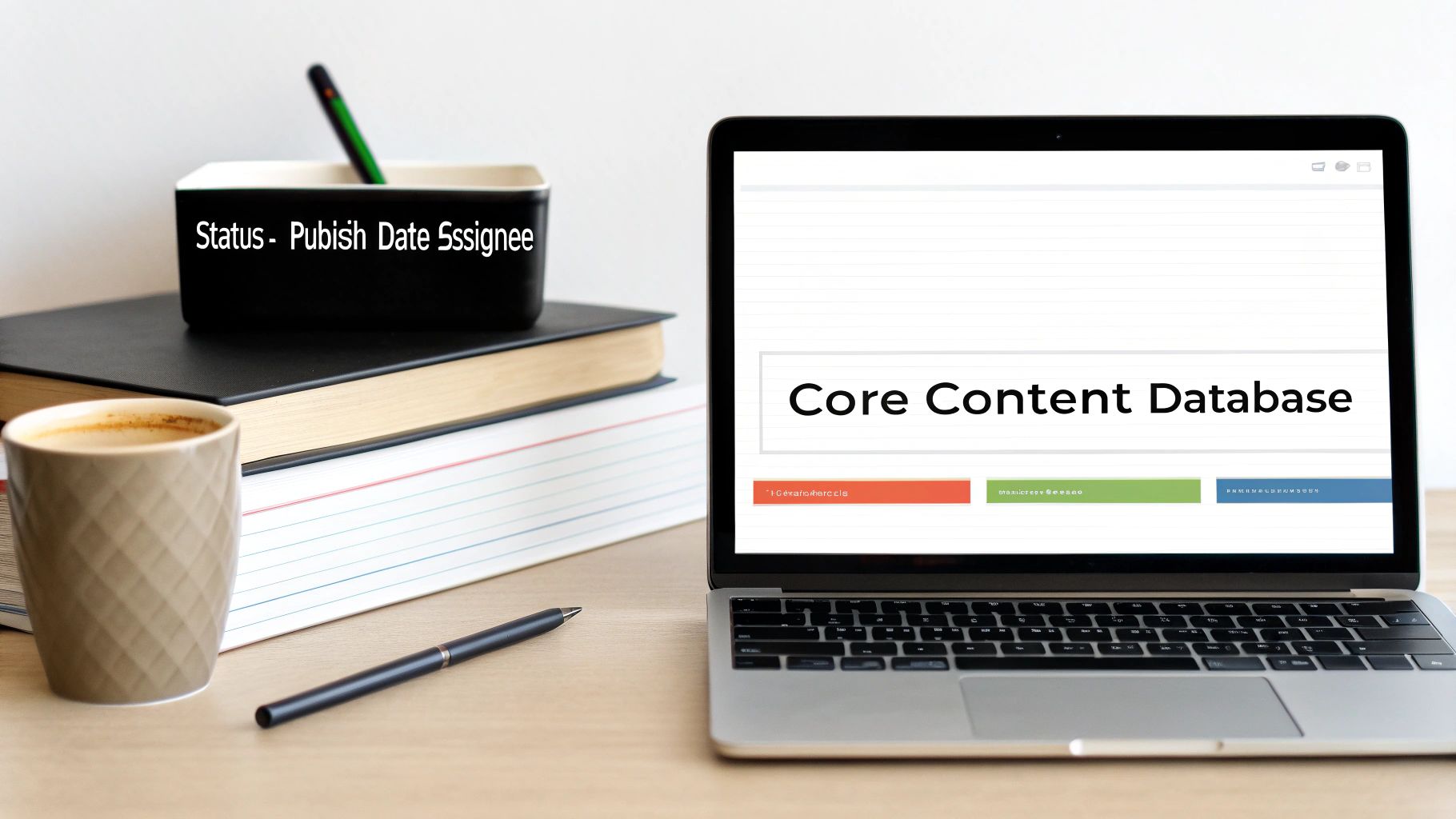
The heart of any truly functional Notion content calendar is its database. This isn’t just a fancy list; it's the central engine that stores, organizes, and powers your entire content workflow. Getting this foundation right from the get-go is the difference between a system that scales with you and one that just creates more busywork.
Our goal isn't to cram in every possible field you can dream up. A cluttered, over-engineered database is a nightmare to use. Instead, we're going to build a clean, robust structure with only the essential properties you actually need to take content from a fleeting idea to a published masterpiece.
Defining Your Key Properties
First things first: create a new full-page database in Notion. The most critical step here is setting up the "Properties," which are the data fields for every single piece of content. Think of these as the columns in a spreadsheet, but on steroids. Each property captures a vital piece of information, letting you sort, filter, and view your content in countless ways.
Let's walk through the non-negotiables that every solid content database needs.
- Status (Select): This is all about tracking the content’s journey. I recommend using clear, actionable stages like
Idea,Drafting,In Review,Ready for Design, andPublished. Using a "Select" property lets you color-code each stage, giving you an at-a-glance overview of your pipeline. - Publish Date (Date): This one's a no-brainer for a calendar. It dictates when the content goes live and is the key field we'll use for the Calendar View later on.
- Platform (Multi-select): Where is this content going to live? Create tags for
Blog,Instagram,LinkedIn,Newsletter, etc. A "Multi-select" property is perfect here, since you'll often repurpose a single blog post for multiple social channels.
These three properties are the absolute bedrock of your system. They tell you what’s happening, when it’s happening, and where it’s happening.
Your database structure should reflect your actual workflow, not an idealized one. Start simple with these core properties; you can always add more complexity later as your process evolves.
To give you a clearer picture, here’s a quick rundown of the properties I recommend starting with.
Essential Database Properties for Your Content Calendar
| Property Name | Property Type | Purpose & Example |
|---|---|---|
| Status | Select | Tracks the content lifecycle. Example: Idea → Drafting → Published |
| Publish Date | Date | The scheduled go-live date; powers the calendar view. |
| Platform | Multi-select | Specifies distribution channels. Example: Blog, LinkedIn, X |
| Assignee | Person | Assigns ownership to a team member for accountability. |
| Content Type | Select | Categorizes the format. Example: Article, Video, Case Study |
| Campaign | Relation | Links content to larger marketing initiatives (optional). |
Starting with these properties will give you a powerful, yet manageable, foundation.
Adding Depth and Accountability
With the basics nailed down, you can start adding properties that foster better team collaboration and strategic oversight. These fields introduce accountability and help you organize content by theme, turning your notion content calendar template into a genuine strategic asset.
Consider adding these to give each entry more context:
- Assignee (Person): Who's the driver for this task? The "Person" property lets you tag a team member directly, making it crystal clear who owns what. No more confusion.
- Content Type (Select): This helps you categorize your work. Is it an
Article,Video,Case Study, orSocial Post? Filtering by this property is a great way to make sure you're maintaining a healthy mix of content formats. - Campaign (Relation - Optional): If you run thematic campaigns (like a "Q3 Product Launch"), this is a game-changer. Create a separate, simple database of your campaigns, then use a "Relation" property to link individual content pieces back to the main initiative.
By setting up this core database, you've just built the solid foundation needed for all the dynamic views and clever automations that make Notion so powerful. Every property you've added is a lever you can pull to organize your workspace in a way that makes perfect sense for you.
Alright, let's get that Notion database working for you. Right now, it's just a big, static list of your content ideas. The real power comes from creating different "views" – basically, different lenses to look at and work with the same information. This is how you turn that simple list into a visual, functional workflow that actually fits how your team operates.
We're going to build out the three most critical views for any solid content calendar: the classic Calendar, the visual Board, and the detailed Table. Each one has a specific job, and when you put them all together, you've got a seriously capable project management setup.
The Classic Calendar View
This is the view everyone thinks of first, and for good reason. The calendar gives you that essential, high-level look at your publishing schedule. It's perfect for spotting content gaps at a glance or just getting a feel for the month ahead.
Getting it set up is simple. Just click the + icon next to your database's default view and choose "Calendar." Notion will immediately ask which date property you want to use for plotting things out. Go ahead and select your "Publish Date" property. Just like that, all your content entries will pop up on the calendar.
Here are a couple of quick tweaks to make it even better:
- Show Key Properties: In the calendar view, find and click the "Properties" menu. Toggle on fields like
StatusandAssignee. Now you can see who’s on deck and the current stage of each piece without having to click into it. - Filter for Clarity: If things start to look a little crowded, the "Filter" option is your best friend. For example, you could set up a filter to show only content with a
StatusofPublishedto quickly review what went live last month.
The Kanban Board for Visual Progress
The calendar tells you when something is due, but a Kanban board shows you where it is in your workflow. Honestly, this view is a total game-changer for tracking progress visually and seeing who's working on what. It turns your to-do list into an interactive pipeline where you can literally drag and drop tasks from one stage to the next.
Create another new view, this time selecting "Board." The most important setting you'll see is "Group by." You'll want to choose your "Status" property here. This automatically creates columns for each of the stages you defined earlier—Idea, Drafting, In Review, and so on. Now, as a piece of content moves along, you just drag its card over to the next column.
A Kanban board is amazing for spotting bottlenecks before they become real problems. If you notice the 'In Review' column is piling up, you know exactly where the team needs to focus to keep things flowing.
The Power of the Table View
Finally, we have the table view. Think of this as your command center for all the nitty-gritty details, bulk edits, and deep-dive planning. It might be less visual than the others, but it's incredibly powerful for sorting and filtering your entire content library in a way that feels like a super-powered spreadsheet.
This is the view I turn to for tasks like:
- Bulk Assigning: Need to assign five new blog posts to a writer? Easy. Just filter by
Content Typeto show onlyArticle, select all five, and change theAssigneeproperty in a single click. - Strategic Sorting: You can sort your entire database by
Publish Dateto see your full schedule in a clean list or sort byAssigneeto check on each person's workload for the quarter.
By setting up and customizing these three views, you've officially transformed a basic database into a dynamic, flexible content calendar that can adapt to whatever you throw at it.
Alright, you've got the basic structure of your content calendar database and a few views set up. Now it's time for the fun part: making it smart. This is where we go beyond a simple planner and build a system that actually automates your work. By adding some advanced properties and leveraging database templates, you'll save a ton of time and keep everything consistent.
Let's think bigger than just "Status" and "Due Date." We want properties that tie your day-to-day content back to your high-level marketing goals. A great way to do this is with a "Relation" property. You could link each content piece to a separate "Campaigns" database. Suddenly, you can see every blog post, social update, and newsletter for a specific product launch, all grouped together. It gives you that bird's-eye view of your entire strategy.
Using Database Templates to Standardize Content Creation
The real secret weapon for automating your workflow is Notion’s Database Templates. This feature is an absolute game-changer. It lets you pre-build outlines and checklists for different types of content, so you’re not starting from scratch every single time.
Imagine clicking that "New" button in your calendar and instead of a blank page, you get options like "New Blog Post" or "New Instagram Reel." When someone on your team picks one, a new page pops up, already filled with all the sections and prompts you require.
For a blog post template, you could bake in things like:
- An SEO checklist to make sure every article is properly optimized before it goes live.
- A pre-structured drafting section with headings for the intro, body, and conclusion.
- Placeholder blocks for dropping in images, calls-to-action, or author bios.
This kind of simple automation does more than just save a few minutes here and there. It builds your team's best practices right into the workflow, making sure every piece of content hits your quality bar from the very beginning.
This flow chart below shows how you can switch between Calendar, Board, and Table views to manage your content from different perspectives—from initial scheduling to tracking progress.
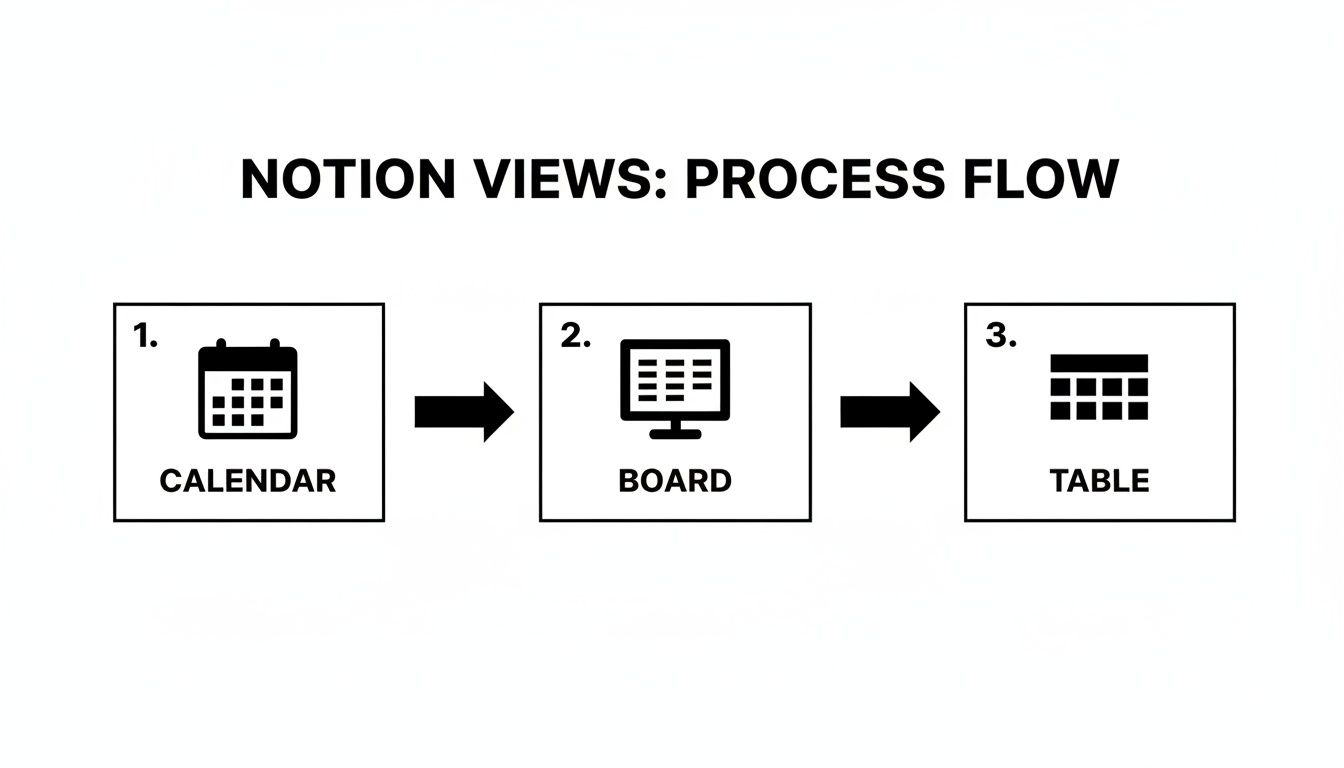
It’s a perfect illustration of how one central database can be manipulated to give you the right context for whatever task is at hand, whether you're planning for the month or diving into the details of a single post.
Adding Strategic Depth with Formulas and Rollups
Ready to kick things up a notch? Notion's "Formula" and "Rollup" properties can turn your calendar into a mini-performance dashboard. These properties do the math for you and pull in data from other connected databases, giving you some seriously powerful insights without ever having to leave Notion.
A simple but incredibly useful trick is to add a formula property for "Days Until Due." It automatically calculates the time left before a publish date, giving your team a clear visual cue to help prioritize what needs to get done next.
When it comes to strategy, this is where a Notion calendar really shines. We've seen teams build custom setups that track key metrics like engagement rates and report up to a 25% improvement in their monthly analytics just from having this visibility. You can see some great examples in Notion's official template gallery.
To really get the most out of your calendar, you'll want to automate social media posting by connecting it to other tools. Once you start wiring things up with external services, the possibilities really open up. For anyone wanting to dive deep into integrations, you can check out the NotionSender API documentation for more advanced options. These features are what transform your calendar from a static schedule into a living, breathing system that actively helps you work smarter.
Connecting Your Calendar to Your Email Inbox
A brilliant content plan can quickly fall apart when it's disconnected from the day-to-day chatter that makes it happen. Your Notion calendar is great for tracking deadlines, but the real work—draft submissions, feedback rounds, stakeholder approvals—often lives in a completely separate universe: your email inbox. This constant app-switching is where tasks get dropped and momentum dies.
This is where we can bridge the gap.
By plugging your email directly into your notion content calendar template, you transform a passive planner into an active, centralized communication hub. It’s no longer just a schedule. It becomes the single source of truth for every conversation related to a piece of content.
<iframe width="100%" style="aspect-ratio: 16 / 9;" src="https://www.youtube.com/embed/IS0NPa0yqi4" frameborder="0" allow="autoplay; encrypted-media" allowfullscreen></iframe>
Bringing Conversations into Your Workflow
Imagine a freelance writer emails you the first draft of a blog post. Normally, you'd have to download the file, hunt down the right task in Notion, and manually upload it. But what if that email and its attachment could just appear on the correct content card automatically?
That’s exactly what an integration like NotionSender makes possible.
This connection gets rid of the manual, error-prone busywork that drains your team's energy. It keeps all the important stuff—briefs, pitches, feedback, even invoices—neatly organized right where it belongs, in the context of the content it relates to.
The real power of an integrated system is context. When a conversation is attached directly to a task, you eliminate the need to hunt through old email threads, creating a seamless and accountable workflow for everyone involved.
The screenshot below shows just how straightforward it is to get started.
This little interface captures the whole idea: connect a unique email address to a specific Notion database, and you've just automated your communication flow.
Turning Your Calendar into a Command Center
The best part? This integration works both ways. You can also send emails directly from a Notion page.
Let's walk through a quick workflow:
- Pitching an Idea: You have a content card for a guest post idea. You can write the pitch right inside that Notion page and fire it off to an editor's inbox without ever leaving your workspace.
- Tracking Responses: When the editor replies, that email gets captured and logged right back to the same Notion page. The entire conversation history is now in one spot.
- Managing Deliverables: A contributor sends their final draft or an invoice? That email gets filed automatically under the corresponding task. No more manual sorting.
This level of integration is what separates a good content calendar from a great one. It closes the loop between planning and execution, making sure no piece of communication ever gets lost in the shuffle.
If you're ready to make this happen, our detailed guide on how to send emails directly into Notion is the perfect next step. It’s a game-changer for building a truly efficient and connected content engine.
Of course. Here is the rewritten section, crafted to sound like an experienced human expert and match the provided examples.
Your Top Questions About Notion Content Calendars
Getting a new system dialed in always brings up a few questions. As you start living in your new Notion content calendar, you'll probably wonder how to tweak it for your specific needs or run into a couple of common roadblocks. Let's get you some quick, practical answers.
Can I Use This Template for Multiple Clients?
You absolutely can. This is a must-have for freelancers and agencies, and Notion handles it like a champ. The cleanest way to do this is by adding a "Select" or "Relation" property to your main database. Just call it something like 'Client' or 'Brand.'
Once you have that property in place, you can build out a main dashboard page. From there, create separate linked views of your calendar—one for each client—and simply filter each view to show content for only that specific client. It's the best of both worlds: everything lives in one master database, but you get clean, dedicated workspaces for every project.
How Do I Share Parts of the Calendar with Freelancers?
Notion's sharing features are tailor-made for this. You can share a single page—like the entry for a specific blog post or social media campaign—with an external guest. This gives them full editing access to that one item without letting them see your entire content pipeline.
This kind of granular control is a lifesaver for collaboration. It keeps your master workspace private while letting writers, designers, or other partners jump in exactly where you need them.
The ability to share individual pages without exposing your entire database is a huge workflow and security win. Collaborators get the context they need for their task, and nothing more.
What Is the Best Way to Handle Recurring Content?
For those tasks that pop up every week or month—think newsletters, performance reports, or social media roundups—Notion's recurring database templates are your best friend. You can set up a template to automatically generate a new page on a schedule you define.
For example, you could create a "Weekly Newsletter" template that spits out a new, pre-filled entry every Monday morning. That page will just appear in your calendar, ready to go with its built-in checklist, content sections, and assigned team members. It’s a simple bit of automation that guarantees you never miss a routine deadline again.
My Notion Calendar Is Getting Slow. How Can I Fix It?
As your content archive grows, it's normal for a big database to feel a bit sluggish. Don't worry, you don't have to delete your hard work. The best fix is to create a simple archive system.
Here's the quick-and-dirty method:
- Add a "Checkbox" property to your database and name it "Archive."
- Pop into your main calendar and board views and add a filter: hide any item where "Archive" is checked.
- Every so often, just run through your completed tasks that are a few months old and tick that archive box.
This doesn't delete the data; it just tucks it away from your daily views. You’ll be surprised how much this can speed things up.
Ready to take your workflow a step further and connect your email right into your Notion calendar? NotionSender lets you zap emails directly into any Notion database. It's the perfect way to centralize all your project-related conversations in one spot. Give the free trial a spin today!

