
Discover notion database id: Quick steps to locate yours
Ever tried connecting a tool like Zapier or NotionSender to your workspace, only to be stopped by a request for a "database ID"? It's a common hurdle, but once you understand what it is, a whole world of automation opens up.
Simply put, a Notion database ID is the unique 32-character string that acts as the specific address for that one database. Think of it less like a name you can change and more like a permanent serial number for your project tracker, client CRM, or content calendar. This ID is what allows external tools to find the exact right spot to drop off or pick up information.
What's a Notion Database ID, Really?
At its heart, the database ID is the key to unlocking true automation in Notion. It’s more than just a string of technical jargon.
Imagine your entire Notion workspace is a city. Every database—your sales pipeline, meeting notes, team tasks—is a building. The database ID is the unique, unchangeable street address for that specific building. Without it, an automated tool trying to add a new lead to your sales CRM would be like a mail carrier with a package but no address—completely lost. It might even drop it off at the wrong place, like your personal reading list!
Why This ID Is So Important
The role of the database ID has become incredibly important as Notion has evolved. Between 2022 and 2024, Notion cemented itself as a core operational tool for countless small businesses and freelancers. With over 4 million paying customers now running mission-critical processes on it, these unique IDs are the invisible glue holding sophisticated business systems together.
Here’s why you’ll need it:
- Connecting Third-Party Apps: Tools like NotionSender, Make, or Zapier can't function without it. They need the ID to know precisely which database to read from or write to.
- Building Custom Integrations: If you're a developer working with the Notion API, the database ID is how you target a specific database for your custom scripts. You'll see this in action in guides for tasks like exporting Markdown documentation to Notion.
- Automating Workflows: It’s the linchpin for creating systems that automatically update project statuses, log client emails, or manage entire content pipelines without manual intervention.
In short, getting comfortable with the Notion database ID is your first real step toward turning a collection of static pages into a dynamic, interconnected system. It's the bridge between your Notion workspace and the wider world of software automation.
By understanding what this ID is and how to find it, you can start leveraging some seriously powerful integrations. You can see this concept in action in our guide on the different ways to use Notion to send emails, where the database ID tells the system where your email content lives.
Finding Your Database ID Directly From the URL
By far the easiest and most common way to get your Notion database ID is to just grab it right from your browser's address bar. You don't need any special tools or tech skills for this one, which makes it perfect when you're in a hurry to set up an integration like NotionSender.
First, open the database you need to connect. Now, just look up at the URL in your browser. The Notion database ID is that long string of random-looking letters and numbers wedged between your workspace name and the question mark (?). That's it.
Let's say you're building a "Client Inquiries" database to pipe emails into. You'd just navigate to that database in Notion and copy that specific part of the URL.
The image below shows you exactly what to look for.
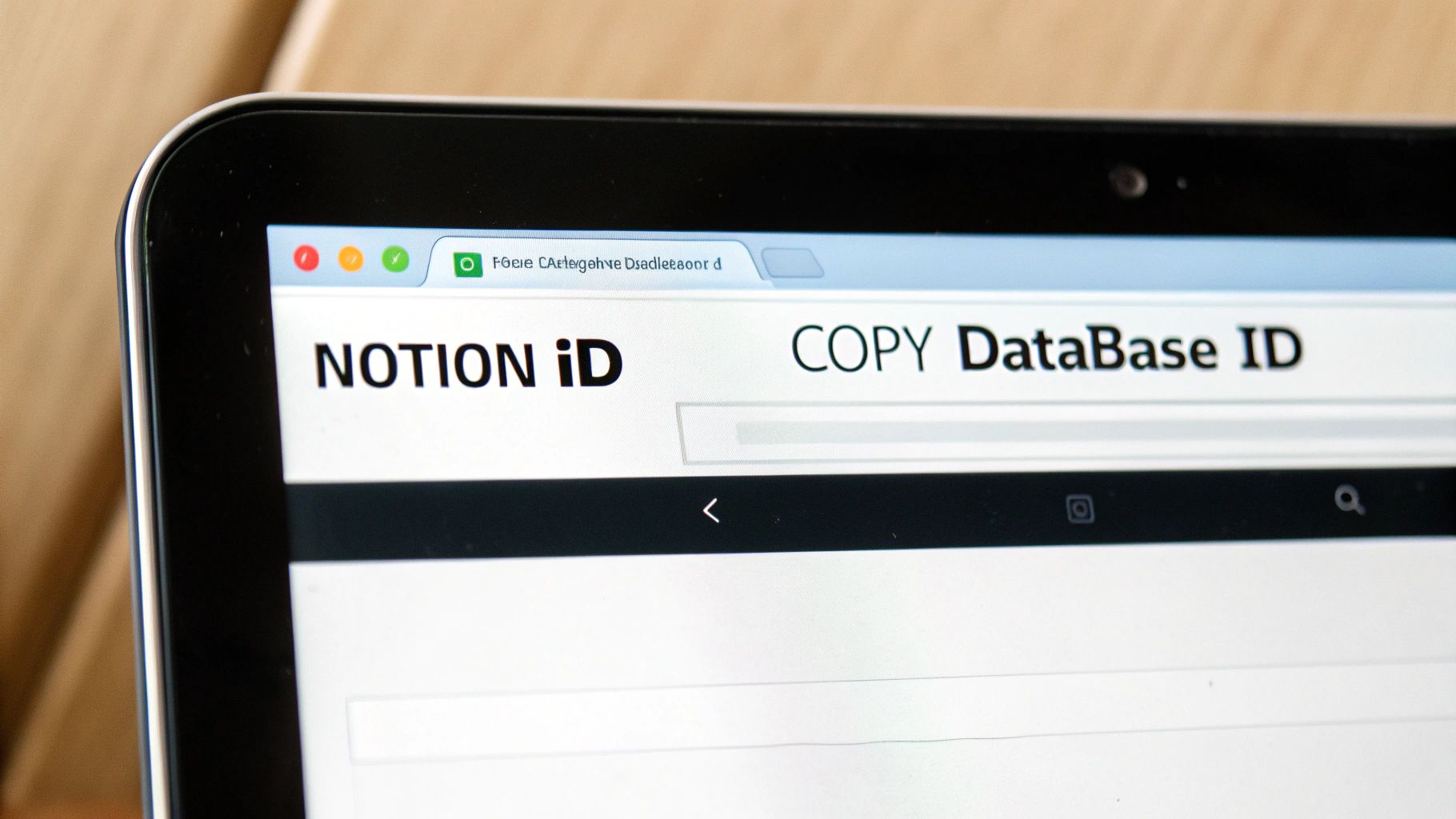
As you can see, it’s a 32-character alphanumeric string. This is the unique identifier for your database across all of Notion.
Avoiding a Common Pitfall
I see this all the time: people accidentally grab the page ID instead of the database ID. This usually happens when your database is sitting "inline" on a bigger page. If you copy the ID from the main page's URL, any integration you're setting up will fail because it’s trying to connect to a database, not a regular page.
To make sure you’ve got the right one, always follow these steps:
- Navigate directly to the database so it takes up the full screen, not just a block on a page.
- Click the three-dot menu (
...) in the top-right corner. - Choose "Copy link to view." This action guarantees you're getting the direct link to the database itself.
A database URL almost always looks like this:
your-workspace/32-character-ID?v=.... That?v=part is the giveaway, as it refers to a specific database view. A plain page URL, on the other hand, will just have the page title and its ID. Spotting that tiny difference can save you a world of troubleshooting headaches. Getting the right ID is the first critical step to making any automation work smoothly.
Advanced Methods for Developers and Power Users
If you're building custom solutions or digging into the Notion API, just grabbing the ID from the URL often won't cut it. When you're scripting automations or trying to figure out why an integration is acting up, you need a more direct route to find a Notion database ID.
Let's look at a couple of powerful methods for those who are a bit more technically adventurous. These approaches go beyond the address bar and get into the nuts and bolts of how Notion actually works with your browser and its own API. They're perfect for when you need to find an ID programmatically or just diagnose a tricky connection issue.
Use Browser Developer Tools
One of the quickest pro-level tricks is to peek at the network traffic using your browser's built-in developer tools. This lets you see the raw requests flying between your browser and Notion's servers, revealing the database ID with zero guesswork. It might sound intimidating, but it's surprisingly simple.
Just open your database in Notion, then pop open your browser’s Developer Tools. You can usually do this by pressing F12 or right-clicking the page and hitting "Inspect".
Once you're in, click over to the "Network" tab. You might need to refresh the Notion page to see the list of requests start to fill up. Keep an eye out for queryCollection requests. Clicking on one of those will show you a payload of data that contains the collectionId—and that's your database ID.
This method is an absolute lifesaver when an ID you copied from a URL isn't working. It shows you the actual ID Notion is using for that specific view, cutting through any confusion from complex page layouts or those tricky inline databases.
Find the ID via the Notion API
For anyone building an app that talks to Notion, getting the ID programmatically is a must. The Notion API gives you a direct way to list all the databases that your specific integration can access, letting you find the ID you need on the fly.
You can make a GET request to the /v1/databases endpoint. A more common approach, though, is to search for a specific database. Just use the /v1/search endpoint and filter by the object type "database" to find it by its title. The response you get back will be a JSON object packed with all the database details, including its unique ID.
For developers, looking at detailed resources like the NotionSender API documentation can give you great context on how these IDs are actually put to work in real-world integrations.
And for any power users who spend a lot of time working with web interfaces, checking out some of the best Chrome extensions for web developers can unlock even more tools for inspecting elements and making workflows like this even smoother.
Common Mistakes and How to Fix Them
<iframe width="100%" style="aspect-ratio: 16 / 9;" src="https://www.youtube.com/embed/V-1FSQJpHlE" frameborder="0" allow="autoplay; encrypted-media" allowfullscreen></iframe>
Connecting your Notion database to another tool should be simple, but it's easy to get tripped up by a couple of common issues. Most of the time, the problem boils down to grabbing the wrong ID or forgetting a quick permission step.
Let's look at what usually goes wrong and how to get back on track in seconds.
The Wrong ID: Page vs. Database
The single most common mistake is accidentally using a page ID when you need a database ID. This almost always happens when your database is sitting "inline" on another page. If you just copy the ID from the main page's URL, your integration is going to fail because it’s trying to find a database, not a regular page.
Pro Tip: The foolproof way to get the right ID is to open your database in full-page view first. Then, copy the URL. This guarantees you're pointing to the database itself, not the page it lives on.
Permission and Sharing Errors
The other frequent hurdle is a classic permissions error. When you connect an integration like NotionSender, you have to explicitly grant it access to the specific database you want it to use.
If you skip this step, it's like giving someone a key to your building but not telling them which apartment is yours. The integration knows it's connected to your workspace but can't actually "see" the database.
- The Problem: The tool you're connecting says "database not found" or "permission denied," even though you're sure the ID is correct.
- The Fix: Jump into your database, click the Share button at the top right, and make sure your integration (it'll be named something like "NotionSender Integration") is invited and has "Can edit" access.
If you're ever unsure which method to use for finding your ID, this flowchart breaks it down based on what you're trying to do.
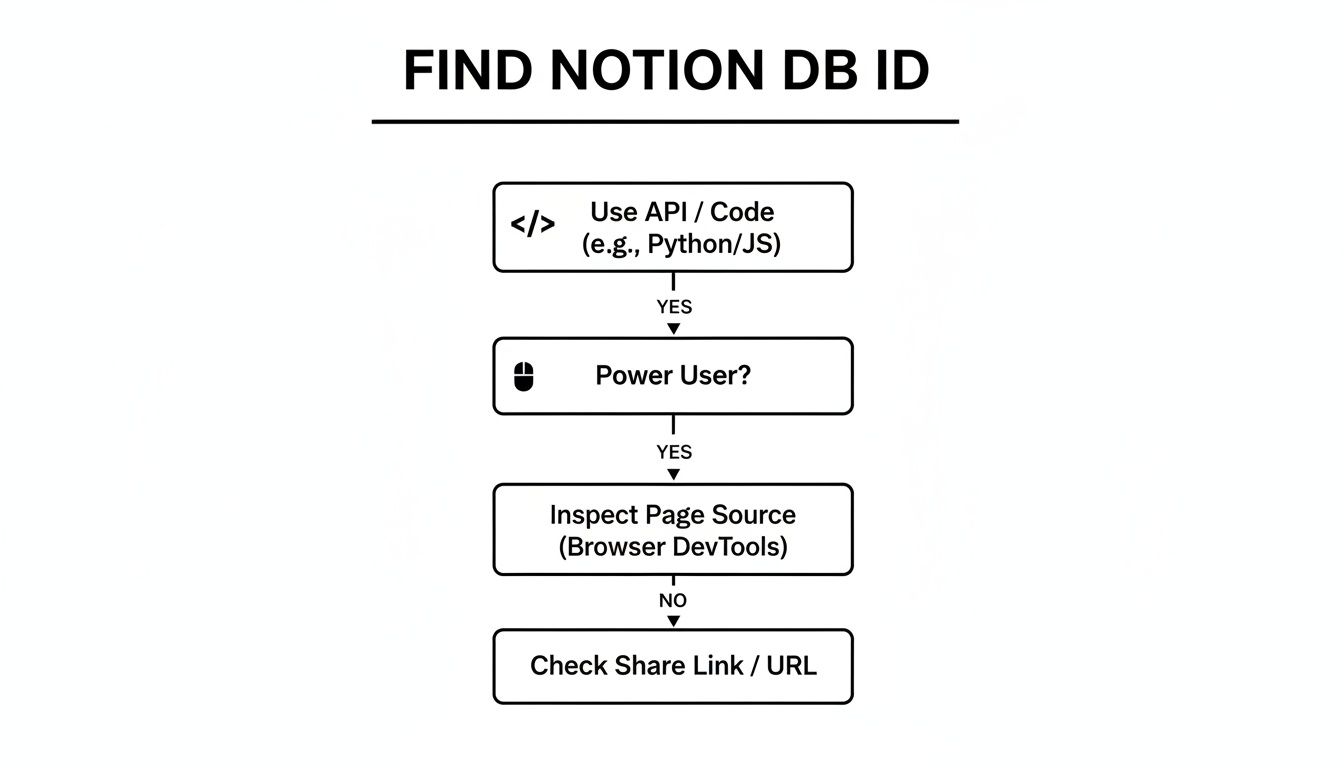
As you can see, developers have more technical options available, but for most people, just grabbing the ID from the URL is the quickest way to go.
Getting this right is more important than ever. As of early 2024, an estimated 79% of Notion users are under 44—a group heavily invested in automation. For them, getting the correct Notion database ID is the critical first step in building powerful workflows for everything from client management to content calendars. You can learn more about Notion's growing influence and see why these connections are so vital.
Putting Your Database ID to Work with NotionSender
Okay, so you've found your Notion database ID. Now for the fun part—actually using it. On its own, the ID is just a string of characters, but it's the key that unlocks powerful connections between your static Notion database and dynamic tools that can supercharge your workflow.
Let's imagine you just copied the ID for your "Sales Leads" database. The next logical step is to plug it into an integration to automate a repetitive task. This is exactly what a tool like NotionSender was designed for—turning a manual data entry process into a completely hands-off system.
Connecting Your Database for Email Automation
When you’re setting up a tool like NotionSender, you'll eventually be asked to connect a specific database from your workspace. This is the moment that 32-character ID you copied becomes crucial. You'll just paste it right into the designated field.
As soon as you provide the ID, NotionSender gets to work and instantly generates a unique email address tied directly to that specific database. For our "Sales Leads" example, it might spit out something like leads@yourcompany.notionsender.com.
This one simple action can completely change how you work. Now, every single time a new prospect emails that address, a new, perfectly organized entry pops up in your "Sales Leads" database in Notion. No more copying and pasting. The value of that database ID goes from being a technical concept to a tangible productivity boost.
By pasting that one string of characters, you've effectively built a bridge between your inbox and your Notion CRM. It’s the key that allows incoming data to find its exact home without any manual effort on your part.
This direct connection is what makes tools built on top of Notion’s framework so powerful. To see how this single step can overhaul your email management, you can explore the full capabilities of NotionSender.
Got Questions? We've Got Answers
To wrap things up, let's tackle a few of the most common questions that pop up when dealing with Notion database IDs. Getting these fundamentals right will save you a ton of headaches down the road.
What's the Difference Between a Page ID and a Database ID?
This is easily the most frequent mix-up. Think of it this way: a page ID points to a single, regular Notion page, while a database ID points to the entire database itself—the whole table, gallery, or board.
The classic mistake is grabbing the URL of a page that just happens to have a database embedded in it. Doing that gives you the page ID, not the database ID, which is why your integration will almost certainly fail.
Pro Tip: To make sure you're grabbing the right one, always open your database in its full-page view before you copy the URL. This guarantees you're looking at the database directly, not the page it lives on.
Can My Notion Database ID Change?
Nope. Once a database is born, its ID is set in stone. You can rename the database, shuffle its properties around, or even move it to a completely different part of your workspace—but that unique 32-character ID will never change.
This is actually a good thing! That stability is what ensures your API connections and integrations don't suddenly break just because you decided to tidy up your workspace and rename a few things.
Why Do I Keep Getting Permission Errors?
Nine times out of ten, a permission error means your integration simply hasn't been given access to that specific database. It's a two-step dance: first, you connect the integration (like NotionSender) to your overall Notion account. But then—and this is the part everyone forgets—you have to explicitly share the individual database with that integration.
The fix is usually incredibly simple. Just head to your database, hit the Share button in the top-right corner, and look for your integration in the list of connections. Make sure you grant it "Can edit" access. Seriously, this one little step solves over 90% of connection problems.
Ready to put that database ID to good use? NotionSender turns your simple databases into powerful email automation machines. Start for free and get your first database connected in minutes.

