
Notion for Team: notion for team collaboration and productivity
When you bring Notion for team collaboration into your company, you're not just getting another app. You're creating a central hub for projects, documents, and conversations, which means no more bouncing between a dozen different tools just to get through the day. It's about building a single source of truth where information is easy to find and workflows are clear to everyone.
Why Your Team Needs a Unified Notion Workspace
Does this sound familiar? You're jumping from Slack for chats, to Google Docs for content, over to Trello for tasks, and then digging through Confluence to find documentation. This constant context-switching is more than just an annoyance; it's a productivity killer. It creates silos where important details get buried.
Documents get lost in endless email chains, and nobody is ever 100% sure they're looking at the latest version of a file. For any growing team, this kind of fragmented workflow is a recipe for friction and frustration.
A unified Notion workspace cuts through that chaos. By pulling all those functions under one roof, you create a central command center for everything your team is working on. Imagine your project plans, meeting notes, task lists, and marketing briefs all living in the same place—interconnected and instantly searchable.
The Single Source of Truth Advantage
The real magic of using Notion for your team is establishing a single source of truth. When everyone is working from the same playbook, miscommunications plummet and alignment just... happens. New hires get up to speed in record time because all the company knowledge isn't scattered across ten different platforms.
At its core, a unified Notion workspace becomes a powerful knowledge management system for your team, centralizing all that collective brainpower. And this isn't just a trend for small startups; it's a proven strategy used by some of the biggest names in the industry.
By 2025, it's projected that over 50% of Fortune 500 companies will have moved to a unified workspace model. Giants like Amazon, Nike, Pixar, and Toyota are already using Notion to connect their workflows and get more done.
A Flexible Foundation for Any Team
Whether you're running a marketing department, an engineering squad, or an operations team, Notion's flexibility is its superpower. You can build the exact tools you need, how you need them.
A marketing team can create a dynamic content calendar that's directly linked to their campaign briefs. Meanwhile, the engineering team can track sprints on a Kanban board that connects to all their technical docs.
This adaptability means Notion scales right alongside you, so you won't have to keep switching tools as your processes change. To get off to a strong start, I'd recommend checking out these 10 tips to help you get the most out of Notion. It’s a great way to set a solid foundation before you dive in and start building.
Building Your Team's Digital Headquarters
Okay, let's move from theory to actually getting your hands dirty. This is the fun part—transforming a blank Notion workspace into a genuine headquarters for your team. The goal isn't just to store files; it's to build the place where your team starts their day and feels totally in sync. The first brick you lay is a dedicated Teamspace.
Think of a Teamspace as more than just a folder. It’s a self-contained environment for a specific group, like "Marketing" or "Engineering." This simple container keeps all relevant documents and databases together, stopping your workspace from turning into a digital junk drawer. To get started, just click "New teamspace" in your Notion sidebar and give it a name that makes sense.
Designing a Sensible Structure
With your Teamspace ready, the next move is to build a hierarchy. I've seen it happen time and again: without a clear structure, even the most well-intentioned workspace descends into chaos within weeks. You wouldn't build a house without a blueprint, and the same logic applies here.
For growing teams, I’ve found a simple, scalable pattern that just works:
- Top-Level Teamspace: This is your main container (e.g., "Marketing Team"). It’s home to general team-wide info and the main dashboard.
- Department or Function Pages: Inside the Teamspace, create high-level pages for different functions. Think "Content & SEO," "Social Media," or "Product Marketing."
- Project and Initiative Pages: From there, nest specific projects under the right department page. For example, a "Q3 Blog Relaunch" project would live inside the "Content & SEO" page.
This nested approach keeps everything in context and makes finding things a breeze. A new hire can jump in and locate project documents without needing a full-blown guided tour.
The most effective Notion setups are built on a foundation of predictability. When a team member knows exactly where to find information without having to ask, you reclaim dozens of hours lost to shoulder-taps and Slack messages.
The Home Base Dashboard
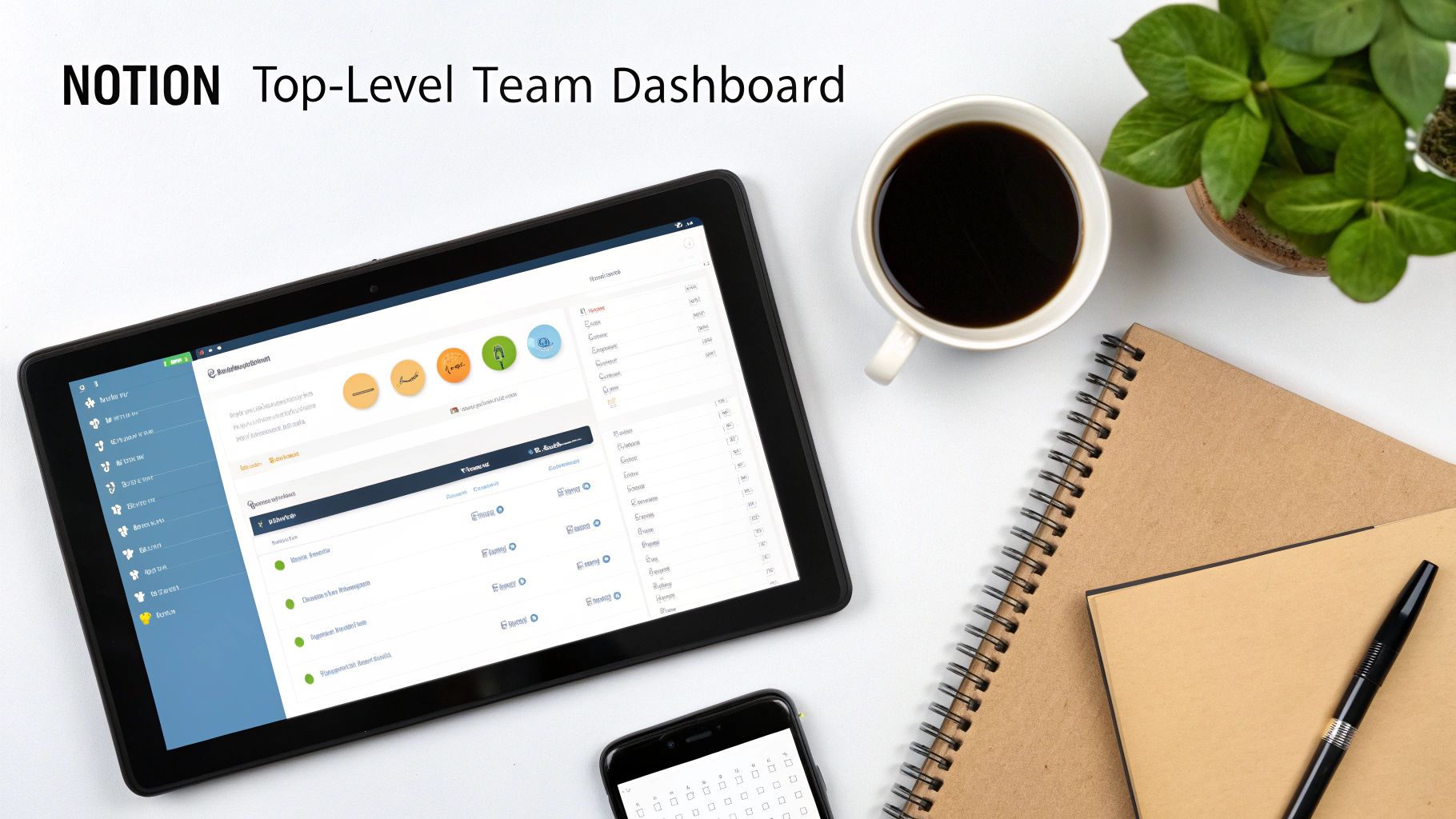
Every digital headquarters needs a front door. In Notion, this is your top-level team dashboard—the first thing everyone sees when they enter the Teamspace. This page can't be a static, boring document dump. It needs to be a dynamic, actionable hub.
Your dashboard is the perfect spot to centralize mission-critical information and give people shortcuts to the tools they use every day. Just think about what your team needs to see at a glance to stay aligned.
Key Dashboard Components:
- Team Mission & Goals: A simple callout block front and center, stating the team's purpose and this quarter's main objectives.
- Quick Links: A handful of links to high-traffic areas like the project roadmap, meeting notes database, and company wiki. Synced blocks work great for this.
- Active Projects View: Embed a filtered view of your master projects database that only shows items currently marked "In Progress."
- Team Calendar: Drop in an embedded calendar view that shows key deadlines, campaign launch dates, and team member PTO.
A dashboard like this acts as a command center, giving everyone a snapshot of what’s happening without making them dig for it.
Establish Naming Conventions Early
This feels like a tiny detail, but trust me, its impact on long-term organization is massive. Setting up clear naming conventions from day one is one of the single most important things you can do when setting up Notion for team collaboration. Inconsistent names turn your search bar into a frustrating guessing game.
A simple framework can make all the difference. For instance, a marketing team could use prefixes to instantly clarify what a document is:
- [Meeting] - Q3 Content Planning - 2024-07-25
- [Brief] - Fall Campaign Social Media Assets
- [Report] - June 2024 SEO Performance
- [Guide] - New Team Member Onboarding
This small habit makes your workspace instantly scannable, searchable, and far less intimidating. By combining a logical hierarchy, a functional dashboard, and consistent naming, you're not just organizing files; you're building a reliable, efficient headquarters your team will actually enjoy using.
Mastering Permissions for Secure Collaboration
Once you’ve built your team's digital headquarters in Notion, the next critical step is to install the doors and locks. This means getting a firm handle on permissions. Without a clear system for who can see and edit what, even the most organized workspace can quickly become a mess of accidental deletions or security risks.
Think of permissions as your digital gatekeeper. It’s how you ensure a freelance writer can access their project brief without stumbling upon confidential financial forecasts. It’s also how you let a client comment on a design mockup without giving them the power to accidentally delete the entire page. Getting this right isn’t just about security—it’s about creating a smooth, confident workflow for everyone.
Understanding Notion's Access Levels
Notion offers a whole spectrum of permission levels, each designed for a specific kind of interaction. The golden rule here is to grant the least amount of access needed for someone to do their job. It's a common mistake to over-permission, and that can lead to some serious headaches down the road.
Here’s a practical breakdown of the different roles and when to use them:
- Full access: This is the top tier, letting a user edit content and share the page with others. You'll want to reserve this for project leads, department heads, and core team members who are actually responsible for the page's structure and content.
- Can edit: Users with this permission can create and change the content on the page but can't mess with the sharing settings. This is perfect for most team members who are active contributors. For instance, your entire content team might have "Can edit" access to the marketing content calendar.
- Can comment: This level is ideal for feedback loops. Stakeholders, clients, or team members from other departments can leave comments and suggestions without altering the original work. A designer might share a new landing page mockup with "Can comment" access for the sales team to weigh in.
- Can view: This is a simple read-only permission. It’s excellent for sharing things like finished documents, company-wide announcements, or reference materials like a brand style guide. New hires might get "Can view" access to the company wiki during their first week.
A tiered access system is the backbone of a secure and scalable Notion workspace. It empowers collaboration by giving people exactly the access they need, while protecting critical information from unintentional changes or exposure.
Strategic Permission Management
Managing permissions on a page-by-page basis will drive you crazy as your team grows. This is where groups and Teamspace-level permissions become your best friends. Instead of adding ten individual emails to a new project page, you can create a user group and assign permissions to that group in one click.
For example, you could set up groups like:
- Core Team: Full access to most key resources.
- Contractors: Edit access limited to specific project pages they're assigned to.
- Clients: Comment-only access on relevant project dashboards and deliverables.
This approach makes onboarding and offboarding a breeze. When a new contractor joins, just add them to the "Contractors" group, and they instantly get the right access. When they leave, remove them from the group, and their access is revoked everywhere. Simple.
To make it even clearer, here's a quick reference for how to think about assigning these roles within your team.
Notion Team Permission Levels Explained
| Permission Level | What They Can Do | Best For |
|---|---|---|
| Full access | Edit content and share the page/database with others. | Workspace Owners, Teamspace Admins, Project Leads. |
| Can edit | Create, edit, and delete content within the page. | Core team members actively working on a project. |
| Can comment | View content and add comments. Cannot edit. | Stakeholders, clients, or external partners providing feedback. |
| Can view | Read content only. Cannot edit, comment, or share. | Company-wide announcements, wikis, or finalized reports. |
By thoughtfully combining page-level settings, user groups, and Teamspace defaults, you create a permissions framework that is both robust and flexible. This structure ensures your Notion for team setup remains secure and easy to navigate, fostering a collaborative environment built on clarity and trust.
Alright, with your workspace structured and permissions locked down, it's time to make it work for you. This is the moment using Notion for team collaboration goes from a neat idea to the core of your daily operations. We're about to move past simple to-do lists and build real, interconnected systems that get things done.
Let's walk through three foundational workflows that almost every team I've worked with needs: a dynamic content calendar, a seriously powerful project tracker, and a single source of truth—the team wiki. Think of these less as templates and more as blueprints you can adapt and build on.
Build a Dynamic Content Calendar
For any content or marketing team, a static spreadsheet calendar just creates more problems than it solves. In Notion, you can build a content calendar that isn't just a schedule; it's the entire production hub.
Start with a new database and set the default layout to "Board." The columns should represent your content pipeline—think "Idea," "Drafting," "In Review," and "Published." This gives everyone an instant, visual snapshot of what's happening.
But the real magic is in the properties you add to each content card:
- Content Type: Use a "Select" property to tag items as "Blog Post," "Social Media," "Newsletter," etc.
- Author: A "Person" property makes it crystal clear who owns the task.
- Due Date: The "Date" property lets you set deadlines, which you can then visualize in a separate calendar view.
- Related Project: This is a big one. Use a "Relation" property to link a specific content piece back to a larger campaign in your project tracker.
With a setup like this, you can click into any card and see the full creative brief, links to drafts, and all the associated assets in one place. No more digging through shared drives trying to find the right version of a document.
The goal of a great Notion workflow is to reduce friction. By linking a task in your content calendar directly to the meeting notes where the idea was born, you eliminate the "Where did we discuss this?" question forever.
Create a Robust Project Tracker with Kanban
Every single team juggles multiple projects. A solid tracker isn't a nice-to-have; it's essential. A Kanban board is the perfect starting point for visualizing how work moves from A to B. Create a new database, choose the "Board" view, and set up columns for your stages like "Not Started," "In Progress," and "Completed."
This gives you that crucial bird's-eye view, but the real power comes from connecting this tracker to other parts of your workspace. This is where you'll lean heavily on two of Notion’s most powerful database features: relations and rollups.
Let's say you have a separate "Tasks" database. You can create a relation between your "Projects" and "Tasks" databases. Now, inside each project page, you can link all the individual tasks that belong to it. This builds a clear hierarchy and ensures nothing ever falls through the cracks.
To take it a step further, you can use a rollup to pull in data from those related tasks. For instance, you could add a rollup property to your "Projects" database that automatically calculates and displays the percentage of linked tasks marked as "Done." Just like that, you have a live progress bar for every project—no manual updates required.
Establish a Comprehensive Team Wiki
A team wiki is your organization's collective brain. It’s the home for your standard operating procedures (SOPs), company policies, onboarding guides, and any other critical info that needs to be easily accessible to everyone. The secret to a great wiki is simple: organization and searchability.
Start with a top-level page called "Team Wiki." From there, build out sub-pages for different categories.
A Simple Wiki Structure Might Look Like This:
- Company Info: Mission, Values, Team Directory
- Onboarding: New Hire Checklist, Tool Guides
- Department Hubs: Marketing SOPs, Engineering Best Practices
- How-To Guides: Submitting Expenses, Requesting Time Off
This kind of structure makes finding information intuitive. It's a living document that should grow with your team, making sure valuable knowledge is captured and shared instead of getting lost in someone's inbox.
The diagram below shows exactly how permissions flow from the high-level Teamspace down to individual pages—a crucial concept for keeping your wiki and other workflows secure and organized.
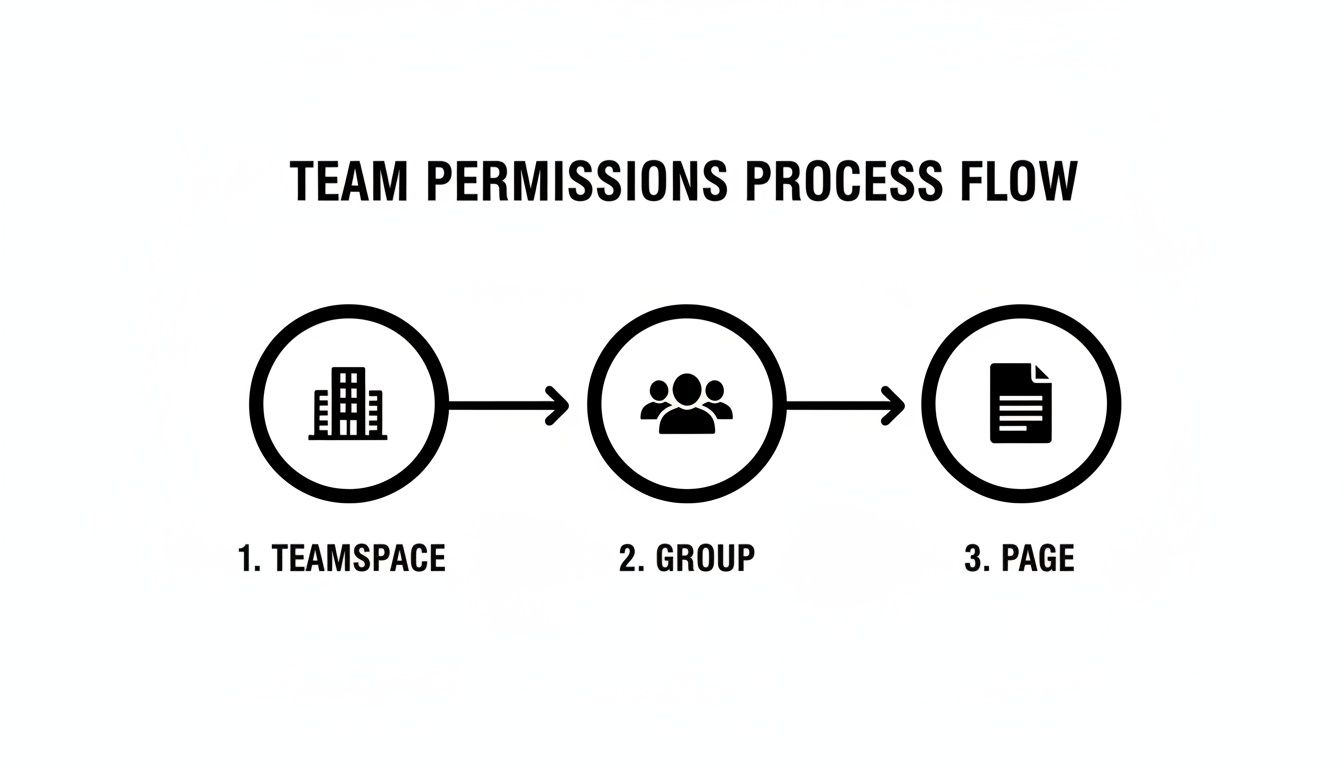
As you can see, you can grant broad access at the Teamspace level, refine it with specific groups, and then get super granular with page-level permissions. It gives you total control.
Notion's insane growth trajectory proves how effective it is for teams. The user base shot up from 1 million in 2019 to 40 million active users recently, with 63% of that audience being Millennials and Gen Z. This isn't just hype; it's a massive shift toward flexible, integrated workspaces that can handle complex workflows.
By putting these core systems in place, you’re not just shuffling information around. You're engineering a smarter, more connected way for your team to work. You can even tie these internal systems to your external communications. For example, you could check out these 7 ways to use Notion to send and manage emails and effectively turn your project tracker into an outreach hub.
Ready to take your Notion workspace to the next level? A perfectly organized setup is a great start, but a workspace that's walled off from your other tools has a serious ceiling on its potential.
True team efficiency kicks in when Notion stops being just a place to store notes and starts talking to the other apps your team lives in every day—think Slack, Figma, and GitHub. The real magic happens when you create a connected ecosystem where information flows automatically, saving everyone from the soul-crushing routine of switching tabs and copy-pasting updates.
This is where integrations are a game-changer. By connecting your essential tools, you transform Notion from a static wiki into a dynamic command center. Your workspace becomes a single source of truth that reflects what’s actually happening across all your projects, in real-time.
<iframe width="100%" style="aspect-ratio: 16 / 9;" src="https://www.youtube.com/embed/ENYxveSU-pM" frameborder="0" allow="autoplay; encrypted-media" allowfullscreen></iframe>
Building a Connected Ecosystem
Just think about all the tiny points of friction in a typical day. A designer wraps up a mockup in Figma, then has to jump over to Notion to manually update the project status and paste in the new link. A developer pushes a commit and then has to remember to find the right task in the sprint board and drag it to "Done."
These little manual tasks pile up. They’re productivity killers. Integrations wipe out this busywork by building bridges between your apps, creating seamless workflows that just happen in the background.
- Slack Integration: Imagine a new bug report created in your engineering database instantly pinging the
#dev-alertschannel in Slack. No more manual notifications. - Figma Integration: You can embed live, interactive Figma files directly into your Notion pages. Stakeholders can see and comment on the latest version of a design without ever leaving the project brief. It makes design reviews so much smoother.
- GitHub Integration: Link GitHub pull requests directly to tasks in your Notion projects database. Now, you can see the status of a PR right from your sprint board, giving both technical and non-technical team members a clear view of progress.
These connections turn your Notion for team setup into a living, breathing workspace that accurately mirrors the progress of your work, no matter where it happens.
The most productive teams don't just use great tools; they connect them. An integrated workspace minimizes context switching, which is one of the biggest hidden costs to deep work and team focus.
Automating Communication and Data Entry
Beyond just syncing project updates, integrations can completely automate core communication and data entry—especially email. So many teams struggle with client messages and sales leads being siloed in individual inboxes, totally disconnected from the actual project management happening in Notion.
This is where specialized tools can make a massive difference. For instance, a solution like NotionSender lets you connect your email directly to a Notion database, effectively turning Notion into a smart, automated inbox for your whole team.
With a setup like this, your team can manage client inquiries, support tickets, or sales leads right from the same place they do everything else. No more lost context.
This kind of connectivity is becoming absolutely central to Notion's value. In fact, Notion has been shipping updates at a breakneck pace. By 2025, they had already pushed over 30 updates in the first half of the year alone, with a huge focus on helping teams consolidate tools and reduce operational chaos.
This drive for connectivity isn't just about native features, either. For teams looking to put their entire operational stack on autopilot, exploring no-code AI-powered marketing team solutions can provide a serious competitive edge. By linking Notion to powerful automation platforms, you can build incredibly robust workflows that handle the grunt work, freeing up your team to focus on what really matters.
If you want to dive deeper into centralizing your team's communication, check out our complete guide on sending emails from Notion to see exactly how it works in practice.
Common Questions About Notion for Teams
As teams start to get comfortable in a new shared workspace, a few questions always seem to come up. Moving your team’s core operations to a new tool isn’t just about learning features; it’s about everyone trusting the system. Answering these common concerns right out of the gate can be the difference between a smooth adoption and a bumpy one.
Think of this as your go-to guide for those practical hurdles. We’ll walk through the most frequent questions that pop up when setting up Notion for team collaboration, covering everything from data security to making sure your next new hire can hit the ground running.
Is Our Team's Data Secure in Notion?
This is usually the first and most important question, especially for teams handling sensitive client information or internal IP. The short answer is yes, Notion takes security very seriously, but it’s a shared responsibility. Notion uses robust measures to protect your data both when it's stored (at rest) and when it's being sent (in transit).
Their whole setup is built on world-class cloud providers, and they run regular security audits and penetration tests to find and fix vulnerabilities. But for your team, security also comes down to mastering the permission settings we covered earlier.
A secure workspace is a well-managed one. The best practice is to operate on a "least privilege" basis—meaning team members should only have the minimum level of access they need to do their jobs. This one principle dramatically reduces the risk of accidental data leaks or deletions.
When you combine Notion's platform security with your own smart permission management, you create a genuinely secure home for your team's work.
How Do We Manage Notifications Without Feeling Overwhelmed?
Let’s be honest, the fear of "notification overload" is real. When every single edit, comment, and mention pings you, it’s all too easy to start ignoring everything. Luckily, Notion gives you fine-grained control over your notifications so you can find that sweet spot between staying in the loop and actually getting work done.
Encourage everyone on your team to dive into their settings and customize them. You can tweak notifications for:
- Email updates: Choose to get emails instantly or in a bundled digest. Some people who live in the Notion app all day might just turn these off entirely.
- Mobile push notifications: These are perfect for high-priority mentions but can be shut off for less urgent updates.
- In-app notifications: Your "All Updates" feed is the central hub. Teach your team to use the "Inbox" view, which filters the noise and shows only the conversations where they’ve been specifically mentioned or are a subscriber.
The real key here is to establish some team-wide norms. For instance, agree as a team to only use @here or @page for things that are truly urgent and need everyone's eyes right away. For most routine updates, just grabbing the page link and dropping it into a relevant Slack channel is a much better way to go.
What Is the Best Way to Onboard New Team Members?
Bringing a new person into a mature Notion workspace can feel like dropping them in a new city without a map. A solid, structured onboarding process is crucial to help them find their way around and feel productive from day one.
Whatever you do, don't just send them a link and wish them luck. The best approach is to create a dedicated "New Hire Onboarding" page right inside your team wiki.
A Great Onboarding Page Includes:
- A Welcome Video: A quick screen recording from a team lead walking through the workspace layout is incredibly helpful and adds a personal touch.
- Key Document Links: Give them direct links to the handful of pages they'll absolutely need in their first week, like the team directory, main project tracker, and core SOPs.
- An Onboarding Checklist: Set up a simple database with a checklist of tasks for their first week. Think things like, "Set up your profile," "Review the content calendar," or "Introduce yourself in the team directory."
- A "Who's Who" Guide: A simple table with photos, names, roles, and maybe a fun fact about each person helps new hires connect faces with names.
This kind of structured approach turns onboarding from a confusing scavenger hunt into a guided tour. It gives new hires the power to find answers on their own, which builds their confidence and gets them plugged into the team's way of working so much faster.
Ready to connect your email directly to your Notion workspace and centralize all your team's communication? Try NotionSender and discover how you can save emails to any database, automate responses, and manage client conversations without ever leaving Notion. Get started today at https://www.notionsender.com.

