
Your Ultimate Guide to Notion Task Management
So, what do we actually mean when we talk about "Notion task management"? At its core, it’s about using Notion’s incredibly flexible databases, pages, and building blocks to create a task management system that's truly your own. This isn't just about making another to-do list; it's about building an interconnected workspace where your tasks are directly tied to your projects, notes, and overarching goals.
Everything lives in one place.
Why Notion Is a Game-Changer for Task Management
Let’s be honest, traditional to-do list apps often fall short. They give you a rigid, linear checklist that just can't keep up with the complexity of modern work. This is where a proper Notion task management system completely changes the game. It’s less of a list and more of a command center for your entire work life.

Unlike apps that lock you into their way of doing things, Notion hands you a blank canvas. You get to build a system that molds perfectly to your workflow, not the other way around. That flexibility is its real superpower.
The Power of a Centralized Hub
Think about a freelance designer's typical day. Instead of bouncing between a task app, a document editor, and a CRM, they can wire everything together right inside Notion. A single task like "Draft Logo Concepts" can be directly linked to:
- The client’s main project page
- Meeting notes from the initial briefing call
- The signed contract, stored as a PDF
- A gallery of images for mood board inspiration
This kind of deep connection gets rid of the constant, draining friction of app-switching. Suddenly, you have a crystal-clear, holistic view of everything on your plate and all the context that goes with it. When you look at a time management software comparison, you really start to see how this all-in-one approach sets Notion apart.
Adaptable to Any Workflow
The true magic of Notion is in its versatile building blocks. Its databases are completely customizable, and you can create dynamic views—like Kanban boards, calendars, and timelines—to see your work in whatever way makes the most sense at that moment. This adaptability is huge, especially for small businesses.
For agencies trying to hit 65-75% team utilization rates, a centralized Business OS built in Notion can speed up decision-making by as much as 40%. When project boards are connected to the CRM and financial data, teams get a transparent overview that just fuels efficiency.
This level of control means you can start simple with a basic list and gradually add layers of complexity as your projects and team grow.
Before you dive in, it’s a good idea to get familiar with some of the core principles that make the platform click. Our guide on 10 tips to help you get the most out of Notion is a great place to start for those foundational best practices.
Notion Task Management vs Traditional To-Do Apps
To really drive the point home, let's look at a quick side-by-side. It becomes pretty clear why Notion is a better fit for anyone who needs more than a simple checklist.
| Feature | Traditional To-Do App | Notion Task Management |
|---|---|---|
| Customization | Limited to pre-set fields | Fully customizable properties (dates, tags, files) |
| Context | Isolated checklists | Tasks link to projects, notes, and related documents |
| Views | Usually just a single list | Multiple views (Kanban, calendar, timeline, gallery) |
| Collaboration | Basic comments and sharing | Real-time collaboration, page comments, and permissions |
| Scalability | Good for personal tasks | Scales from solo use to entire company workflows |
| Integration | Standalone app | Acts as an all-in-one workspace for your entire life |
As you can see, while standard apps are fine for jotting down groceries, Notion provides the depth and structure needed to manage complex projects and collaborative workstreams effectively.
Building Your Core Task Management Database
The engine behind any truly effective Notion task management system is a single, powerful, and well-organized database. This isn't just a simple list; it's the dynamic foundation where every single task, big or small, is going to live. We’ll start with a blank page and build this from the ground up, making sure it’s ready to scale whether you’re a solopreneur or leading a whole team.
The first move is to create a new page and choose the "Table" database option. This becomes your master task list. The real key to making it work for you lies in setting up the right properties—think of these as the columns that define and give context to all your data.
Defining Your Essential Task Properties
You could go crazy and add dozens of properties, but a few are absolutely non-negotiable for a solid system. Each property is a data point you'll use later to filter, sort, and create all sorts of custom views. Let's get the essentials configured.
For every new task, you'll want to start with these core properties:
- Status (Select property): This is how you'll track a task's journey. I recommend using clear, simple stages like
To Do,In Progress, andDone. Using a "Select" property here instead of Notion's default "Status" gives you way more control over colors and sorting. - Priority (Select property): This helps you focus on what actually matters. Common options like
High,Medium, andLowwork great. I always assign bright colors to these so high-priority items jump right off the page. - Due Date (Date property): A simple but obviously crucial property for deadlines. You can also turn on reminders to get a heads-up before a task is due.
With just these three in place, you’ve already built a database that's more capable than most standard to-do list apps. But the real magic happens when you start connecting your tasks to the bigger picture.
Linking Tasks to Projects with Relations
A standalone task list gets messy, fast. The single biggest upgrade you can make to your setup is to link your tasks to a totally separate "Projects" database. This one move transforms your flat to-do list into a smart, interconnected system.
First, just create another simple database and name it "Projects." Now, head back to your Tasks database, add a new property, and choose "Relation." Pick your new "Projects" database from the list, and you're set. Now every task can be directly tied to its parent project.
This interconnected structure is the secret to maintaining clarity. Instead of seeing a giant, overwhelming list of 200 tasks, you can go to your "Website Redesign" project page and see only the 15 tasks relevant to that specific initiative.
To really nail the organization of complex projects, it helps to understand concepts like building a flawless Work Breakdown Structure, which is all about systematically deconstructing large efforts. That same logic applies perfectly here; your Projects database holds the major deliverables, and your Tasks database contains all the smaller, broken-down action items needed to get them done. This creates an incredibly organized and scalable foundation for all your work.
A powerful database is pretty useless if you can't see what matters at a glance. The real magic of your Notion task management system happens when you turn all that raw data into clear, actionable dashboards. It's all about creating custom views that filter out the noise and show you exactly what to focus on.
Think of views as different lenses for looking at the same mountain of information. Your master database holds every single task, but you almost never need to see all of them at once. Instead, we'll build specific, filtered views for different contexts—transforming an overwhelming list into a focused command center.
Let’s get these essential views built out. They'll completely change your workflow.
Your Daily Focus: The Today View
The single most important view for day-to-day productivity is a simple list showing only what needs your attention today. It keeps you grounded and stops you from getting distracted by tasks that are weeks away. Think of it as your daily mission briefing.
To get this set up, add a new "List" view to your database and call it "Today." Then, you'll apply a really straightforward filter:
- Due Date is on or before Today
- AND
- Status is not Done
This little combination is incredibly effective. It pulls in any tasks due today plus anything that’s overdue, making sure nothing slips through the cracks. It's the very first view I check every morning to get my head straight and set my priorities.
Visualizing Your Week Ahead
While the "Today" view is perfect for the immediate grind, a "Calendar" view is your best friend for weekly planning. It gives you that bird's-eye perspective of upcoming deadlines and helps you balance your workload.
Just add a "Calendar" view to your database. Notion is smart enough to automatically plot your tasks on the calendar based on their due dates. This visual layout makes it ridiculously easy to spot overloaded days. See five major tasks piled up on Wednesday? Just drag and drop a few to Thursday or Friday to even things out.
The ability to switch instantly between a micro-view (Today's list) and a macro-view (Weekly calendar) is what makes Notion so effective. You can zoom in on the immediate details or zoom out to see the bigger picture without ever leaving your database.
Tracking Progress with a Kanban Board
For actually managing the flow of work, nothing beats a good old Kanban board. This view organizes your tasks into columns based on their status, giving you a crystal-clear visual of your entire pipeline from "To Do" all the way to "Done."
Create a "Board" view and tell it to group by the "Status" property. You'll instantly see your columns for To Do, In Progress, and Done. As you work on something, you just drag its card from one column to the next. It’s a surprisingly satisfying way to track progress and gives you immediate clarity on where every single task stands.
By pulling these three core views—List, Calendar, and Board—together onto a central dashboard page, you create your own mission control. You’re no longer just managing a list; you're interacting with a dynamic system that actively guides your focus and clarifies what truly matters.
Automating Your Workflow with NotionSender
Alright, let's tackle one of the biggest productivity drains I see: the email inbox. It's a black hole where critical requests, client feedback, and new to-dos go to die. We've all been there, manually copying and pasting info from an email into our task manager. This is exactly where a tool like NotionSender comes in and completely changes the game for your Notion task management system, turning it from a static list into a living, breathing command center.
The idea behind it is beautifully simple. Instead of letting tasks get buried, you just forward any email directly to a unique address tied to your Notion database. NotionSender intelligently grabs that email, parses it, and—boom—a new task is created instantly. It saves so much time and makes it nearly impossible to miss anything.
Turning Emails into Actionable Tasks
Picture this: a client emails you with the subject "Urgent Feedback on Website Mockup." Instead of breaking your focus, you just forward it. With a little setup, NotionSender can automatically:
- Use the email subject as the Task Name.
- Drop the entire email body into the task’s page for full context.
- Attach any files from the email right into the Notion task.
All the friction is gone. Within moments, the task pops up in your "To Do" list, complete with all the details, ready for you to prioritize and assign.
This isn't just a time-saver; it’s a system-saver. By creating a direct pipeline from your inbox to your task database, you build a bulletproof workflow where information capture is both instant and effortless.
This is how you start to see your system really work for you. Tasks flow in from various sources, including your email, and get organized into views that make sense for your day, week, or even your high-level goals.
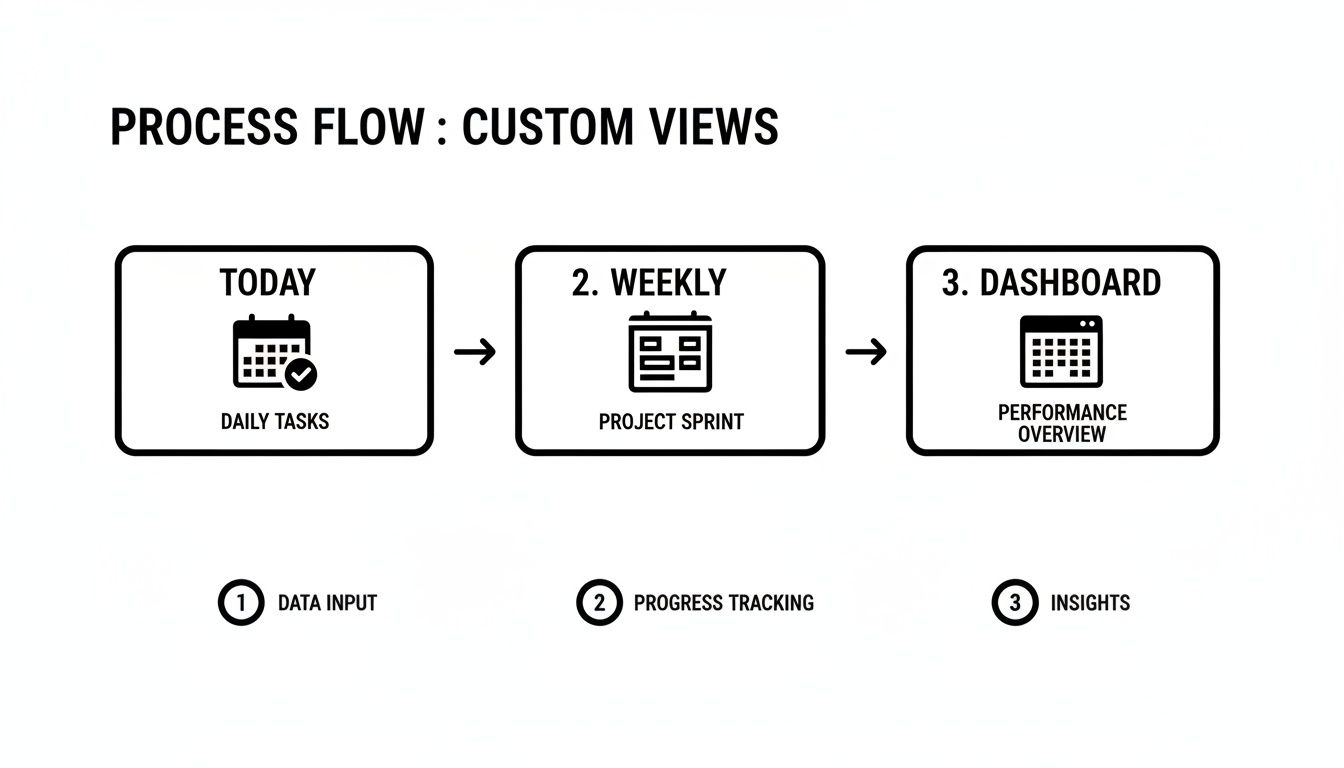
As the diagram shows, you can funnel all those daily inputs into weekly sprints and then zoom out to see the big picture on performance dashboards. It’s all about creating clarity.
Advanced Automation with Simple Commands
But it gets even better. You can actually embed simple commands right in the body of the email you're forwarding.
For example, you could just add a line like @priority="High" or @project="Website Redesign" before you hit send. NotionSender reads those commands and automatically sets the right properties in your Notion database.
This is the kind of control that makes the integration so powerful. You're suddenly able to categorize, prioritize, and even assign tasks without ever leaving your inbox.
If you're curious about the technical side and want to see what else is possible, the NotionSender API documentation is the place to go. It opens up a whole world of customization for your email-to-task workflow, making your Notion task management setup truly your own. It’s a simple but incredibly robust way to cut down on admin work so you can focus on what actually matters.
Advanced Strategies for Expert Task Management
<iframe width="100%" style="aspect-ratio: 16 / 9;" src="https://www.youtube.com/embed/5JaGJBPC0Q8" frameborder="0" allow="autoplay; encrypted-media" allowfullscreen></iframe>
Once you have your basic task system running smoothly, it's time to level up. This is where we move from a simple to-do list to a truly indispensable productivity machine. These advanced strategies solve some of the most common headaches in Notion task management and inject some serious intelligence into your workflow.
This is where Notion really comes into its own. Its massive growth, which is projected to rocket to 100 million users worldwide by 2025, isn't just hype. It’s because Notion lets you build these kinds of versatile, custom solutions that just aren't possible with older, more rigid tools. You can see how Notion is reshaping workflows for everyone from freelancers to entire teams.
Building a Smart Recurring Task System
Let's be honest, one of Notion's most requested features is native recurring tasks. While it's not there in a traditional sense, you can build a surprisingly powerful system yourself using database templates and the "Repeat" function.
All you have to do is create a template for a task you do all the time—say, "Weekly Team Sync Prep"—and then set that template to repeat every week. Just like that, a fresh, pre-configured task will pop into your database right on schedule. No more manual entry. It's a small tweak that guarantees those crucial, consistent tasks never fall through the cracks.
Visualizing Progress and Dependencies
There's nothing quite like seeing a progress bar inch toward 100% to keep you motivated. You can build this directly into your Projects database with a simple formula. This formula just looks at all the tasks related to a project and calculates the percentage of them marked "Done." It’s an incredibly simple way to get an at-a-glance status update for you and your team.
Want to take it a step further? Let’s talk dependencies. By using the Relation property, you can literally link tasks together. Create two relations in your tasks database: "Blocked By" and "Blocking." This lets you enforce an order of operations, ensuring that "Design Mockups" must be completed before "Client Feedback Session" can even start. It’s a game-changer for preventing bottlenecks.
This is what elevates your setup from a glorified checklist to an intelligent system. It understands the logical flow of your work and actively guides your team on where to focus their energy next.
Let Notion AI Do the Heavy Lifting
The built-in Notion AI can be a massive time-saver. Instead of spending 20 minutes manually pulling action items from your meeting notes, just ask the AI to "summarize this page and create action items." In seconds, you’ll have a neat checklist ready to go.
It's also fantastic for breaking down those big, intimidating projects. Give it a large task, and it will suggest smaller, more manageable sub-tasks. And when you’re finished? The AI can even help you draft follow-up emails right from your Notion page, closing the loop without ever leaving your workspace. This isn't just a gimmick; it's about clawing back valuable time from administrative grunt work so you can focus on what really matters.
Of course, here is the rewritten section with a more human, expert-driven tone.
Your Top Notion Task Management Questions, Answered
As you start to really dig in and build your task management system in Notion, a few questions always seem to pop up. Notion's incredible flexibility is its superpower, but it can sometimes leave you wondering what the "right" way to do something is.
I've been there. So, I’ve pulled together some of the most common sticking points I see people run into, with clear, practical answers to get you unstuck and back to work.
Can I Use This Notion System for Team Collaboration?
Absolutely. In fact, Notion was built from the ground up for collaboration.
To get your team on board, the first step is simple: just add a "Person" property to your tasks database. This one little tweak lets you assign tasks to specific people. From there, you can start using the comments on each task page to discuss details, ask questions, and keep everyone in the loop.
If you want to take it a step further, create a shared team dashboard. You can add linked views of the main task database, but filter each one to show a specific person only their assigned tasks. It’s a game-changer for keeping everyone focused without the noise.
How Do I Handle Recurring Tasks in Notion?
Ah, the classic Notion question. While Notion doesn't have a native, set-it-and-forget-it recurring task feature like some other apps, the workaround is surprisingly powerful and gives you more control. The secret is database templates.
Here’s how it works:
- Build a template: Create a template for any task you do over and over, like a "Weekly Report" or "Monthly Client Invoicing."
- Set it to repeat: In the template's menu (the little three-dot icon), you'll see a "Repeat" option. You can set it to automatically create a new copy of that task every day, week, or month.
This method keeps your main board from getting cluttered with future tasks while making sure nothing important ever slips through the cracks.
This is a perfect example of Notion's philosophy. It might take a minute more to set up than a dedicated to-do list app, but the payoff is a system that's completely customized to your workflow.
Is Notion Secure for Sensitive Client Information?
Yes, it is. Notion gives you incredibly granular control over who can see and do what, which makes it a solid choice for client work.
You can wall off entire databases or individual pages, making them private and accessible only to specific people on your team. When it's time to share with a client, you can invite them as a guest with limited permissions. Give them "view-only" or "comment-only" access to a specific project page, and they'll see exactly what they need to—without ever getting a peek at your internal notes or other clients' projects.
What's the Best Way to Manage Sub-Tasks?
You’ve got two great options here, and the best one just depends on how complex your sub-tasks are.
For quick to-do items on a bigger task, just drop a Checklist block right onto the main task's page. Simple, fast, and perfect for keeping track of small steps.
But what if your sub-tasks need their own due dates, owners, and details? For that, the best approach is to create a separate "Sub-tasks" database. Then, use a Relation property to link those sub-tasks back to your main "Tasks" database. This way, you can track every little piece of a project independently while still seeing how it all connects to the bigger picture.
Ready to stop tasks from getting lost in your inbox? NotionSender bridges the gap between your email and your task list, turning messages into actionable items automatically. Start streamlining your workflow today.

