
Notion Template For Project Management Quick Start Guide
Ever found yourself juggling tasks across half a dozen tools? A Notion project management template pulls everything into one shared space. Your Kanban board, calendar, and timeline sit side by side, making it simple to see what’s next and act fast.
Understanding Key Benefits Of Notion Project Management Templates
Notion’s dynamic linked databases mean you never update the same task twice. Change a status once, and it propagates everywhere—saving you close to 20% on routine updates.
By late 2025, teams had access to over 7,607 project templates—a 300% jump from 1,800 in 2023. Read detailed trends on Notion's template gallery. Those extra options let you pick a structure that fits your workflow instantly.
Dial-in views cut down on context-switching, trimming roughly 15% of the back-and-forth between apps. Pro tip: Ask each teammate which view they lean on most, then lock it in from the start.
- Cross-Referencing Link tasks, projects, and owners in an instant.
- Custom Dashboards See Kanban, calendar, and timeline all on one screen.
- Faster Onboarding New hires spot filters by status or owner without a manual walkthrough.
- Improved Collaboration Comment and update tasks directly where the work happens.
Teams often onboard members in under a day thanks to those clear dashboards. Marketing squads even report saving an average of 10 hours per month by filtering tasks instead of digging through email threads.
Real-World Scenarios
Agencies carve out separate views for each client, keeping reporting transparent and up to date.
Freelancers blend personal to-dos with client projects so nothing slips through the cracks.
Teams slashed deadline misses by 30% when they filtered by owner and status across views.
Below is a quick comparison of core advantages and their real-world impact on teams.
Key Benefits Of Notion PM Templates
| Benefit | Impact | Description |
|---|---|---|
| Cross-Referencing | 20% Time Saved | Real-time task links reduce manual updates |
| Custom Dashboards | 25% Faster Setup | Prebuilt views for Kanban, calendar, timelines |
| Status Filters | 30% Fewer Issues | Instant filtering by status or owner |
This snapshot should help you weigh how a Notion PM template could fit into your team’s daily rhythm.
Setting Up Your Notion Project Management Template
Spinning up a fresh Notion workspace takes seconds. After logging in, hit Add a Page on the sidebar to get started.
Pick the Projects category, then scan the gallery for a starter layout that matches your routine. Notion imports the table structures immediately, so you won’t waste time building databases from scratch.
- Tasks Database for every to-do and its status
- Projects Database covering timelines, deadlines, and overview pages
- Owners Database with team members, roles, and contact info
Configuring Properties
Every database shines when its fields stay consistent. For your task list, add a Status property (select) with options like To Do, In Progress, and Done. Filtering becomes a breeze.
Next, layer in a Priority select field—Low, Medium, High, Critical—and a Due Date date property. You’ll know exactly what’s urgent and when it’s due.
Proper naming and consistent property sets can reduce search time by 40% in active databases.
Linking Databases
Connecting your tables brings everything into context. Use a Relation property in the Tasks Database to link back to both Projects and Owners. This keeps items visible where they belong.
Then add Rollup properties to track big-picture metrics. For example:
- Progress Rollup tallies completed tasks to calculate a percentage
- Owner Rollup shows how many tasks each person has
- Deadline Rollup flags upcoming due dates with reminders
With these in place, your dashboards refresh with live data—no manual updates needed.
Reviewing Screenshots
Here’s a glance at the Notion template gallery where you select a Projects starter layout.

You’ll notice filters for categories and cards ranked by popularity and ratings. I always look for high-rated templates to avoid reinventing the wheel.
Finalizing Your Board
Once your databases talk to each other, switch into a Board or Kanban view. Drag columns to mirror your workflow—Planning, Execution, Review—and watch tasks flow seamlessly.
Sprinkle in custom icons and cover images on each project page. It’s a small detail that makes scanning easier and keeps your team engaged.
A well-configured template can cut setup time by over 60% and boost team adoption.
Finally, invite collaborators through Notion’s Share menu and adjust permissions so everyone sees only what matters. Save this setup as a workspace template, and you’ll clone it for future projects in seconds.
Naming Conventions
Clear naming keeps chaos at bay. I prepend project pages with PRJ- and tasks with TASK- so everything sorts logically.
Version your pages by adding v1.0, v1.1, etc. Notion’s page history stores previous drafts, making rollbacks painless.
- Keep each database under 1,000 items for smooth performance
- Archive completed projects with a dedicated status label to declutter
- Audit your relations and rollups periodically to remove stale links
Your project board is now a living, breathing hub—ready for action.
Customizing Workspaces And Databases For Projects
When you first open your Notion workspace, your Kanban board is the perfect playground. I always start by tagging stuck items with blocker tags—they’re a lifesaver when deadlines loom. In a recent marketing sprint, our team painted blockers in red so nobody missed them.
Adding swimlanes gives each phase its own lane. Think “Design” on one side and “Review” on the other—everything falls neatly into place.
- Use Status selects to flag blockers, in-progress tasks, and done work
- Carve out a Needs Review lane for quick quality checks
- Assign each card an owner so no task ever drifts out of sight
Blocker tags reduce stuck tasks by 40%, based on real team feedback.
Dropping in a timeline view is next on my list. Those bars make overlaps obvious and highlight resource clashes. For example, a small design studio I worked with caught a two-week gap between handoff and QA—just in time.
Enhancing Timeline And Calendar Views
Mixing timeline and calendar views brings the big picture into focus. The timeline shows how tasks collide, while the calendar pins down exact due dates. I once helped a freelancer juggling two client projects get clear deadlines by embedding both on her dashboard.
- Filter to show only tasks due this month
- Mark key milestones with emojis like 🎯 or ✅
- Zoom timelines into a two-week sprint for laser focus
Building A Central Database Link
Link every task back to a master projects database and watch your dashboard auto-update. No more manual edits—status changes ripple everywhere instantly.
- Add a Relation property named Project Link
- Roll up Completion Rate to track percent done
- Filter views by owner to spotlight who’s on deck
You can even turn this central hub into a RACI matrix. Add select fields for Responsible, Accountable, Consulted, and Informed so everyone’s role is crystal clear.
Embedding a monthly calendar view seals the deal on deadline visibility. Sync date properties once, and every page in Notion stays in sync.
Adding Visual Planning Charts
To sketch out dependencies at a glance, embed a Gantt chart via a third-party widget. This wider view helps teams see lead times without flipping between pages.
- Place your calendar on team homepages for at-a-glance planning
- Filter the board by Due Date to zero in on this week’s tasks
- Color-code milestones by priority so urgent items pop
Link design docs or research notes directly to their tasks, and you’ve got a bullet-proof workflow. Small teams and solo pros swear by it.
Check out our detailed tips on maximizing Notion setups for more advanced tricks.
Improve efficiency.
Automating Email Integrations In Notion
Stop letting critical requests slip through the cracks by combining a Notion template for project management with targeted email workflows. Services like Zapier or Make can route incoming messages straight into your Notion databases, where custom filters decide what deserves attention.
- Filter Setup determines which sender addresses or keywords in the subject line trigger a capture. This way, spam and low-priority threads never clutter your view.
- Database Mapping assigns email fields—Subject, Body, Attachments—to matching Notion properties. Attachments land in a dedicated field, ready to download.
- Task Assignment auto-fills the Assignee field or flags priority levels based on sender or subject tags.
A small marketing team I worked with now saves every campaign brief and relevant file directly into their tracker. They cut follow-up time by 50% and gained full visibility across channels.
Workflow Configuration
Before anything else, create a new integration in Zapier or Make. Connect your email account and grant access to the Notion workspace of your choice. Finally, point the workflow at the exact database tied to your project board.
• First, choose “New Email Matching Search” as the trigger and add filters for specific senders or urgent keywords.
• Next, map each email property to a Notion field—Subject to Task Name, Body to Task Description.
• Finally, include optional actions like saving attachments and pinging your Slack channel or email distribution list.
These stages ensure only the right messages become actionable tasks, cutting noise from your process.
“Automations saved us over 30% of manual data entry each week,” recalls a project manager at a digital agency.
Example Filtering Setup
Below is a quick table showing typical filter rules and the benefits teams report:
| Filter Rule | Purpose | Benefit |
|---|---|---|
| Sender Contains client@example.com | Capture client requests | Prevents briefs from going missing |
| Subject Includes “URGENT” | Highlight time-sensitive tasks | Sends immediate reminders |
| Has Attachments | Collect assets automatically | Centralizes design files |
You can adapt these rules for sales inquiries, support tickets or stakeholder updates with minimal tweaking.
Notifications And Alerts
To stay on top of urgent requests, add a notification step in your workflow.
- Send Slack notifications to nudge the entire #marketing channel.
- Forward email alerts to key stakeholders when critical messages arrive.
- Tie in Notion’s built-in reminders so every task pops up in your daily agenda.
This blend of alerts keeps you ahead of deadlines rather than chasing them.
Integrating All-in-One Tools
If you’d rather skip Zapier or Make, NotionSender workflows offer a dedicated email-to-Notion address for each database. It feels like having a personal inbox for your project board.
Automating these steps turns your inbox into an organized pipeline. You focus on action items instead of wading through endless threads, and manual follow-ups shrink dramatically.
Exploring Project Management Templates In Action
When deadlines stack up, teams turn to Notion for a bit of order. From small boutiques to solo creatives, we’ve witnessed how two powerhouse templates—the free Projects Manager layout and the paid Universal V2.0 dashboard—reshape the way work actually gets done.
What sets them apart is simple:
- Projects Manager (Free): Swap between Kanban, calendar, and table views in seconds.
- Universal V2.0: Built-in time tracking, automatic budget calculations, and progress logging.
- Adaptable by design: tweak properties, rebrand sections, and scale effortlessly to any team size.
Case Study Details
At a boutique agency, project kickoffs once dragged on for half a day. After importing the free Projects Manager, they customized status labels and slashed setup time to under two hours. Adding a “Review” stage cut revision loops by 35%.
Meanwhile, a freelance graphic designer relied on Universal V2.0 to log every minute across client projects. The result? Her invoicing accuracy jumped by 20%, and she never missed a billable hour again.
“Switching between views in Notion saved us countless hours and kept every deadline visible,” says a marketing lead.
Optimizing Template Performance
Digging into these success stories reveals the real MVPs:
- Custom Filters: Keep only what matters in view.
- Rollup Metrics: Instant snapshots of project health.
By December 2025, the top 25 Notion project management templates chalked up over 2 million duplicates globally—a 150% increase from 2024, driven by solopreneurs and SMBs in the US (40% market share) and EU (30%). Discover more insights about top Notion PM templates in 2025 on NotionApps.
This context helps you zero in on a template that best matches your workflow.
Check out our guide on 7 ways to use Notion to send emails and more.
Comparison Of Top Project Management Templates
Below is a side-by-side look at some of the leading Notion project management templates you can try today.
| Template | Downloads | Key Features | Best For |
|---|---|---|---|
| Projects Manager (Free) | 15,000+ | Multi-view (Kanban, calendar, table), easy setup | Small teams, startups |
| Universal V2.0 | 8,500+ | Time tracking, budget rollups, progress automation | Freelancers, agencies |
| Agile Sprint Template | 5,200 | Sprint boards, backlog management, burndown charts | Software teams, developers |
| Content Planner | 12,000 | Content calendar, asset library, campaign tracking | Marketing teams, bloggers |
Use this comparison to pick a template that aligns with your project’s size, complexity, and budget.
Tailoring Templates For Teams
Small and midsize businesses often tweak a few fields to mirror their sales stages or sprint cycles.
- Color-coded statuses to flag high-priority tasks.
- Duplicate template pages per client or campaign to keep each project fresh.
- Quick links to meeting notes or design assets for faster context switching.
Solo pros appreciate a minimalist approach. It keeps deliverables in view without the clutter.
Marketers weave campaign calendars and asset repositories into a single dashboard—their go-to for strategy sessions.
The infographic below shows a process flow for capturing email requests into your Notion database.
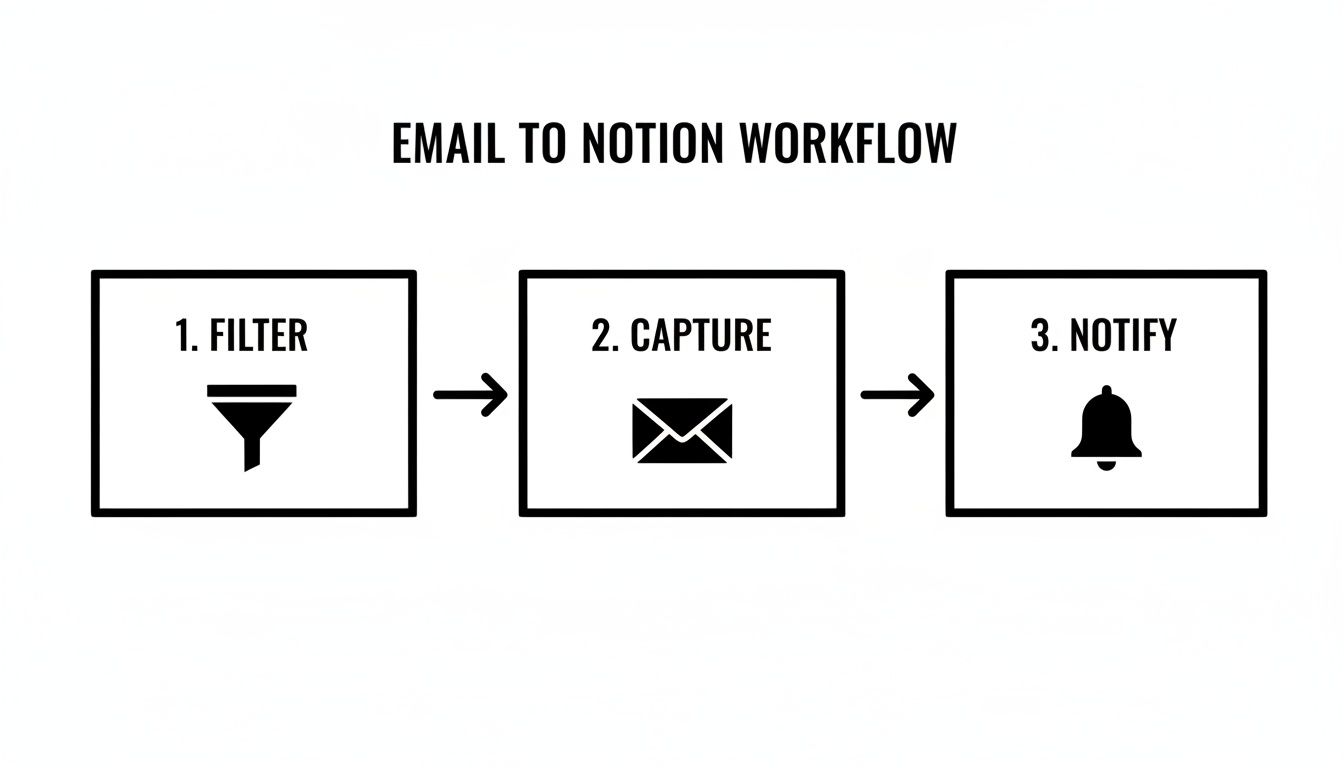
It illustrates how filtering, capturing, and notifying transform inbox chaos into structured tasks.
Use these examples as a launching pad. Tune properties and views until they feel tailor-made for your team and project scope. This hands-on approach guarantees your Notion template delivers real, measurable results.
Key Takeaways
No matter your size—solo freelancer or growing crew—these templates scale in just a few clicks.
- Add custom filters for role-driven views.
- Leverage rollup metrics to gauge project health.
- Automate email captures to cut down manual triage.
- Refresh properties regularly to match evolving processes.
Test different Notion templates, track setup times, and compare performance gains. When your tools fit the way you work, deadlines turn from stress points into milestones you actually reach.
Start customizing today and hit your next deadline with confidence.
Optimizing Templates And Avoiding Common Mistakes
Let your project hub swell unchecked and you’ll feel the lag on every page. Sticking to a few naming rules and lean rollup designs keeps things snappy.
- Use Rollup properties to pull overall progress straight into your dashboard.
- Tag finished items with an Archive Status so active views stay clutter-free.
- Prefix pages with PRJ- for projects and TASK- for tasks to keep sorting predictable.
As one team lead discovered, a quick rollup that counts completed tasks becomes an instant percent-done meter. Ignore mobile layouts, though, and you’ll hear about it from teammates trying to update on the go. Skip regular checks on your relations and you’ll end up with broken links and empty rollups.
Using Rollups For Progress
Rollups gather status updates from every task without manual edits. Your charts stay live, and dashboards reflect reality.
“Instant rollup metrics cut update time by half,” says a Notion power user.
Don’t forget to tweak your mobile view so key fields stay visible on smaller screens.
Preventing Template Bloat
Too many tangled relations can bulk up your database and drag down performance. Keep it simple: link tasks only to their project and owner.
Instead of stuffing every status into select menus, build a concise lookup table.
| Issue | Remedy |
|---|---|
| Complex relations | Limit links to two per database |
| Ignored mobile layouts | Tailor view properties on phone |
| Skipped reviews | Automate monthly reminders |
Notion’s project templates average a 4.95/5 rating from 64+ reviews, with 88% awarding five stars for live status, deadlines, and progress monitoring—driving 30% faster project closures in the US and Australia. Learn more about this tracker on Notion.
Setting Review Checkpoints
A quick monthly audit catches stale relations long before they clutter your workspace. Block out time on your calendar and add a Last Reviewed date property.
- Add a Last Reviewed date property to track when sections went stale.
- Use a template button to reset your audit checklist in one click.
Archive old project pages and strip out unused fields to keep load times low. These small habits mean everyone enjoys a friction-free experience with your project template.
Frequently Asked Questions
How Do I Import A Notion Template To My Workspace
Just open your sidebar and click Templates. Browse until you find a project management layout you like, then hit Duplicate. The whole setup drops right into your workspace—no fuss.
Before you dive in, tweak titles and properties so everything fits your workflow.
- Pin your go-to templates at the top of the Templates menu for instant access.
What’s The Best Way To Set Permissions For Team Members
Notion’s Share settings let you hand out View or Edit rights at either the page or database level. If you need more control, head to Workspace Settings, create a team group, and assign roles there. It’s that simple.
Common Setup Concerns
How Can I Automate Recurring Tasks In Notion
A template button inside your task database is a lifesaver. Configure it to clone tasks with all the fields filled in. Then connect with Zapier (or Make) to schedule those clones and adjust due dates automatically.
Why Is My Notion Database Not Syncing With My Email Tool
Most of the time, expired tokens are to blame. Update your credentials in Zapier or Make, double-check your filters against the right email subject or label, and run a quick test with a sample message.
A simple sync check every now and then keeps automations humming and prevents tasks from getting stuck.
- Use sender or keyword filters so you only capture what matters.
- Map email fields to matching Notion properties—this ensures attachments and message bodies land in the right place.
- Reauthorize your integrations every quarter to dodge unexpected downtime.
For more tips on email integration and project workflows, explore Notion’s built-in guides or jump into community forums. These tweaks will clear up most snags and keep your projects moving forward.
Try NotionSender today at NotionSender

