
7 Best Project Management Tracking Templates for 2025
Juggling tasks, deadlines, and team members can quickly become overwhelming without a structured system. Effective project management relies on clear visibility and seamless organization, which is precisely where a high-quality template makes a critical difference. Instead of spending valuable time building a tracking system from scratch, you can leverage expertly designed project management tracking templates to gain immediate control over your workflow. These pre-built frameworks provide the structure needed to monitor progress, manage resources, and keep stakeholders informed.
This guide eliminates the guesswork by curating the definitive list of the best sources for these templates in 2025. We will dive deep into powerful and versatile options from platforms like Microsoft Create, Smartsheet, Notion, and more. Whether you need a simple task list in Google Sheets, a complex Gantt chart in Excel, or a fully integrated dashboard in ClickUp, you'll find a solution tailored to your specific needs.
Each entry in our roundup includes a detailed breakdown of its key features, practical applications, and the ideal user it's designed for. To make your decision even easier, we've included screenshots for a visual preview and direct links to get you started immediately. Our goal is to provide a straightforward, actionable resource that helps you select the perfect tool to keep your projects on track, on time, and within budget. Forget the chaos of disorganized projects; let's find the template that transforms your management process from reactive to proactive.
1. Microsoft Create (Excel Templates)
For teams deeply embedded in the Microsoft 365 ecosystem, Microsoft Create offers an unparalleled starting point for project management. This official hub provides a curated collection of free, high-quality project management tracking templates designed to work seamlessly within Excel. Instead of building from scratch, managers can instantly download robust Gantt charts, project timelines, and task trackers that feel immediately familiar, eliminating any learning curve.
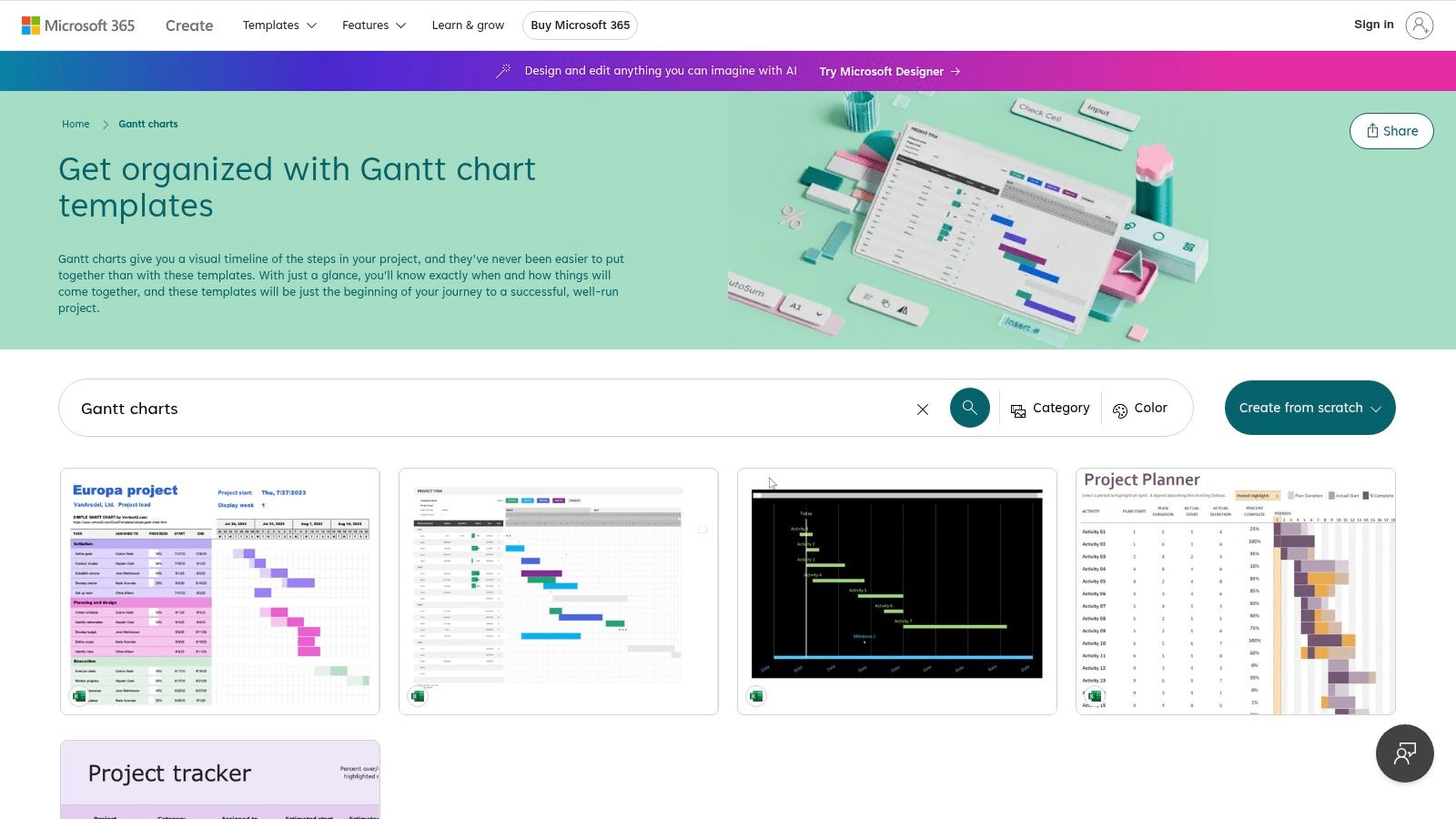
The platform’s core strength lies in its simplicity and integration. Each template can be opened directly in Excel with a single click, enabling immediate customization. This native environment allows for easy co-authoring and sharing via OneDrive, making it a practical choice for collaborative teams.
Standout Features and User Experience
Microsoft Create excels by leveraging the power of a tool most professionals already know how to use. The templates are more than just static spreadsheets; they are pre-configured with conditional formatting, formulas, and visual elements that bring project data to life.
- Ready-Made Gantt Charts: Visualize project schedules with pre-built Gantt chart templates that automatically update bar lengths based on start and end dates.
- One-Click Customization: Open any template directly in your desktop or web version of Excel to begin editing fields, colors, and layouts without any setup.
- Copilot Integration (Optional): For Microsoft 365 subscribers, Copilot can assist with advanced formatting, data analysis, and generating status summaries directly within the spreadsheet.
The user interface is clean and straightforward. You simply browse the gallery, select a template, and start working. There are no sign-ups or fees required to access the basic templates, making it an incredibly accessible resource. You can explore the various templates and their functionalities in our detailed guide on how to use Microsoft Create for project management.
Pros and Cons
| Pros | Cons |
|---|---|
| No Cost: A wide selection of powerful starter templates is available for free. | Manual Dependency Management: Lacks the automated dependency linking found in dedicated PM software. |
| Familiar Environment: Leverages existing Excel skills, requiring no new training. | Fixed Views: Some templates may require manual adjustments to extend data ranges or timelines. |
| Seamless Integration: Works perfectly with OneDrive for real-time sharing and co-authoring. | Limited Scalability: Can become cumbersome for highly complex projects with hundreds of tasks. |
Practical Implementation Tip
To get the most out of a Microsoft Create Gantt chart template, immediately set up a "Master" tab in your workbook. Use this tab to define key project parameters like team members, task categories, and status options (e.g., "Not Started," "In Progress," "Blocked," "Complete"). Then, use Excel’s Data Validation feature to create dropdown menus in your main tracking sheet that pull from this Master tab. This standardizes data entry across the team, prevents typos, and makes filtering and reporting significantly more accurate.
Website: Microsoft Create Gantt Chart Templates
2. Smartsheet Template Gallery and Free PM Templates
For teams that have outgrown basic spreadsheets but are not ready for overly complex project management software, Smartsheet offers a powerful middle ground. It presents a familiar, grid-like interface but enhances it with robust collaboration, automation, and reporting features. Smartsheet’s free template gallery is a treasure trove of project management tracking templates that go beyond simple task lists, including comprehensive project plans with Gantt charts, agile project trackers, and budget variance reports.
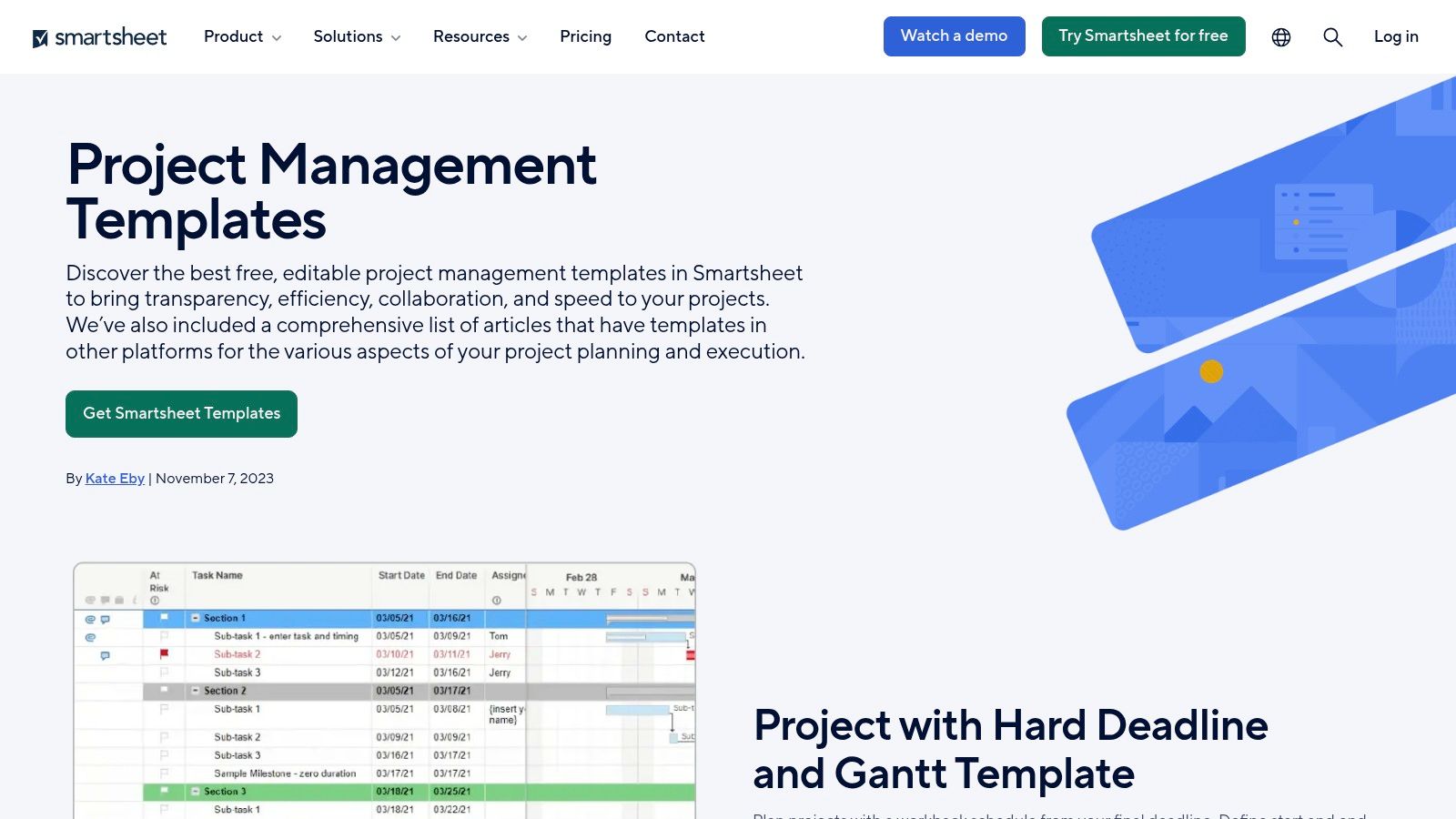
The platform’s key advantage is its live, collaborative nature. Unlike static Excel files, a Smartsheet template is a dynamic workspace where multiple users can update statuses, attach files, and hold discussions in real-time. This makes it an ideal solution for teams that require a single source of truth for project information and constant visibility into progress.
Standout Features and User Experience
Smartsheet elevates the spreadsheet concept by embedding project management functionalities directly into its templates. You can instantly create a new workspace from a template, complete with pre-configured columns, conditional formatting rules, and even automated workflows. The platform is designed for immediate action and team-based work.
- Integrated Project Assets: Templates often come as a set, bundling a project plan with pre-linked dashboards, reports, and forms, providing a complete management toolkit from the start.
- Built-in Automation: Many templates include pre-built automation rules, such as sending notifications when a task is assigned or a due date is approaching, reducing manual overhead.
- Multiple Views: Easily switch between Grid View, Gantt View, Card View (Kanban), and Calendar View to see your project data in the most relevant format for your needs.
The user experience is intuitive for anyone familiar with spreadsheets. You can browse the template gallery, preview a template live, and click "Use Template" to instantly spin up a new sheet in your workspace. While the full feature set requires a paid plan, the free trial offers ample opportunity to explore its capabilities.
Pros and Cons
| Pros | Cons |
|---|---|
| Strong Collaboration: Real-time updates, comments, and attachments keep teams aligned. | Requires Paid Plan: Full collaboration and automation features are locked behind a subscription after the trial. |
| Role-Specific Templates: Offers specialized templates for IT, construction, marketing, and more. | Learning Curve for Advanced Features: While the basics are simple, mastering automation and formulas takes time. |
| Dynamic and Scalable: Easily handles complex projects with dependencies and multiple stakeholders. | Less Automated Scheduling: Lacks the sophisticated resource-leveling and scheduling engines of dedicated PM tools. |
Practical Implementation Tip
When starting with a Smartsheet project plan template, immediately customize the "Assigned To" column to be a "Contact List" column type. This allows you to assign tasks to team members by selecting their names from a dropdown menu populated with your Smartsheet contacts. Once set up, you can build powerful automations, such as automatically sending a notification to the person in the "Assigned To" column when a task's status changes to "In Progress." This simple configuration transforms the sheet from a passive tracker into an active communication hub.
Website: Smartsheet Project Management Templates
3. ProjectManager Template Center
For managers seeking a bridge between static spreadsheets and dynamic software, the ProjectManager Template Center offers a flexible, hybrid approach. It provides a comprehensive library of free, downloadable project management tracking templates in familiar Excel and Word formats, while also showcasing the power of its integrated, cloud-based platform for those ready to upgrade. This dual offering allows teams to start with simple, offline documents and seamlessly transition to a collaborative environment when the project's complexity demands it.
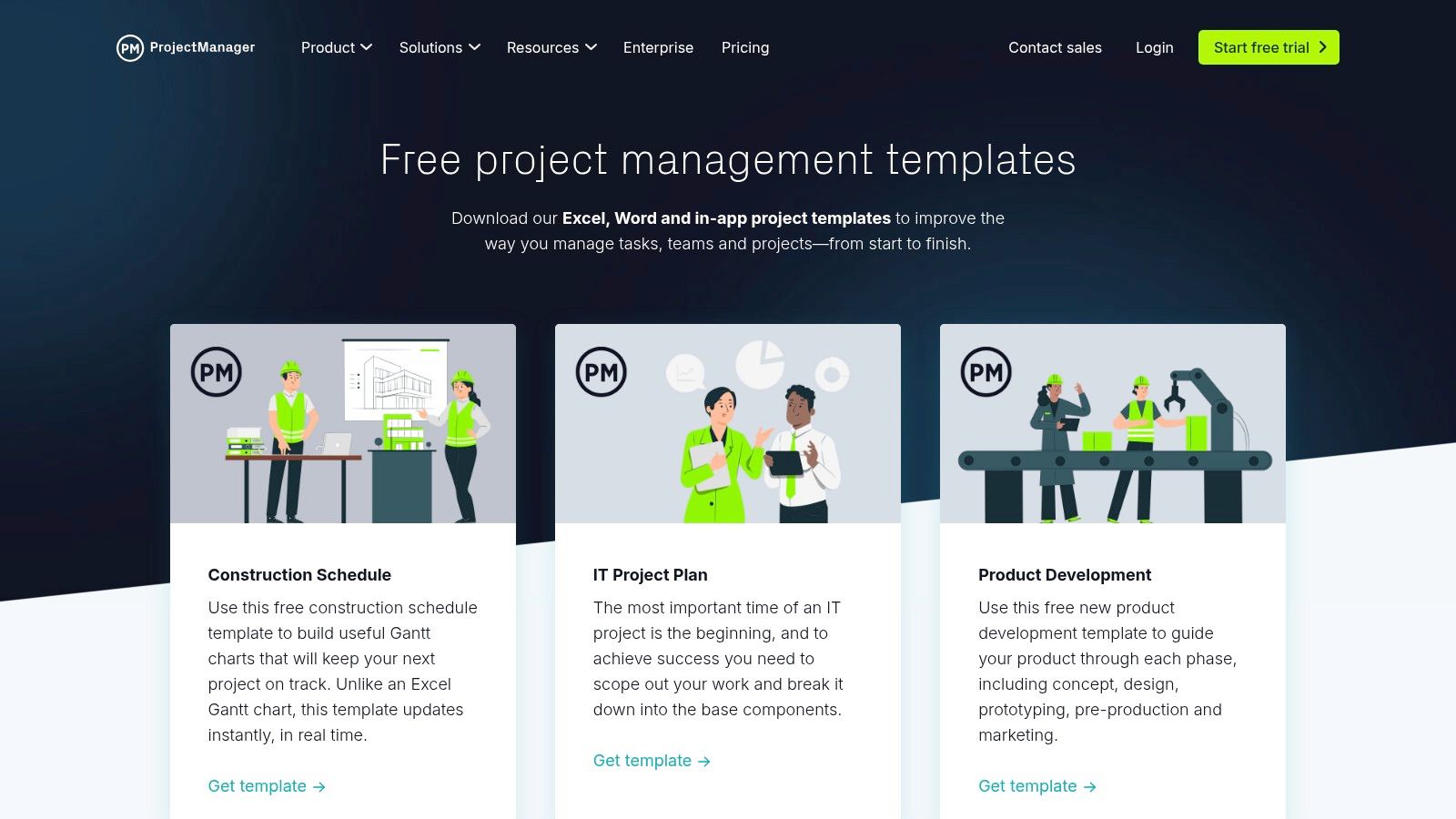
The platform's core strength is its clear upgrade path. A team can download a project plan in Excel to get started quickly, and later import that same data into ProjectManager’s software to unlock real-time dashboards, automated reporting, and live team collaboration without losing their initial work.
Standout Features and User Experience
ProjectManager excels by providing professionally designed templates that cover the entire project lifecycle, from initiation to closure. Unlike generic template sites, it curates resources specifically for project management disciplines, including templates for different industries.
- Free Downloadable Assets: Instantly access a wide range of templates including project plans, risk registers, change logs, and resource plans in Excel or Word format.
- Live In-App Templates: For users of the software, the platform offers real-time templates that connect directly to live project data for collaborative planning and tracking.
- Industry-Specific Resources: Find tailored templates for specialized fields like IT, construction, and product development, addressing unique industry requirements.
The user experience is clean and educational. Each template download is accompanied by clear instructions and guidance on how to use it effectively, making it an excellent resource for both seasoned and novice project managers. This structured approach helps ensure best practices are followed from the outset.
Pros and Cons
| Pros | Cons |
|---|---|
| Easy Entry Point: Start with free Excel/Word downloads and upgrade to live collaboration as needed. | Paid Software Required for Advanced Features: Real-time dashboards and updates are behind a paywall. |
| Clear Guidance: Each template includes instructions, making them easy to implement correctly. | Limited Offline Functionality: Some templates are designed to promote the full ProjectManager app. |
| Comprehensive Library: Covers a wide spectrum of project management documents beyond simple task lists. | Learning Curve for Software: Transitioning from Excel to the full software platform requires some training. |
Practical Implementation Tip
When using the downloadable Risk Register template from ProjectManager, add two custom columns: "Risk Owner" and "Next Review Date." Assign a specific team member as the "owner" for each identified risk. This creates clear accountability. Use the "Next Review Date" to schedule periodic check-ins for high-impact risks, ensuring they don't get overlooked. This transforms the static document into a proactive risk management tool and prepares the data for a smoother import into a full-fledged PM system later on. You can learn more about integrating advanced tools to further enhance your project workflows.
Website: ProjectManager Template Center
4. ClickUp Templates
For teams looking to move beyond static spreadsheets and into a dynamic, all-in-one work OS, ClickUp offers an incredibly robust starting point. Its official template library features over 1,000 pre-built solutions, with a dedicated category for project management tracking templates that cater to various methodologies. These templates aren't just simple lists; they are fully configured workspaces with custom statuses, fields, views, and automations ready to be deployed instantly.
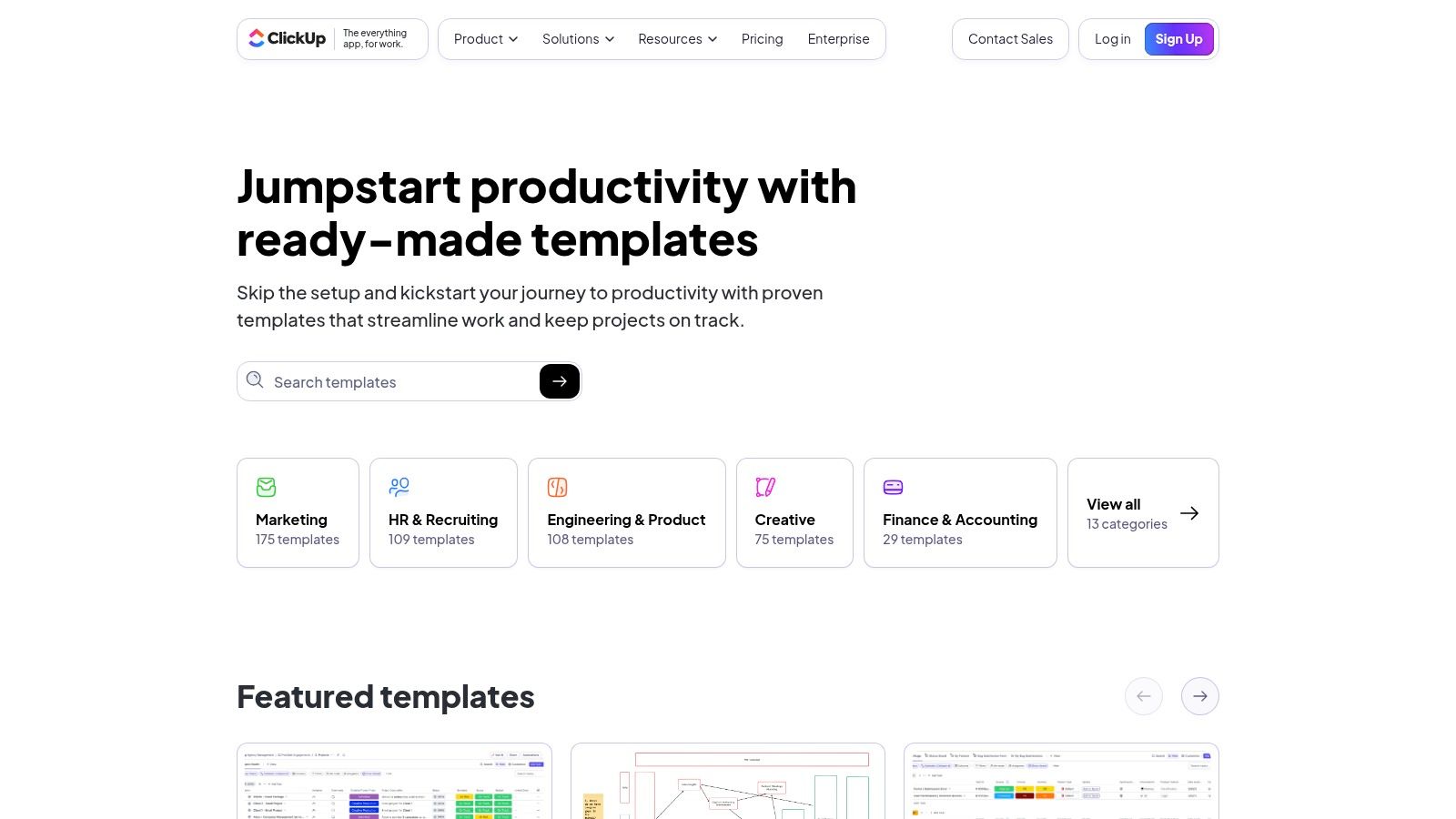
ClickUp's core strength is its versatility and scalability. A project manager can start with a simple project plan template and then layer on Gantt, Board, and Timeline views without rebuilding anything. This integrated approach allows a project's data to be visualized in multiple ways, meeting the needs of different stakeholders within the same platform.
Standout Features and User Experience
ClickUp excels by providing a structured yet highly customizable environment. The templates are designed as complete solutions that include pre-set custom fields for things like budget, priority, and task owners, significantly reducing setup time. This makes it an ideal platform for teams that want a sophisticated system without the hassle of building it from the ground up.
- Multi-View Configuration: Templates come with pre-configured views like List, Board, Calendar, and Gantt, allowing you to switch perspectives on your project data with a single click.
- Comprehensive Project Plans: Access dedicated templates for complex needs, such as process improvement workflows, project plans with dependencies, and client management pipelines.
- Actively Updated Library: ClickUp continuously adds new and improved templates, ensuring the available resources align with modern project management practices across dozens of industries.
The user experience is designed around a "use template" button that instantly adds the entire pre-built structure into your workspace. While the platform itself has a steeper learning curve than Excel, the templates make onboarding much smoother. The Free Forever plan is generous enough to allow teams to fully test and implement several key templates before committing to a paid subscription.
Pros and Cons
| Pros | Cons |
|---|---|
| Free Tier Access: A powerful free plan allows full use and testing of most templates. | Learning Curve: The platform's vast feature set can be overwhelming for new users. |
| Vast and Diverse Library: Offers a massive, actively managed selection of templates. | Paid Feature Gates: Advanced views, automations, and full functionality require a paid subscription. |
| All-in-One Solution: Templates are part of a larger ecosystem for comprehensive work management. | Performance: The platform can occasionally feel slow when loaded with complex projects and many tasks. |
Practical Implementation Tip
When you select a ClickUp project management template, resist the urge to immediately start adding tasks. Instead, spend 15 minutes reviewing the pre-built Custom Fields and Statuses. Go to the List or Board settings and customize the status names to match your team's exact workflow (e.g., change "In Review" to "Client Approval"). Then, audit the Custom Fields and hide or delete any that are irrelevant to your project. This initial cleanup ensures the template perfectly aligns with your operational language, which dramatically increases team adoption and data consistency from day one.
Website: ClickUp Templates
5. Notion Template Gallery
For teams seeking ultimate flexibility beyond traditional spreadsheets, the Notion Template Gallery is a dynamic and ever-expanding ecosystem. It serves as an official hub where both Notion and a global community of creators share thousands of project management tracking templates. Unlike static files, these templates are live, interactive pages that can be duplicated into your workspace with a single click, transforming a blank canvas into a powerful, interconnected project hub.
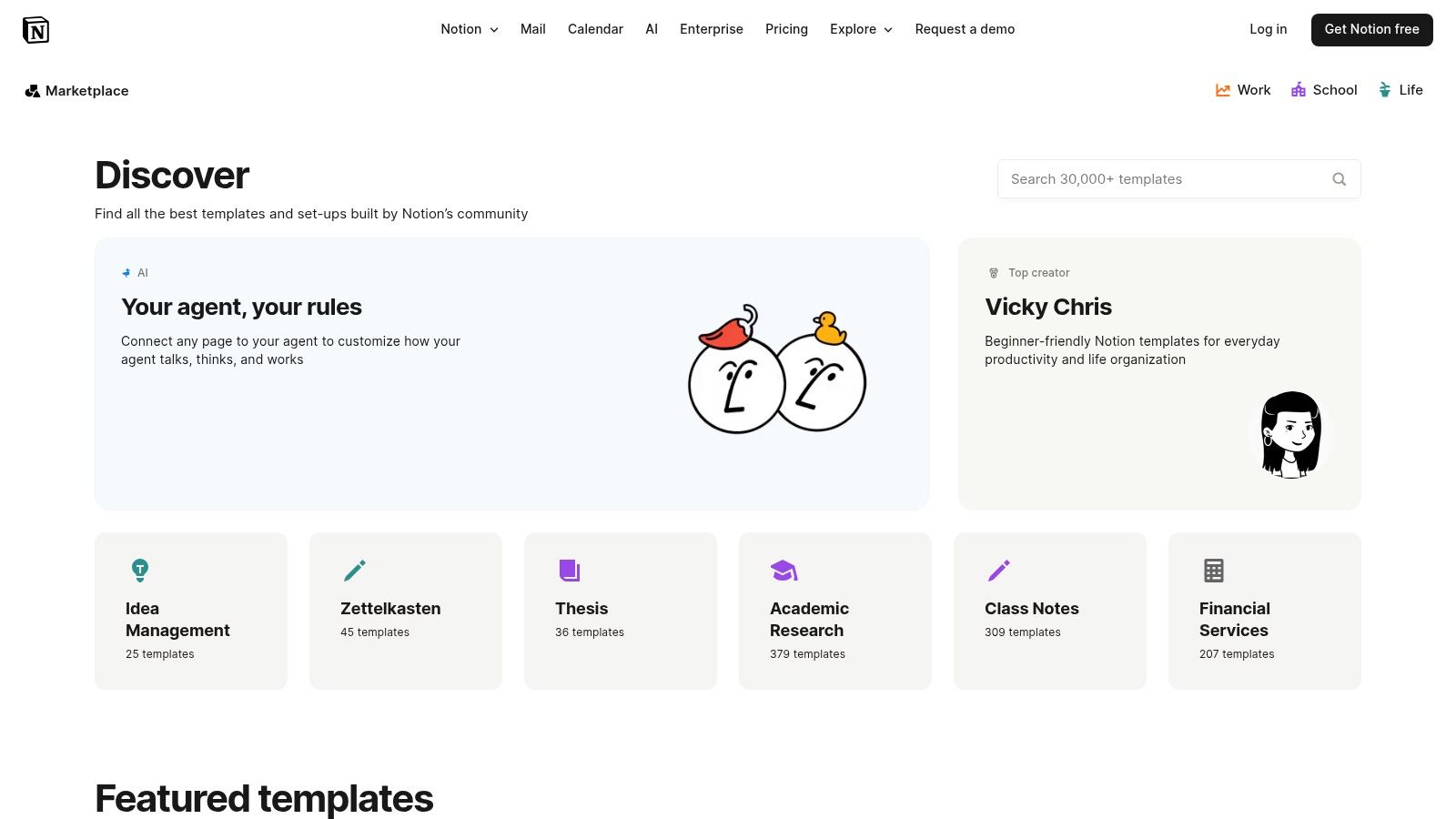
The gallery’s core appeal is its versatility. You can find everything from simple Kanban boards and task lists to complex, database-driven portfolio trackers and RACI matrices. This variety allows managers to choose a foundation that perfectly matches their project’s complexity and team’s workflow, rather than forcing a one-size-fits-all solution.
Standout Features and User Experience
Notion’s strength is its modular, database-centric approach, which turns templates into customizable mini-apps. Each element is a building block that can be modified, linked, and viewed in multiple ways, such as a timeline, calendar, or list.
- One-Click Duplication: Instantly add any template to your personal or team workspace and begin customizing it without any setup friction.
- Interconnected Databases: Many templates leverage Notion's relational database feature, allowing you to link tasks to projects, meeting notes, and team members for a single source of truth.
- Vast Creator Ecosystem: Discover templates from productivity experts and certified Notion consultants, many of whom offer both free and advanced paid versions on their own sites.
The user experience is seamless. You browse the gallery, filter by category (e.g., "Project Management"), and preview templates directly. Most are free, but a thriving marketplace of premium templates offers even more advanced functionality. You can explore creative ways to leverage these templates on the Notion Sender blog.
Pros and Cons
| Pros | Cons |
|---|---|
| Unmatched Flexibility: Templates can be customized down to the smallest detail. | Variable Quality: Community-submitted templates can vary greatly in quality and support. |
| Huge Variety: Thousands of free and low-cost options for any project type. | Potential Overwhelm: The sheer number of options and features can be daunting for new users. |
| All-in-One Workspace: Integrates project tracking with notes, wikis, and docs. | Unsupported Templates: Some free templates may become outdated or unsupported by their creators. |
Practical Implementation Tip
When you duplicate a project management template, first create a dedicated "Team Wiki" page within your Notion workspace. On this page, define your project management methodology, status definitions ("To Do," "In Progress," "Blocked"), and role assignments (e.g., who is the Project Lead, who approves deliverables). Then, link back to this Wiki page from the header of your new template. This provides a central reference point for your entire team, ensuring everyone uses the template consistently and understands the established workflow.
Website: Notion Template Gallery
6. Vertex42 (Excel Project Management Templates)
Vertex42 has long been a trusted resource for professionals seeking powerful, no-frills spreadsheet solutions. It offers a comprehensive library of meticulously crafted project management tracking templates for Excel and Google Sheets, catering to users who prefer the control and familiarity of a file-based system. From detailed Gantt charts and Work Breakdown Structures (WBS) to budget trackers and timecards, Vertex42 provides robust tools for offline or traditional project management workflows.
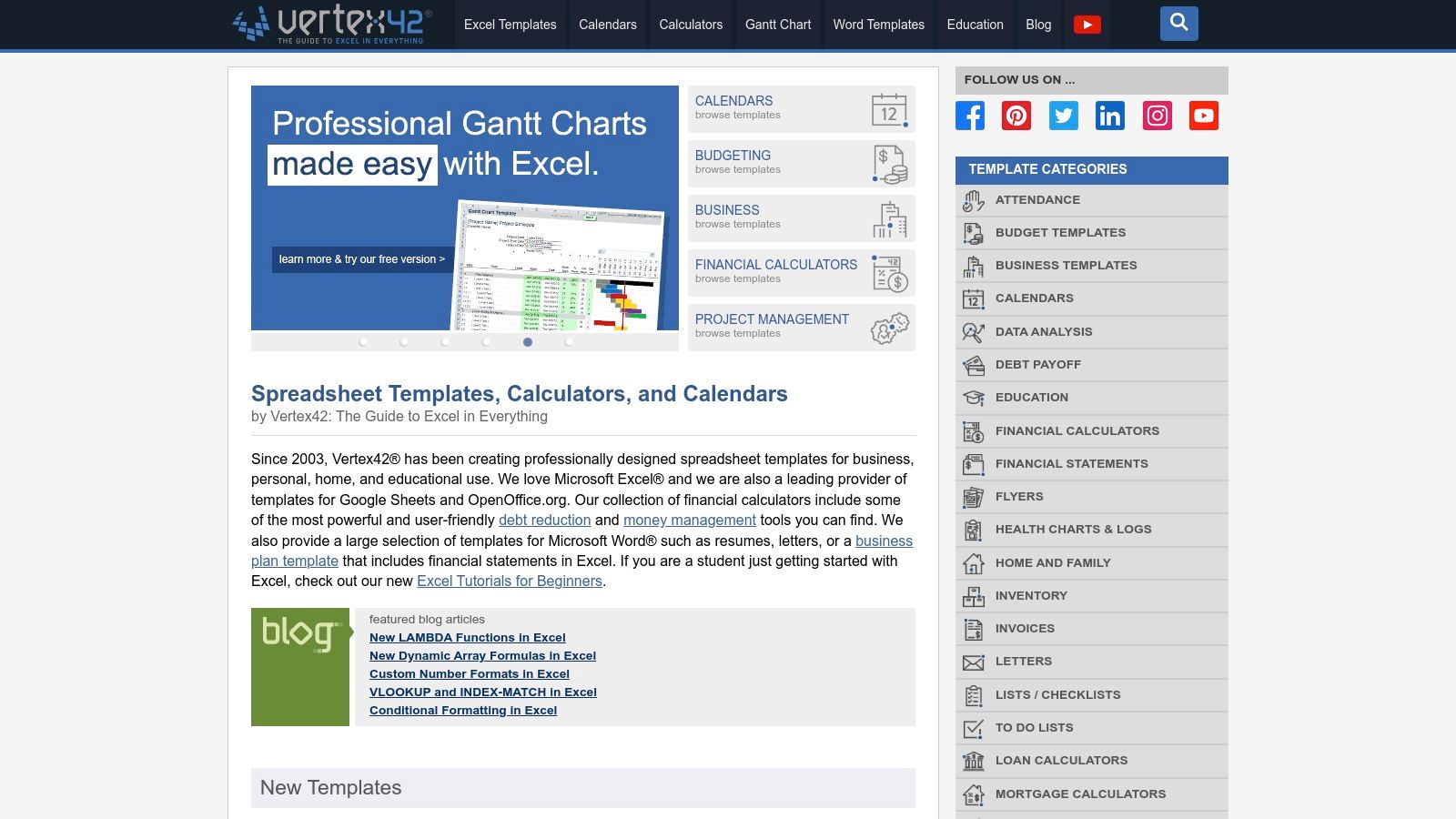
The platform’s main appeal is its focus on functionality without unnecessary complexity. The templates are intentionally designed without macros, ensuring they are secure, easy to troubleshoot, and compatible across different versions of Excel and Google Sheets. Each download comes with clear instructions, making even advanced templates like earned value management accessible to a wider audience.
Standout Features and User Experience
Vertex42 stands out by delivering professional-grade spreadsheets that prioritize practicality and extensive customization. The templates are designed to be immediately useful, providing a solid foundation that can be adapted to almost any project’s specific needs. This makes it an ideal choice for teams that require granular control over their tracking documents.
- Flagship Gantt Chart Templates: Offers both simple and advanced versions of their Gantt chart, with the pro version including features like baseline tracking and cost management.
- Macro-Free Design: Ensures maximum compatibility and security, eliminating concerns about enabling macros or dealing with corrupted files.
- Comprehensive Documentation: Each template is accompanied by a detailed guide explaining how to use its features, which is invaluable for complex tools like earned value analysis.
The user experience is straightforward: browse the extensive catalog, find the template you need, and download it directly. While many templates are free, premium versions with more advanced features are available for a one-time purchase, offering incredible value compared to subscription-based software.
Pros and Cons
| Pros | Cons |
|---|---|
| High-Quality and Practical: Many powerful and well-documented templates are offered for free. | No Real-Time Collaboration: Relies on manual file sharing, which can lead to version control issues. |
| Ideal for Offline Use: Perfect for teams working in secure environments or with limited internet access. | Limited Automation: Lacks automated notifications, reminders, and integrations found in cloud platforms. |
| Extensive Customization: The macro-free design allows for deep and easy modification of formulas and layouts. | Manual Data Entry: Requires managers to input all progress and status updates manually. |
Practical Implementation Tip
When using the Vertex42 Gantt Chart Pro template, leverage the built-in "Baseline" columns (Start, Finish, Duration) to their full potential. At the project's kickoff, finalize your initial plan and copy all the values from your "Planned" columns into the "Baseline" columns. As the project progresses and schedules shift, only update the "Planned" columns. This preserves your original timeline, allowing you to use Excel’s conditional formatting to visually highlight any variance between your planned and actual progress, providing an instant, data-driven view of project delays.
Website: Vertex42 Project Management Templates
7. Etsy (Marketplace for Downloadable PM Templates)
For those seeking highly stylized, niche, or budget-friendly solutions, Etsy emerges as an unexpected but powerful marketplace for project management tracking templates. This global platform, known for handmade goods, hosts a massive digital library where independent creators sell instantly downloadable templates for Notion, Excel, Google Sheets, and even printable formats. It’s the ideal destination for freelancers, creative agencies, and small teams who want a tracker that reflects their brand's aesthetic or fits a very specific workflow.
Etsy’s strength lies in its incredible variety and affordability. Unlike corporate software or standardized templates, you can find project hubs designed for specific industries like wedding planning, content creation, or software development. Many sellers bundle their templates with detailed instructions, video tutorials, and dedicated support, offering a boutique experience at a low one-time cost.
Standout Features and User Experience
Etsy provides a user-centric shopping experience that makes finding and implementing a template incredibly simple. The platform's search and filtering capabilities allow you to pinpoint exactly what you need, from a minimalist Notion Kanban board to a colorful and comprehensive Excel Gantt chart planner.
- Instant Digital Delivery: Once purchased, templates are available for immediate download, allowing you to get started in minutes without subscriptions or lengthy sign-ups.
- Aesthetic and Niche Variety: Find templates with unique visual designs-from dark mode dashboards to pastel-themed planners-that you won't find anywhere else.
- Creator-Driven Features: Many templates include creative and practical modules built by real-world users, such as client portals, invoice trackers, and social media content planners integrated directly into the project hub.
The experience is straightforward: search, review seller ratings and product photos, purchase, and download. While the quality is seller-dependent, the review system helps guide buyers toward high-quality, well-supported products.
Pros and Cons
| Pros | Cons |
|---|---|
| Highly Affordable: Most templates are available for a small, one-time fee. | Quality Varies: Quality and support differ greatly from one seller to another, requiring buyer research. |
| Unique Designs: Offers a vast selection of stylistic and niche-specific options. | Inconsistent Updates: Templates may not receive ongoing updates or bug fixes like dedicated software. |
| Instant Access: Digital files are delivered immediately after purchase for quick setup. | No Centralized Support: Support comes directly from the individual creator, not Etsy itself. |
Practical Implementation Tip
When shopping for a project management template on Etsy, treat the seller's page as your primary source of due diligence. Look beyond the polished product mockups and carefully read the full item description to confirm compatibility (e.g., Notion, specific Excel version). Pay close attention to recent reviews, especially those that mention customer support or ease of use. Finally, check if the seller has a public profile or website linked, as this often indicates a more established and reliable creator who is likely to offer better long-term support for their digital products.
Website: Etsy Project Management Notion Templates
Project Management Template Comparison
| Item | Implementation Complexity 🔄 | Resource Requirements ⚡ | Expected Outcomes 📊 | Ideal Use Cases 💡 | Key Advantages ⭐ |
|---|---|---|---|---|---|
| Microsoft Create (Excel Templates) | Low - Familiar Excel setup, minimal learning curve | Minimal - Excel and Microsoft 365 access | Basic to moderate project tracking | Teams using Microsoft 365, simple timeline tracking | Free templates, easy customization, Excel integration |
| Smartsheet Template Gallery | Medium - Requires platform familiarity | Moderate - Paid plans for full features | Collaborative real-time project plans | Teams needing role-specific templates and automation | Strong collaboration, automation, live previews |
| ProjectManager Template Center | Low to Medium - Download/use Excel/Word or in-app | Moderate - Free downloads, paid for advanced features | Static and live collaboration templates | Users transitioning from offline to cloud PM | Free downloads plus live collaboration options |
| ClickUp Templates | Medium - Setup within robust PM platform | Moderate - Free tier with paid upgrades | Scalable, multi-view project management | Teams wanting wide template variety and scalability | Extensive, actively updated library, free trial tier |
| Notion Template Gallery | Low to Medium - Duplicate and customize live pages | Low - Mostly free, some premium paid | Flexible, lightweight to mid-level PM | Users wanting adaptable all-in-one workspace | Huge variety, free options, easy duplication |
| Vertex42 (Excel Project Templates) | Low - Excel templates, no macros, offline use | Minimal - Excel or Google Sheets | Practical, no-frills project and budget tracking | Teams preferring powerful offline spreadsheets | High-quality, free templates, offline focus |
| Etsy (Downloadable PM Templates) | Low to Medium - Instant downloads, varies by template | Low to Moderate - One-time purchases | Customized, niche, or aesthetic PM tracking | Freelancers and small teams on a budget | Affordable, stylistic variety, instant access |
Choosing the Right Template to Drive Project Success
Navigating the vast landscape of project management tracking templates can feel overwhelming, but the journey to finding the perfect fit is a strategic investment in your team's success. We've explored a diverse range of options, from the robust and familiar Excel spreadsheets offered by Microsoft Create and Vertex42 to the dynamic, all-in-one workspaces powered by Notion and ClickUp. Each platform presents a unique approach to organizing tasks, tracking progress, and fostering collaboration.
The key takeaway is that the "best" template is not a one-size-fits-all solution. Instead, it is the one that aligns most seamlessly with your team's existing workflows, technical proficiency, and project complexity. A small team or freelancer might find the straightforward, cost-effective nature of an Excel or Google Sheets template perfectly adequate for managing timelines and budgets. In contrast, a growing marketing team juggling multiple campaigns will likely benefit from the advanced features, automations, and collaborative power found in dedicated platforms like Smartsheet or ProjectManager.
Key Factors in Your Decision-Making Process
Before you commit to a template, consider it a foundational blueprint upon which your project's success will be built. To ensure you select the right one, evaluate your choice against these critical factors:
- Scalability: Will this template support your project as it grows? A simple task list might work for a five-task project but could become unwieldy for a 500-task initiative. Look for templates that can scale with your needs, whether through advanced formulas in Excel or database relations in Notion.
- Collaboration Needs: How does your team communicate? If real-time updates, comments, and file sharing are crucial, a cloud-based solution like ClickUp or Smartsheet is inherently superior to a static Excel file that can create version control issues.
- Integration Potential: Modern project management doesn't happen in a vacuum. Your chosen tool should connect with the other software you rely on, such as email, calendars, and communication apps. This creates a cohesive ecosystem, reducing manual data entry and minimizing the risk of important information getting lost.
- Customization vs. Simplicity: Do you need a plug-and-play solution or a highly customizable framework? Platforms like Notion offer unparalleled flexibility, allowing you to build a system from the ground up. Conversely, templates from Microsoft Create or ProjectManager offer a structured, ready-to-use format that requires minimal setup.
From Template to System: The Path to Implementation
Once you’ve selected a promising template, the real work begins. Implementation is more than just downloading a file; it’s about integrating the tool into your team's daily habits. Start by customizing the template to fit your specific project terminology and phases. Remove fields you don’t need and add ones that are critical to your reporting.
Next, host a brief training session with your team. Walk them through how to use the template, establish clear guidelines for updating statuses, and define who is responsible for each part of the process. This initial investment in training prevents confusion and ensures consistent adoption. Remember that the ultimate goal of using any of these project management tracking templates is to create a single source of truth that provides clarity, empowers your team, and drives your projects toward successful completion. By thoughtfully selecting and implementing the right template, you transform it from a simple document into a powerful engine for productivity and achievement.
Ready to supercharge your Notion project management templates? If you're building your project hub in Notion, bridge the gap between your workspace and your inbox with NotionSender. It allows you to save important emails, client feedback, and attachments directly to your Notion tasks and projects with a single click, ensuring nothing gets lost in translation. Transform your project workflow with NotionSender today!

