
How to Create Custom Email Addresses: Your Complete Guide
Getting your own custom email address is a pretty straightforward affair. You'll need to pick and buy a domain name, choose an email provider, tweak some DNS settings for your domain, and then you're ready to create your mailboxes. The whole thing can be done in less than an hour, but the impact it has on your professional image is huge.
Why a Custom Email Address Is Non-Negotiable

Let’s be honest for a second. An email from yourname87@gmail.com just doesn’t scream professional. Whether you’re running a business, freelancing, or kicking off a new project, your email address is often the first thing people see. It’s your digital business card, and a generic one can give the impression that you’re not quite established yet.
Switching to something like contact@yourbrand.com instantly changes the game. It tells potential clients, partners, and customers that you're serious about what you do. This isn't just about looking good; it's a foundational piece of your brand that starts building trust right from that first email.
The Impact on Trust and Deliverability
It goes deeper than just perception. Using your own domain comes with some real technical perks. Emails sent from a custom domain are far less likely to get snagged by aggressive spam filters, which is a constant battle when you're using a free service. This has a direct effect on whether your messages actually get read.
A professional email address is more than just a name—it's a critical tool for ensuring your messages land in the inbox, not the junk folder. This improves communication, strengthens client relationships, and reinforces your brand's legitimacy with every email sent.
This boost in deliverability is a must-have for any kind of business communication, whether you're sending invoices or launching a full-blown marketing campaign. When you consider that email marketing can bring in an incredible $36 for every $1 spent, you can't afford to have your messages go missing. With nearly 4.5 billion people using email every single day, a professional address is your ticket to being taken seriously.
Custom vs Generic Email: A Quick Comparison
Here’s a quick breakdown of the key differences in professionalism, branding, and control between a custom domain email and a free generic one.
| Feature | Custom Email (you@yourdomain.com) | Generic Email (you@gmail.com) |
|---|---|---|
| Professionalism | High. Instantly builds credibility and trust. | Low. Can appear amateur or temporary. |
| Branding | Excellent. Reinforces your brand with every email sent. | None. Promotes the email provider (Gmail, Yahoo, etc.), not you. |
| Memorability | Easy for clients to remember and find. | Often complex and easily forgotten (e.g., jane.doe1992@...). |
| Control | Full control over accounts, security, and formats. | Limited. Subject to the provider's terms and policies. |
| Deliverability | Better. Less likely to be marked as spam. | Varies. Can be flagged by strict filters. |
| Scalability | Simple to add new addresses for team members or departments. | Not scalable for a growing business. |
The choice is pretty clear. Investing in a custom email address is a small step that delivers a massive return in how your brand is perceived.
Building a Cohesive Brand Identity
At the end of the day, a custom email address ties everything together. It connects your communications directly to your website and your other professional platforms, creating a unified and memorable brand presence.
Just think about the advantages:
- Instant Brand Recognition: Every single email you send is an ad for your domain name.
- Enhanced Security: Professional email services typically offer much better security features than free accounts.
- Scalability for Growth: Need an address for a new team member? Or a dedicated one for support? It's simple to create new addresses as you expand.
By setting up a custom address, you're not just buying an email service—you're making a smart investment in your brand's future. And if you're looking for more ways to make those emails pop, be sure to check out our guide on how to increase your open rates with these 10 email marketing tricks.
How to Choose and Secure Your Domain Name
Before you can have a custom email address, you need a domain name. Think of this as the foundation of your professional online identity. It's the core of your website address, and more importantly for us, it's everything that comes after the "@" symbol in your email.
Getting this right is your first big step. You're essentially picking the street name for your digital office—it needs to be memorable, relevant, and easy for people to find.
When you're brainstorming, lean into simplicity and make sure it aligns with your brand. A great domain name is easy to say, spell, and type. I always advise people to avoid hyphens or numbers if they can; they just get clunky when you have to say them out loud. Your goal is a name that sticks in someone’s head, like yourbrand.com or firstname-lastname.com if it's for a personal brand.

Finding Your Perfect Domain
The domain extension—that little part at the end like .com or .co—also shapes how people see you. While .com is still the undisputed king and what most people recognize, plenty of other extensions have become popular and can be a solid choice if your first-choice .com is already taken.
A few good alternatives I've seen work well:
- .io: Super popular with tech startups and software companies.
- .co: Often used by innovative companies and startups as a more modern feel than .com.
- .org: The classic choice for non-profits and organizations.
If you're new to this, it's worth taking a moment for understanding domain name registration, including how the system works and what to look for in a registrar. This bit of background knowledge will make the next part much smoother.
Purchasing and Protecting Your Domain
Once you've landed on the perfect name, it's time to buy it from a domain registrar. There are plenty of good ones out there, with Namecheap and Google Domains being two popular and straightforward options. The process is simple: search for your domain to see if it’s available, and then follow their steps to purchase it.
During the checkout process, you’ll likely be offered an important add-on: domain privacy protection.
I can't stress this enough: always add domain privacy. If you don't, the personal info you used to register the domain (name, address, phone number) becomes public record in the WHOIS database. This add-on hides your details, which goes a long way in preventing spam and protecting your privacy.
Securing your domain is more than just a transaction; it's you claiming your little corner of the internet. It sets the stage for building a professional email presence. With your domain name officially in hand, you're all set for the next step: choosing a service to actually bring your custom email address to life.
Alright, you've snagged your new domain name. What's next? You need to decide where your custom emails will actually live. This is where an email hosting provider comes in—think of it as the digital post office for your professional address.
Getting this choice right is a pretty big deal. It affects everything from reliability to how your team collaborates. Your options run the gamut, from simple forwarding setups to full-blown productivity suites.
The real question is, what do you actually need? Are you a solopreneur who just needs a slick-looking address that redirects to your personal Gmail? Or are you building a team that needs shared calendars, video calls, and cloud storage to go along with their email? Figuring that out now will point you to the perfect solution without having you overpay for features you'll never touch.
Full-Service Productivity Suites
If you're building a business with plans to grow, the heavyweights are Google Workspace (what used to be G Suite) and Microsoft 365. These platforms do a lot more than just host your email; they give you an entire ecosystem of tools. It's like getting a complete business-in-a-box that just happens to include your custom email address.
These are built for collaboration. You get professional email on your domain, of course, but you also get shared calendars, video meetings (think Google Meet or Microsoft Teams), and a ton of cloud storage (Google Drive or OneDrive). If your team spends its days in documents, spreadsheets, and presentations, this is easily the most seamless way to go.
Simple Email Forwarding and Dedicated Hosts
But what if you don't need all those bells and whistles? Plenty of domain registrars, like Namecheap or Google Domains, offer basic email forwarding either for free or for a very low cost. This lets you create an address like info@yourdomain.com that automatically sends any incoming messages to an existing inbox, like your personal Gmail. It's a fantastic, budget-friendly option for freelancers or one-person shops who just want to look more professional.
The one major catch with forwarding? You can't reply directly from your custom address. Emails you send will still show your personal email as the sender, which can kind of break the professional illusion you're going for.
If you need a middle ground, dedicated email hosts like Zoho Mail or Fastmail are a great option. They offer robust, email-focused services without the full productivity suite attached. You get powerful features like top-notch spam filtering, solid mobile apps, and calendar tools, often at a lower price than what Google or Microsoft charge.
Making the Right Choice for Your Needs
Picking a provider impacts more than just your inbox; it sets the tone for all your professional communication. With an estimated 376.4 billion emails expected to be sent daily by 2025, you need every advantage to stand out. We know a personalized subject line can boost open rates by 26%, and having a trusted custom domain is the very first step in that journey. You can dive deeper into the power of professional email with some great stats from Designmodo's research.
Ultimately, your choice comes down to balancing cost, features, and your plans for the future. For those of you looking to integrate email into very specific workflows, you might even want to see how you can create and send email from Notion to really streamline your operations. By thinking through your needs first, you'll land on a provider that perfectly supports your goals.
Setting Up Your DNS for Reliable Email Delivery
<iframe width="100%" style="aspect-ratio: 16 / 9;" src="https://www.youtube.com/embed/o66UFsodUYo" frameborder="0" allow="autoplay; encrypted-media" allowfullscreen></iframe>
Alright, you've picked your domain and your email host. Now it's time for the slightly technical part: connecting them. This means you'll be diving into your DNS records.
Don't let the acronym scare you. In practice, this is mostly just copying and pasting a few lines of text from your email provider into your domain registrar's settings.
Think of it this way: your domain is your address, and your email host is your mailbox. DNS records are the specific instructions that tell the postal service exactly where to drop your mail. Getting these right is the secret to making sure your emails actually land where they're supposed to.
The DNS Records That Matter for Email
Three key records work together to make your custom email address function properly and, just as importantly, securely. Each one has a specific job.
-
MX (Mail Exchanger) Record: This one is non-negotiable. It's the primary "mailing address" for your email server. When someone sends a message to
hello@yourdomain.com, their email service first looks up your MX record to find out which server is meant to receive it. No MX record, no incoming email. Simple as that. -
SPF (Sender Policy Framework) Record: Consider this your email's bouncer. It publishes a list of all the servers that are officially allowed to send email from your domain. This is a huge deal for preventing spammers from faking your email address (a practice called "spoofing"), which helps protect your reputation.
-
DKIM (DomainKeys Identified Mail) Record: DKIM is like a digital, tamper-proof wax seal on an old-fashioned letter. It adds a unique cryptographic signature to every single email you send. The receiving server can check this signature to confirm two things: that the email really came from you and that it wasn't messed with along the way.
Getting these details right is absolutely essential. With the number of global email users set to hit 4.6 billion by 2025, you're competing for inbox space. Following these standards is your ticket to good deliverability.
Finding and Updating Your Records
Your email provider—whether that's Google Workspace, Microsoft 356, or someone else—will give you the exact values you need for these records. You'll just need to log in to your domain registrar (where you bought the domain, like Namecheap or GoDaddy) and find the section labeled "DNS Management" or something similar.
From there, you'll either add new records or edit existing ones, pasting in the values your email host provided. The process is usually straightforward, but you have to be precise. One typo can break the whole thing.
A Quick Heads-Up: After you save your changes, they aren't instant. It can take anywhere from a few minutes up to 48 hours for these updates to spread across the internet. This delay is called DNS propagation. If you're curious about the nuts and bolts, this guide on what is DNS propagation: a technical guide to DNS updates is a great read. Just know that you might need to be a little patient.
The path you take here really depends on the email solution you've chosen. This chart gives you a nice visual breakdown.
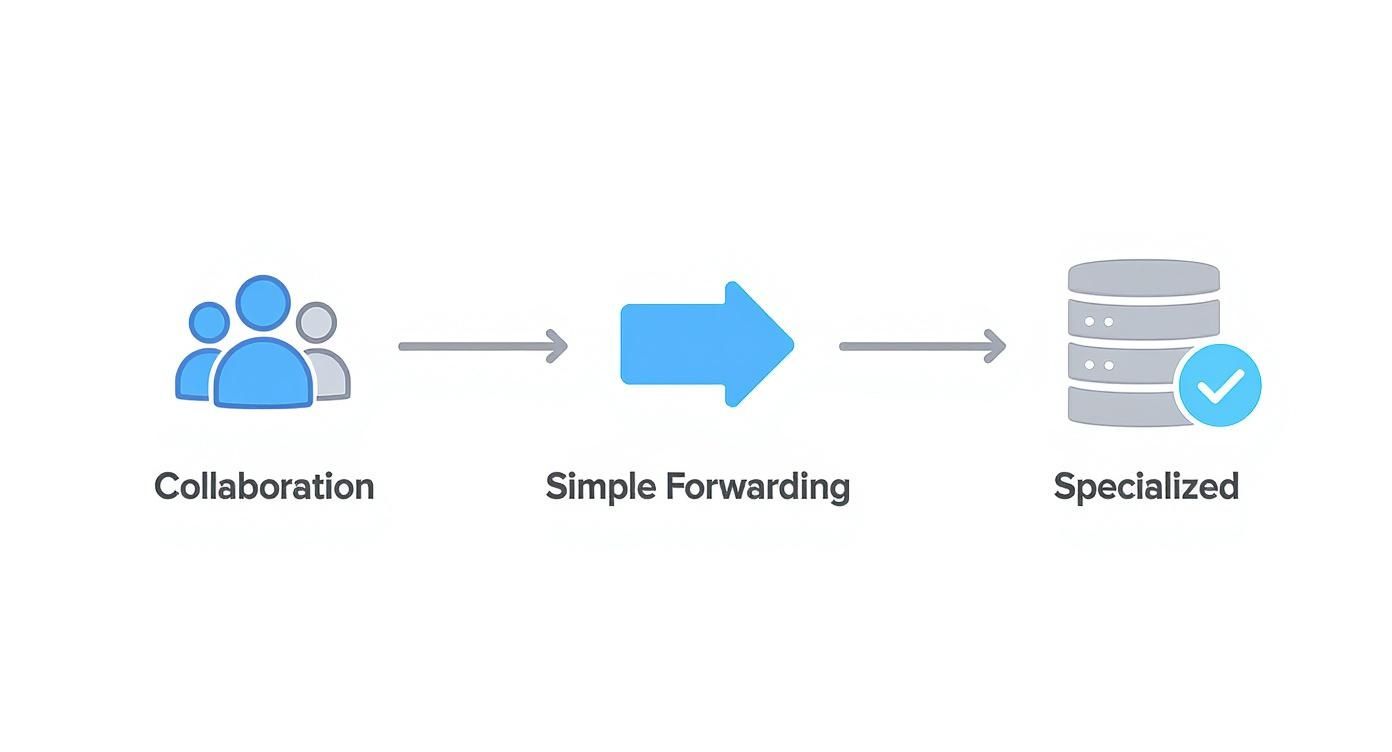
As you can see, the right choice depends entirely on your needs—whether you're setting up a team for collaboration, just need a simple forwarder, or have a more specialized use case in mind.
Once your DNS is configured and has had time to propagate, you're ready for the fun part: actually creating your mailboxes.
Putting It All Together: Creating and Managing Your First Email Accounts
Okay, the technical groundwork is done. Now for the fun part—actually bringing your custom email addresses to life. This is where we go from dealing with DNS records and settings to creating tangible, functional inboxes for you and your team.
Whether you're using Google Workspace or Microsoft 365, the process is pretty similar. You'll log into your admin console, find the user management area, and add a new user. It's usually as simple as plugging in their name, what you want their username to be (the bit before the @), and giving them a temporary password.
So, if you're setting up an account for a new hire, Jane Doe, you'd create something like jane.doe@yourbusiness.com or maybe just jane@yourbusiness.com.
Settle on a Smart Naming Convention Now
Before you jump in and start creating a bunch of accounts, pause for a second. Decide on a consistent naming convention. Trust me, figuring out a standard format right now will save you from a world of organizational headaches later on as your team grows. It just looks more professional and makes it way easier for everyone to guess a colleague's email address.
A few common formats that work well:
- First Name, Last Initial:
janed@yourbusiness.com - First Initial, Last Name:
jdoe@yourbusiness.com - Full Name with a Dot:
jane.doe@yourbusiness.com
Honestly, the best choice depends on your company. For a small, tight-knit team, a simple first-name approach like jane@yourbusiness.com can feel more personal and less corporate.
Set Up Essential Aliases and Forwards
Not every address needs its own dedicated, paid-for inbox. This is where aliases and forwards become your best friend. They let you create functional addresses that just route emails to one or more existing mailboxes. It's the perfect setup for general-purpose addresses.
These are some of the most common and useful aliases you can create:
info@yourbusiness.comsupport@yourbusiness.comsales@yourbusiness.com
A real-world example: You could set up the
info@alias to forward all incoming mail to both your own inbox and your assistant's. That way, no general inquiry ever falls through the cracks, giving your customers a seamless experience without you having to pay for another mailbox.
This strategy keeps your inboxes tidy and makes sure the right people see the right messages without delay.
Final Checks and Testing Your New Account
Once you've created an account, there are a couple of final, crucial steps. First, security. Always enforce strong password policies and, most importantly, enable two-factor authentication (2FA) for every single user. It's the single most effective thing you can do to prevent unauthorized access. From there, you can help your team connect their new address to their favorite email clients like Outlook, Apple Mail, or Thunderbird.
Finally, do a quick test run to make sure everything is flowing correctly.
- Send an email from your new custom address to an external account (like your personal Gmail).
- Now, reply to that email from your personal account.
- Check that the original email sent properly and, more importantly, that the reply landed in your new custom inbox.
This simple check confirms your MX records are doing their job and that mail can travel both in and out.
And for those of you who live in Notion, you can take this a step further. Tools exist that let you create and send emails directly from Notion, effectively turning your project management hub into a powerful communication center.
Common Questions About Custom Emails
Even after a full walkthrough, a few practical questions always pop up when you're on the verge of setting up a custom email. Let's tackle those common sticking points head-on so you can move forward with confidence.
We'll cover everything from the real-world costs to what it takes to move your digital life over from an old account.
How Much Does a Custom Email Address Really Cost?
This is always the first question, and the answer breaks down into two parts. First, you've got your domain name, which is pretty predictable—usually around $10-$20 per year.
The second piece is your email hosting, and this is where the price varies. Hosting can be as cheap as a few dollars a month for a basic, email-only service. But for a full professional suite like Google Workspace or Microsoft 365, you're looking at $6-$12 per user per month.
For a solo entrepreneur or freelancer, a solid, professional setup will typically run you somewhere between $80 and $160 per year. It's a small investment for the huge boost in credibility it provides.
Can I Move My Old Emails from Gmail to My New Address?
Yes, absolutely. This is a standard, must-have feature for any professional email provider because they know just how critical your email history is. Services like Google Workspace and Microsoft 365 have built-in migration tools designed to make this as painless as possible.
These tools can pull in all your old emails, contacts, and even calendar events from your previous account, including a free Gmail one. This means you get a seamless transition without losing years of important data or conversations.
You really don't have to start from scratch. Your entire archive can come with you, making the switch much less of a headache than you might think.
How Many Custom Email Addresses Can I Make?
The number of addresses you can create depends entirely on your hosting plan. If you're paying per user for a service like Google Workspace, you can create as many individual mailboxes as you're willing to pay for. This is perfect for growing teams where everyone needs their own inbox.
But here’s a powerful and cost-effective trick: aliases.
Most paid mailboxes let you create dozens of free aliases (like info@, support@, or sales@) that all forward to a single, primary inbox. This gives you a ton of flexibility to manage different communication channels without adding to your monthly bill.
Is Setting Up the Technical DNS Records Difficult?
While the acronyms like "MX" and "SPF" sound pretty intimidating, the actual work is surprisingly simple. For the most part, it’s just a copy-and-paste job.
Your new email provider will give you the exact values for your DNS records, often in a step-by-step guide with screenshots. All you have to do is log into your domain registrar's website, find the DNS management area, and plug in the information they gave you. You're never left guessing.
Ready to connect your email communications directly to your project management hub? NotionSender lets you send and manage emails right from your Notion databases, turning your workspace into a powerful command center. Start streamlining your workflow with NotionSender today.

