
Marketing campaign tracking template: a powerful tool

A good marketing campaign tracking template is more than just a place to log numbers. It’s your command center—a single, central hub to monitor performance, wrangle budgets, and actually measure ROI. It's what separates guessing what works from knowing what drives results.
Ultimately, it’s about turning a chaotic storm of data into clear, actionable insights that lead to smarter marketing decisions.
Why Spreadsheets Are Holding Your Campaigns Back
If you're still juggling endless spreadsheets to track your marketing campaigns, you know the pain all too well. It always starts with one clean, organized sheet. But before you know it, your folder is a nightmare of v2_final, final_FINAL, and Johns_edits files.
This isn't just a minor annoyance. It's a genuine bottleneck that directly hamstrings your campaign's success and your ability to scale.
Manual data entry is not only a soul-crushing task but also a magnet for human error. A single copy-paste mistake can throw off your entire ROI calculation, causing you to make critical decisions based on faulty data. Even worse, spreadsheets are static. They simply can’t give you the real-time, dynamic overview you need to pivot quickly in today's fast-moving markets.
The Hidden Costs of Outdated Tracking
The true cost of clinging to spreadsheets goes far beyond just wasted time. It creates stubborn data silos where valuable information is locked away, totally inaccessible to the wider team. This lack of a single source of truth inevitably leads to miscommunication and misaligned strategies.
Think about it: key insights from your PPC campaign might never find their way over to your email marketing efforts simply because the data lives in two separate, disconnected files.
This is where building a modern marketing campaign tracking template in a tool like Notion completely changes the game. You move from a passive, data-logging system to an active command center for your entire marketing operation. Instead of just recording what happened, you can:
- Link campaigns directly to high-level business goals and OKRs.
- Automate KPI calculations to kill manual work and eliminate errors.
- Visualize performance with dynamic dashboards and calendars that actually make sense.
- Centralize all communication and asset management right where the data lives.
When you build a system that tells a clear story, you connect channel performance directly to revenue and customer acquisition. That's how you prove marketing’s true value to the business.
To see what else is out there beyond basic spreadsheets, it’s worth checking out some of the best campaign management tools available. These platforms, much like a well-designed Notion setup, are built for integration and real-time insights, not manual data wrangling.
For example, you can even integrate tools like NotionSender to streamline communications, further closing the gap between data tracking and team collaboration. We’ve put together a guide covering ways to use Notion to send emails and automate reporting that's full of ideas to get you started.
Alright, time to roll up our sleeves and turn that blank Notion page into a powerful command center for your marketing campaigns. We're moving beyond simple to-do lists and spreadsheets here. The goal is to build a smart, interconnected database from scratch that gives you instant clarity on everything you're running.
At the heart of this whole setup is a new Notion database. Think of it as the central nervous system for all your marketing efforts. The real magic happens when we define its properties—these are the data points that will give structure and meaning to every single campaign.
Defining Your Core Campaign Properties
First things first, create a new full-page database in Notion and give it a name like "Campaign Tracker." Now, let's start adding the essential properties that will bring this tracker to life. Each one has a specific job to do, turning a simple entry into a dynamic record of your work.
I recommend starting with these foundational properties:
- Campaign Name: This is your basic
Titleproperty. Keep your naming convention clear and consistent so you can find things easily later. Something like "Q3 2024 - Black Friday Sale" or "Summer Webinar Series - Lead Gen" works perfectly. - Status: For this, use a
Selectproperty. It's a clean, visual way to see where each campaign is at a glance. I usually use statuses likePlanning,In Progress,Active,Awaiting Results, andCompleted. - Timeline: The
Dateproperty is your friend here. Critically, you can set both a start and end date, which is a lifesaver when you want to visualize your campaigns on a calendar or a timeline view. - Budget: Use the
Numberproperty and be sure to set its format to your local currency. This will let you run calculations against your actual spending down the line. - Channel: A
Multi-selectproperty is the best choice for this one. Most modern campaigns aren't siloed, so you need the flexibility to tag multiple platforms likeEmail,Google Ads,Facebook, andBlogfor a single campaign.
This infographic really helps visualize how your new Campaigns database acts as the central hub, connecting out to your content and your bigger-picture goals.
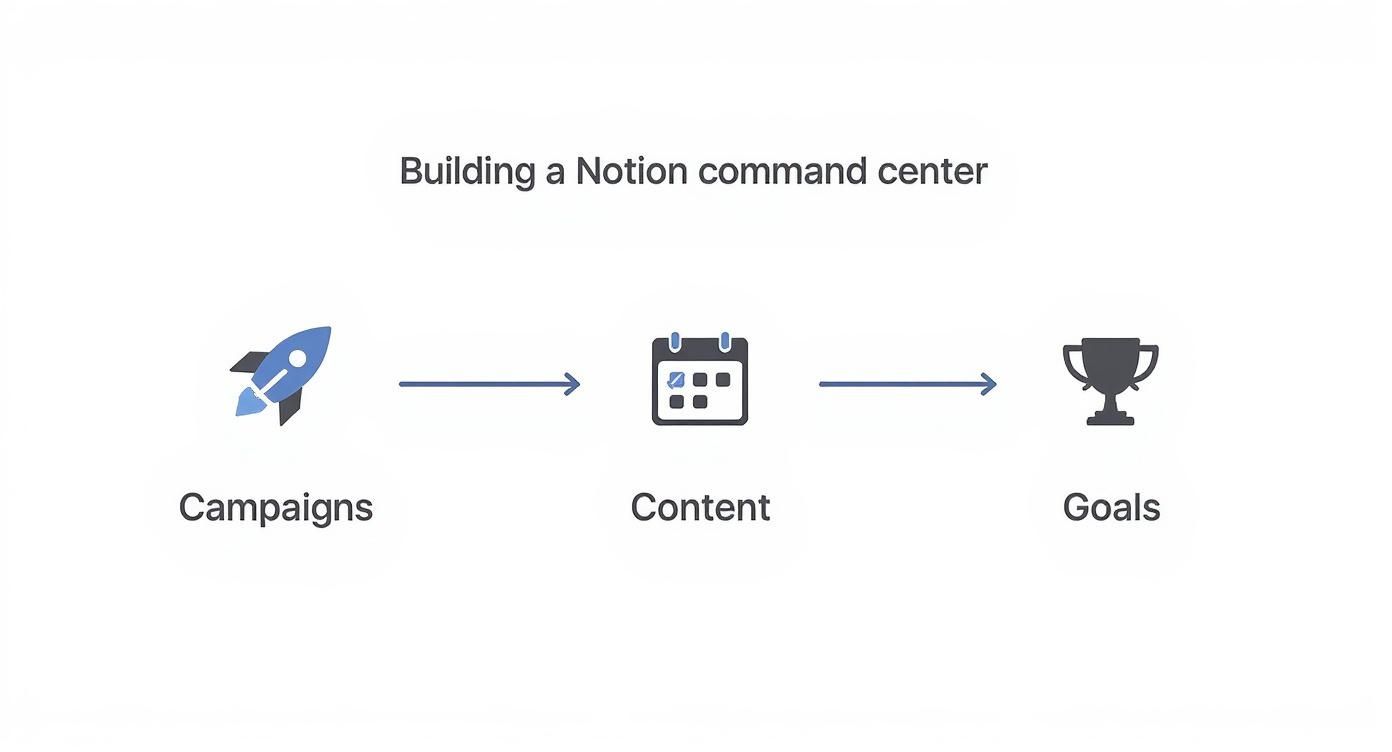
As you can see, a well-built campaign tracker doesn't just sit there by itself. It actively informs your content pipeline and is, in turn, informed by your main strategic objectives.
Connecting the Dots with Relation Properties
Now for the part where Notion really outshines any spreadsheet. By using Relation properties, you can link your campaigns to other key databases in your workspace, creating a truly integrated system where information just flows naturally.
For example, you could set up relations to:
- A Content Calendar: Link a specific blog post, a series of social media updates, or an email sequence directly to the campaign it's a part of.
- Quarterly Goals (OKRs): Connect each campaign back to the high-level business objective it's meant to hit.
- Assets Database: Keep all your creative in one place by associating images, ad copy, or video files with their corresponding campaigns.
When you create these relational links, you're building a genuine single source of truth. You can click into any campaign and immediately see every piece of content, every business goal, and every creative asset tied to it. No more digging through endless folders or Slack DMs to find what you need.
At the end of the day, a solid marketing campaign tracking template is all about organizing your work and giving you the data to optimize it. You're monitoring the critical metrics that matter—from top-of-funnel stuff like impressions and clicks to bottom-line results like MQLs, closed-won deals, and total revenue generated. It gives you a structured way to make every campaign better than the last. You can find more great insights on tracking key performance indicators at Diggrowth.com.
With this foundation in place, you've got a dashboard that delivers a complete, at-a-glance overview of your entire marketing world.
Automating KPIs with Notion Formulas
A great marketing template should work for you, not the other way around. This is where we bring your static database to life by automating your Key Performance Indicators (KPIs) with Notion's powerful formulas. This one move transforms your template from a simple logbook into a smart, analytical tool that does the heavy lifting for you.
First thing's first: you need the raw data. In your Notion database, you'll want to create Number properties for the core inputs you'll be tracking.
- Spend: The total amount invested in the campaign.
- Impressions: How many times your content was displayed.
- Clicks: The number of clicks your campaign received.
- Conversions: The total number of desired actions taken (e.g., sign-ups, sales).
Once you've got these fundamental inputs established, you can build formulas that automatically calculate the metrics that really matter.

Calculating Your Core Campaign Metrics
Now for the fun part. Let's create the Formula properties. For each of the following metrics, just add a new property to your database, select "Formula" from the type menu, and paste the code provided. It's that simple.
To get you started, here's a quick-reference table with the essential metrics and the exact formulas you'll need.
| Metric (KPI) | Notion Property Type | Calculation Formula |
|---|---|---|
| Cost Per Click (CPC) | Formula | prop("Spend") / prop("Clicks") |
| Cost Per Acquisition (CPA) | Formula | prop("Spend") / prop("Conversions") |
| Conversion Rate (CVR) | Formula | prop("Conversions") / prop("Clicks") |
| Return on Ad Spend (ROAS) | Formula | prop("Revenue") / prop("Spend") |
This table gives you a clear roadmap for what to build. Below, we'll walk through exactly what each one does and how to set it up perfectly.
1. Cost Per Click (CPC) This formula divides your total spend by the number of clicks, giving you the average cost for each click. It’s a baseline metric for understanding ad efficiency.
prop("Spend") / prop("Clicks")
2. Cost Per Acquisition (CPA) Here, we calculate how much it costs to get one conversion. This is a critical metric for measuring the financial efficiency of your campaign.
prop("Spend") / prop("Conversions")
3. Conversion Rate (CVR) This formula shows the percentage of clicks that actually resulted in a conversion, helping you understand how compelling your offer and landing page are.
prop("Conversions") / prop("Clicks")
Don't forget to edit this formula property and set its number format to "Percent" for a clean, easy-to-read display.
4. Return on Ad Spend (ROAS)
To calculate ROAS, you'll need one more Number property: Revenue. Once that's added, this formula shows how much revenue you generated for every single dollar spent.
prop("Revenue") / prop("Spend")
Pro Tip: When setting up your ROAS formula, edit the property and set the number format to show "As a multiple." A ROAS of 3.5 will then display as "3.5x," which is the standard, professional way to represent this crucial metric.
By automating these calculations, you all but eliminate the risk of human error from manual data entry and save yourself countless hours. As any reporting expert will tell you, things like cost per lead, conversion rates, and ROAS are what allow marketers to see a clear correlation between ad spend and quality lead generation.
Expanding Your Automated Dashboard
These formulas are just the beginning. The real power of Notion comes from combining and customizing them to fit your specific needs. Just as Notion Formulas streamline KPI tracking, exploring how new integrations to automate your workflow can further enhance your campaign command center.
With these formulas plugged in, your marketing campaign tracking template is no longer just a data repository—it's an active, intelligent dashboard. It automatically surfaces the insights you need to make smarter, faster decisions, ensuring every marketing dollar is working as hard as it possibly can for your business.
For even more ideas on leveling up your workspace, our guide on 10 tips to help you get the most out of Notion is packed with actionable advice.
See Your Campaign Performance at a Glance with Custom Views
Raw data is a great start, but let's be honest, a wall of numbers doesn't tell a story. Once you’ve automated your KPIs, the real magic happens when you build custom views in Notion. This is how you transform that raw data into intuitive dashboards that give you insights in a single glance.
Instead of hunting through rows in a table, you can map out your entire workflow, see your content calendar laid out visually, and create high-level summaries that instantly answer your most important questions. Think of it as building a command center for your marketing efforts.
From Workflow to Timeline
The easiest win here is a Kanban board. This view is perfect for organizing all your campaigns by their current status. Just create a new view, choose "Board," and set it to group everything by the "Status" property. Just like that, you have a drag-and-drop pipeline showing what’s in Planning, what’s Active, and what’s Completed.
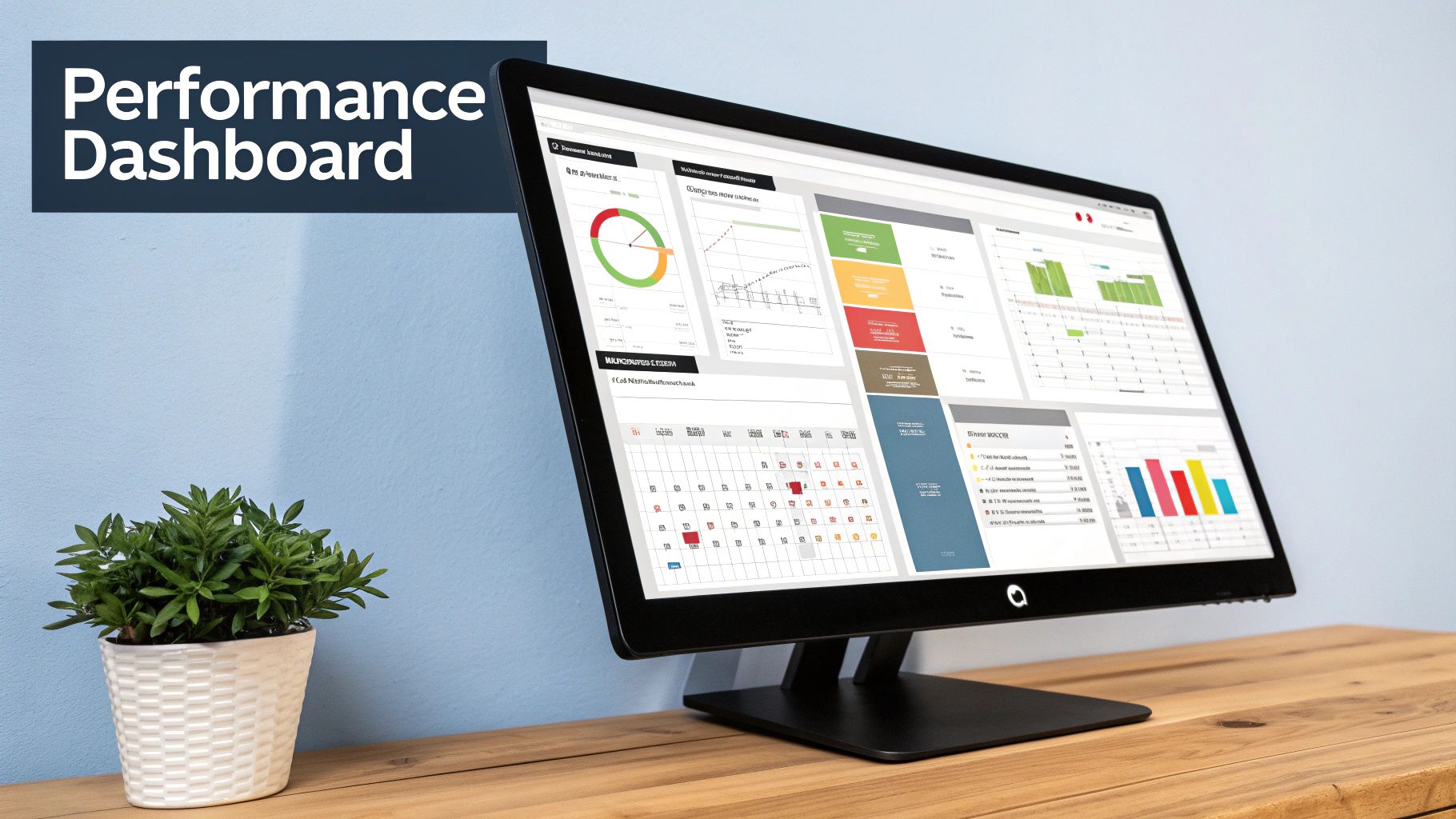
Another game-changer is the Calendar view. Create a new view, set it to "Calendar," and Notion will automatically plot all your campaigns based on their 'Timeline' property. This is a lifesaver for spotting content gaps, avoiding campaign overlaps, and just generally making sure you have a consistent stream of marketing activities planned out.
And for a more visual, high-level dashboard, the Gallery view is fantastic. You can configure the cards to display key metrics like ROAS or Conversions, giving you a quick, digestible snapshot of your best-performing campaigns.
Creating Specific Performance Reports
Now we get to the really powerful stuff: creating filtered and sorted Table views. This is where you move beyond simple organization and start building specific, actionable reports that answer tough questions.
Using filters, you can slice and dice your data to see exactly what you need. For instance, you could quickly spin up custom views like:
- Top Campaigns by ROAS: A simple table view sorted by your ROAS property in descending order. This immediately surfaces your most profitable campaigns.
- Q3 Social Media Performance: A filtered view showing only campaigns where the 'Channel' is "Social Media" and the 'Timeline' falls within Q3.
- Underperforming Campaigns: A view that filters for any campaign with a CPA above a certain number, instantly flagging them for a closer look.
These custom views turn your template from a simple tracker into a dynamic analytical tool. You’re no longer just logging data; you’re actively querying it to find insights that will drive much smarter marketing decisions.
This is a huge step up from juggling spreadsheets. Modern platforms have been leaning into this for a while, with teams reporting they save up to 20 hours a week on manual reporting by using integrated tools. You can read more about how advanced templates boost marketing effectiveness at Smartsheet.com. By building these views directly in Notion, you’re creating that same level of efficiency for your own workflow, tailored exactly to your needs.
Put Your Reporting on Autopilot with NotionSender
<iframe width="100%" style="aspect-ratio: 16 / 9;" src="https://www.youtube.com/embed/nLcwLEQChgc" frameborder="0" allow="autoplay; encrypted-media" allowfullscreen></iframe>
Okay, your marketing campaign tracker is now a seriously powerful, self-calculating dashboard. But its real value kicks in when you can share those insights without adding another manual task to your already packed schedule. This is where we put your reporting on autopilot.
We're going to transform your tracker from a passive database into an active communication tool. The goal is simple: keep everyone from your CMO to the sales team in the loop, without you ever having to manually pull numbers and send an update again.
To pull this off, we'll use NotionSender, a tool built specifically to send emails straight from your Notion workspace.
Bridge the Gap Between Notion and Your Inbox
First things first, we need to build a bridge between your data in Notion and your email. This connection is the secret sauce to unlocking automated performance summaries. Instead of the old-school way of exporting data or taking screenshots, you're creating a live pipeline that pulls fresh metrics directly from your campaign tracker.
This completely eliminates the risk of sending out old, irrelevant information. More importantly, it saves you from the soul-crushing task of building those weekly report emails from scratch. Once you're connected, your Notion database becomes the single source of truth that fuels your entire reporting cycle.
Getting started is surprisingly straightforward. You can jump right in and create your first automated email campaign with NotionSender to see for yourself. The platform walks you through securely authorizing access to your Notion database, and you'll be up and running in minutes.
Set Up Your Automated Performance Summaries
With the connection in place, now for the fun part: telling NotionSender what to send and when to send it. You do this by setting up simple triggers and customizing email templates with dynamic data from your tracker.
For example, you could create an automation that kicks off every Monday morning at 9 AM. This trigger tells NotionSender to grab the data from a specific filtered view in your tracker—maybe one you've called "Last Week's Performance"—and fire it off to a list of stakeholders.
You can then design a clean, professional email template. But the real magic comes from using dynamic placeholders that pull data directly from your Notion properties.
- Subject Line: Weekly Campaign Performance: [Campaign Name]
- Email Body: "Morning team, here are the latest results for the [Campaign Name] campaign. We've generated [Total Leads] new leads with a current ROAS of [ROAS]x."
This isn't just another notification; it's a personalized, data-rich report sent automatically on your behalf. Imagine your CEO getting a concise summary of the company's return on ad spend every single month, without you lifting a finger. That's the power we're unlocking here.
Got Questions About Your Notion Campaign Tracker?
Building a new system in Notion is exciting, but it almost always brings up a few practical questions. As you start living in your new marketing campaign tracking template, you'll probably run into some real-world scenarios that need a smart solution.
Let's walk through a few of the most common ones I hear. Getting these details right is what turns a good template into a great one—transforming your Notion workspace into a true command center for your marketing.
How Do I Handle Recurring Campaigns?
This one comes up all the time, especially for teams running monthly newsletters or weekly social pushes. Constantly rebuilding the same campaign structure is a huge time-sink.
The secret is to create a "master" campaign template inside your database.
Here’s how you do it:
- First, build out a single campaign entry perfectly. Get all the properties right, link any related databases, and maybe even pre-populate a to-do list inside the page itself.
- Then, head to the top-right of your database. See that little arrow next to the blue "New" button? Click it and select "+ New template."
- Give it a clear name like "Monthly Newsletter Campaign" and save it.
From now on, starting that campaign is a one-click job. You just select it from the template list, and a perfect, pre-configured copy pops up instantly. This is a game-changer for consistency and saves a massive amount of repetitive setup.
Can This Template Track Non-Digital Campaigns?
Absolutely. This is where Notion’s incredible flexibility really shines. Just because the template might be set up for digital metrics doesn't mean it can't handle offline campaigns like trade shows, direct mail, or print ads. You just need to tweak your properties.
A simple way to do this is to add a Select property called "Campaign Type" with options like "Digital" and "Offline."
For an offline event, metrics like 'Clicks' or 'Impressions' obviously don't fit. No problem. Just add a few custom Number properties to track what actually matters—think "Leads Collected," "Foot Traffic," or "Brochures Distributed." The core of your tracking system stays the same; you’re just swapping out the data points to match the real-world activity.
The key is to remember that your Notion template isn't rigid. It's a living document designed to evolve with your marketing strategy, whether it's happening online or offline.
What If a Campaign Spans Multiple Quarters?
Marketing initiatives don't always play by the calendar's rules. So what happens when a major campaign kicks off in Q2 but runs all the way through Q3? You definitely don't want to create duplicate entries and mess up your data.
The cleanest solution here is to use a Relation property.
Set up a separate, simple database called "Quarters" or "Fiscal Periods." Then, in your main campaign tracker, add a Relation property that links to it. Now, a single campaign can be easily associated with both "Q2 2024" and "Q3 2024."
When you build filtered views for your quarterly reports, that one campaign will correctly show up in both places. It gives you perfectly accurate data without any messy workarounds or duplicated effort.
Ready to transform your tracking and reporting? NotionSender bridges the gap between your data and your stakeholders, putting your updates on autopilot. Start automating your email reporting today at notionsender.com.

